
The recent migration to xcode 10.1 broke builds for apps using the file chooser API. In order to use that API we need to make changes to the provisioning profile to include iCloud support. With the new version you must have a container associated with iCloud for this to work.
To fix this follow these steps:
Login to https://developer.apple.com/account/ios/identifier/bundle
Under App IDs select your app
Click Edit
Check iCloud and select Include CloudKit support (requires Xcode 6)
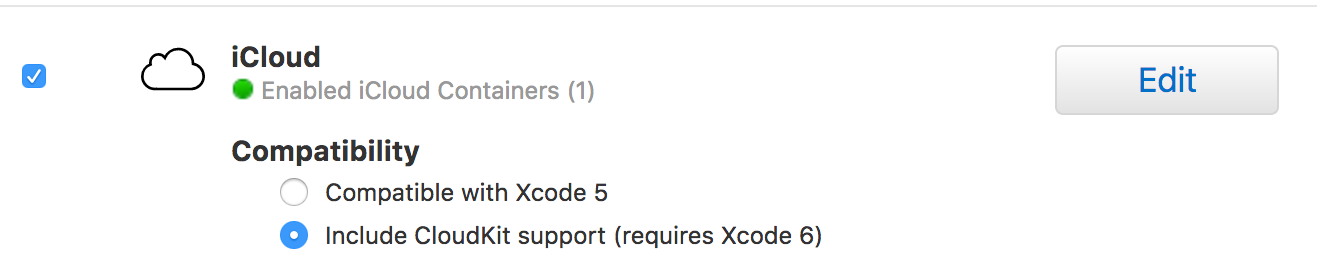
Figure 1. iCloud Settings
Create a new iCloud container and give it a unique name/package
Go back to the icloud settings edit mode and select the new container in the list of containers as such
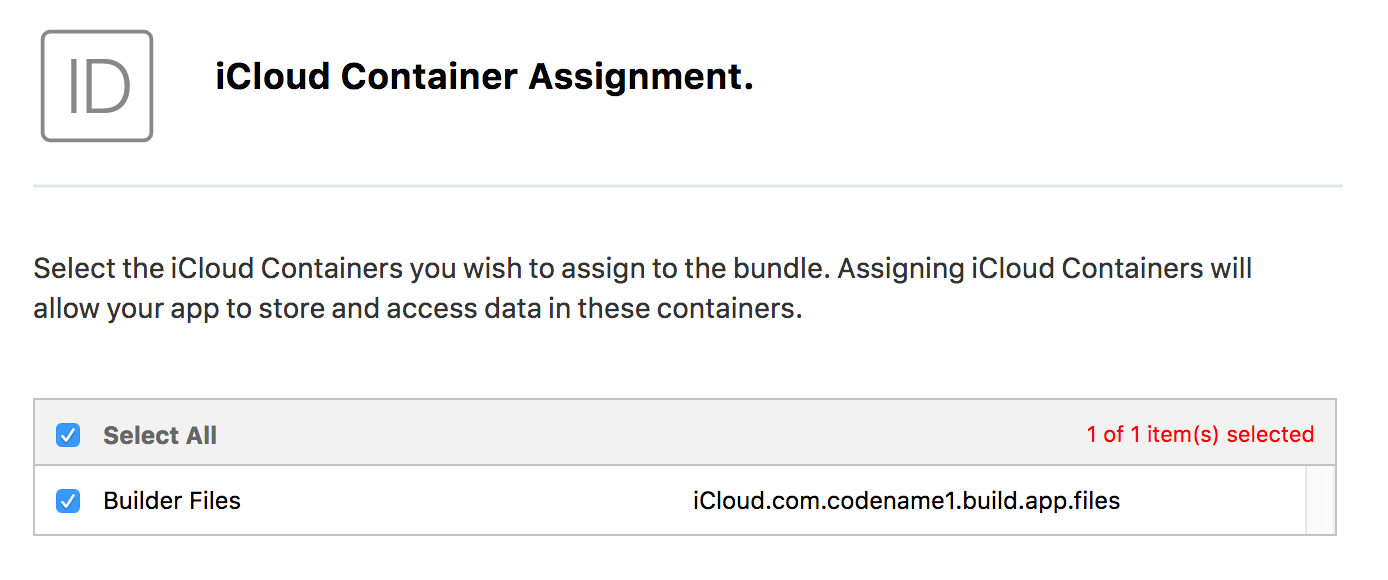
Figure 2. Select the Container
- Next regenerate and download the provisioning profiles, replace the ones in your app with the new provisioning profiles
Notice that this will only work with the default xcode 10.1 mode. It seems that the application loader now requires this as Apple no longer accepts binaries with xcode 9.2 that use the older approach (without containers).
Archived Comments
This post was automatically migrated from the legacy Codename One blog. The original comments are preserved below for historical context. New discussion happens in the Discussion section.
Eric Kimotho — January 15, 2021 at 3:51 pm (permalink)
Thank you for this. Apple website was updated and menus rearranged. Below are the steps I followed.
1 Login to developer account2 Select Certificates, Identifiers & Profiles
3 Select iCloud containers from drop down in the right (where default value shown is App IDs)
4 Click + icon to add new identifier/container – by default iCloud containers will be selected
5 Click Continue
6 Enter description eg Name of the CN1 app,
7 Enter identifier eg CN1 app package name and click continue, note iCloud prefix will be added by default
8 Click Register
9 You are taken back to identifiers listing created iCloud containers
10 Select App IDs from drop down in the right
11 Select app you need to enable iCloud (Note Apps are appearing here after sending successful iOS build, note in this case filechooser lib should first be uninstalled from project (using this link </blog/tip-uninstall-cn1lib/>) for build to be successful)
12 Scroll down and check iCloud then select include CloudKit support (requires Xcode 6)
13 Click Edit button, a dialog with iCloud containers will show
14 Select iCloud container to use and click continue
15 Click save button at top right corner
16 A warning dialog that provisioning will be revalidated and need to be regenerated will show, click continue
17 Back to IDE reinstall filechooser lib
18 Under project’s iosCerts folder, delete both provisioning profiles and rerun certificate wizard to regenerate provisioning profiles which will now have iCloud enabled
19 Send iOS build, should be successful now
Discussion
Join the conversation via GitHub Discussions.