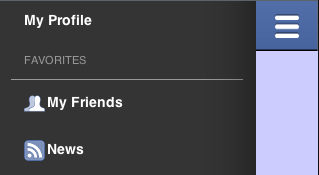
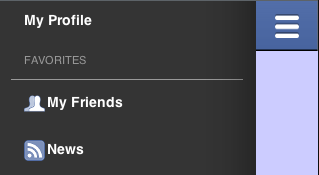
A lot has happened with the side menu bar (the
Hamburger Menu
) since we initially launched it. We now support a lot of new features seamlessly such as swiping the sidemenu in/out and various other capabilities. The other day we added support for side menus on the right and top as well as multiple buttons on the side menu title bar.
So let’s get started with the features, first is one of the newer features up our sleeve, the ability to place a side menu on the right, top or on both sides of the title (as in the facebook app). You can
accomplish this by using something like cmd.putClientProperty(SideMenuBar.COMMAND_PLACEMENT_KEY, SideMenuBar.COMMAND_PLACEMENT_VALUE_RIGHT);
Or as you might see in this more detailed example where you can just swap menu placements on the fly:
One of the nice things about the side menu bar is that you can add just about anything into the side menu bar by using the SideComponent property e.g.:
This is remarkably useful but it’s also somewhat problematic for some developers, the SideMenuBar is pretty complex so if we just set a button to the custom component and invoke showForm() we will not have any transition out of the side menu bar. Thankfully we added several options to solve these issues.
The first is actionable which you enable by just turning it on as such: cmd
.putClientProperty(“Actionable”, Boolean.TRUE);
This effectively means that the custom
component will look exactly the same, but when it’s touched/clicked it will act like any other command on the list. This uses a lead component trick to make the hierarchy (or component) in customCmp act as a single action.
There are several additional options that allow you to just bind action events and then “manage” the SideMenuBar e.g.:
SideMenuBar.
isShowing() – useful for writing generic code that might occur when the SideMenuBar is on the form.
SideMenuBar.closeCurrentMenu()– allows you to close the menu, this is useful if you are not navigating to another form.SideMenuBar.closeCurrentMenu(Runnable) – just like closeCurrentMenu() however it will invoke the run() method when complete. This allows you to navigate to another form after the menu close animation completed.
The TitleCommand property allows you to flag a command as something you would want to see in the right hand title area and not within the SideMenu area. Just place it into a component using cmd.putClientProperty("TitleCommand", Boolean.TRUE);
Last but not least w
e also have some helpful theme constants within the side menu bar that you might not be familiar with:
sideMenuImage – pretty obvious, this is the hamburger image we use to open the menu.
sideMenuPressImage – this is the pressed version of the image above. It’s optional and the sideMenuImage will be used by default.
rightSideMenuImage/rightSideMenuPressImage – identical to the sideMenuImage/sideMenuPressImage only specific to the right side navigation.
sideMenuFoldedSwipeBool – by default a swipe will open the side menu. You can disable that functionality by setting this theme constant to false.
hideBackCommandBool – often comes up in discussion, allows hiding the back command from the side menu so it only appears in the hardware button/iOS navigation.
hideLeftSideMenuBool – allows hiding the left hand menu which is useful for a case of top or right based side menu.
sideMenuShadowImage – image that represents the drop shadow drawn on the side of the menu.
sideMenuTensileDragBool – allows disabling the tensile draw within the side menu command area.
I hope you will have fun exploring the new features of the side menu bar.
Notice: This post was automatically converted using a script from an older blogging system. Some elements might not have come out as intended…. If that is the case please let us know via the comments section below.
Archived Comments
This post was automatically migrated from the legacy Codename One blog. The original comments are preserved below for historical context. New discussion happens in the Discussion section.
Anonymous — September 19, 2013 at 8:55 pm (permalink)
Anonymous says:
Oh these new additions to side menu are great, thanks.
Anonymous — September 20, 2013 at 12:46 am (permalink)
Anonymous says:
Great work on this guys.
Anonymous — February 21, 2015 at 4:16 am (permalink)
Anonymous says:
wow great tutorial, much helpfull
Anonymous — March 6, 2015 at 10:18 am (permalink)
Anonymous says:
Hi Shai,
Im trying to hide the bar at the top of the screen it creates in the example. I want to add a image in one of my containers that will trigger the side menu bar. Any suggestions on this? Regards,
Dante
Anonymous — March 6, 2015 at 2:41 pm (permalink)
Anonymous says:
That would be tough since we rely on this a bit. You can do a trick where you set the menu image to a small sized image and set the padding/margin to the title area to 0. Also set the title and title area UIIDs to be transparent.
To show your icon just use a layer in the layered layout and when its tapped just invoke open sidemenu.
Mahmoud — March 14, 2016 at 11:39 am (permalink)
Mahmoud says:
when i put Side Menu Bar to right Side (Menu Bar Image show in black color)
but my SideMenuBarImage in my theme is white color
Shai Almog — March 15, 2016 at 3:20 am (permalink)
Shai Almog says:
You need to use the theme constant rightSideMenuImage as you can have two different side menu bars and each can have its own image. You are seeing the default image whose color you can control by styling the foreground property.
Mahmoud — March 15, 2016 at 12:13 pm (permalink)
Mahmoud says:
thanks Shai
Mahmoud — March 26, 2016 at 8:45 pm (permalink)
Mahmoud says:
hi Shai,
i have right side menu and my background is white but i have gradient line at the first of menu
how i can remove it
thanks
Shai Almog — March 27, 2016 at 4:27 am (permalink)
Shai Almog says:
That is the shadow for the sidemenu set the theme constant sideMenuShadowBool=false
Mahmoud — March 27, 2016 at 5:46 am (permalink)
Mahmoud says:
Thank you very much
Discussion
Join the conversation via GitHub Discussions.