Pulse is a sample app with a server behind it, for a gym or a studio that runs classes. Members book classes for themselves and their children, open the door with their phone, pay for a membership and train with their friends. Trainers run their classes, the front desk lets people in, and the owner reads the numbers and fills the quiet classes. The app and the server are one Maven project, written in Java on both sides.
This chapter is the user’s guide: what each kind of user sees and can do. Pulse: Building on the sample is the other half. It explains how the project is built and what to change to make it yours.
One app serves everyone. The server gives every account a set of roles, and the app offers a mode for each role the account holds. Someone who holds more than one switches between them from the menu.
| Role | What it adds |
|---|---|
Member | Every account is a member. Book classes for yourself and your household, show the door pass, manage the membership, say when you’re away, see your visits and workouts, and keep up with friends. |
Trainer | Granted by the owner. See the week’s classes and who’s coming, mark attendance, follow heart rate zones live in class, and swap shifts. |
Front desk | Granted by the owner. Check people in by pass, fob or name, take walk-ins, and read the day at a location. A tablet signed in as the desk runs as the kiosk by the door. |
Owner | Runs the studio: the dashboard, plans, the timetable, staff, campaigns and accounts. |
Trying it
Start the server on the development profile. It needs nothing installed: the database is in memory, text messages and push notifications are printed on the console, and cards are simulated.
cd scripts/pulse
CN1_PROFILE=dev backend/server.sh run
Then run the app in the simulator, from another terminal:
cd scripts/pulse
mvn verify -Psimulator -DskipTests -Dcodename1.platform=javase
The development profile seeds a studio with two locations, a timetable of adult
and children’s classes from three weeks back to three weeks ahead, the plans on
sale, and a few weeks of bookings, visits and paid invoices, so every screen has
something to show. Every demo account has the password pulse-demo:
| Account | Who |
|---|---|
A member with two children in the household and a card on file. | |
A new member: no household and no card. | |
A member the owner has flagged. | |
A member who hasn’t been in for weeks. | |
Trainers. | |
The front desk and the door kiosk. | |
The owner. |
The simulated card 4242 4242 4242 4242 is accepted and 4000 0000 0000 0002
is declined. No money moves.
Getting in
A new member registers with a name, an e-mail address, a password and a phone number, which is confirmed with a code sent by text message. On the development profile the code is printed on the server’s console and filled in for you. Before the first booking the app asks the account holder to sign the studio’s waiver, for themselves and for each child they add.
The member
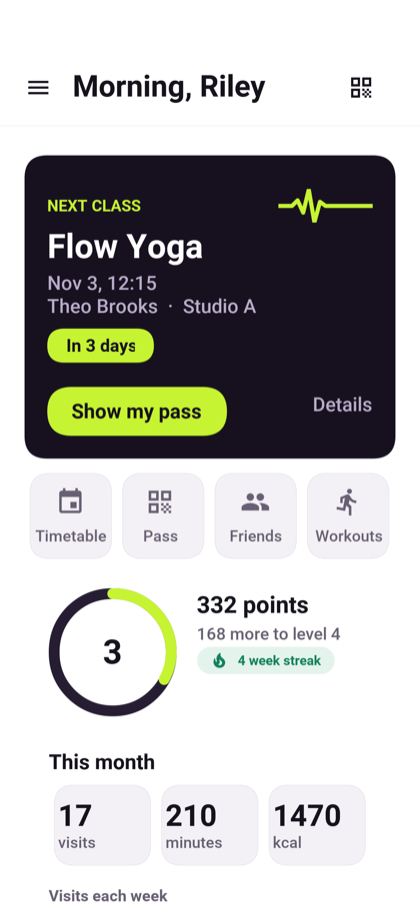
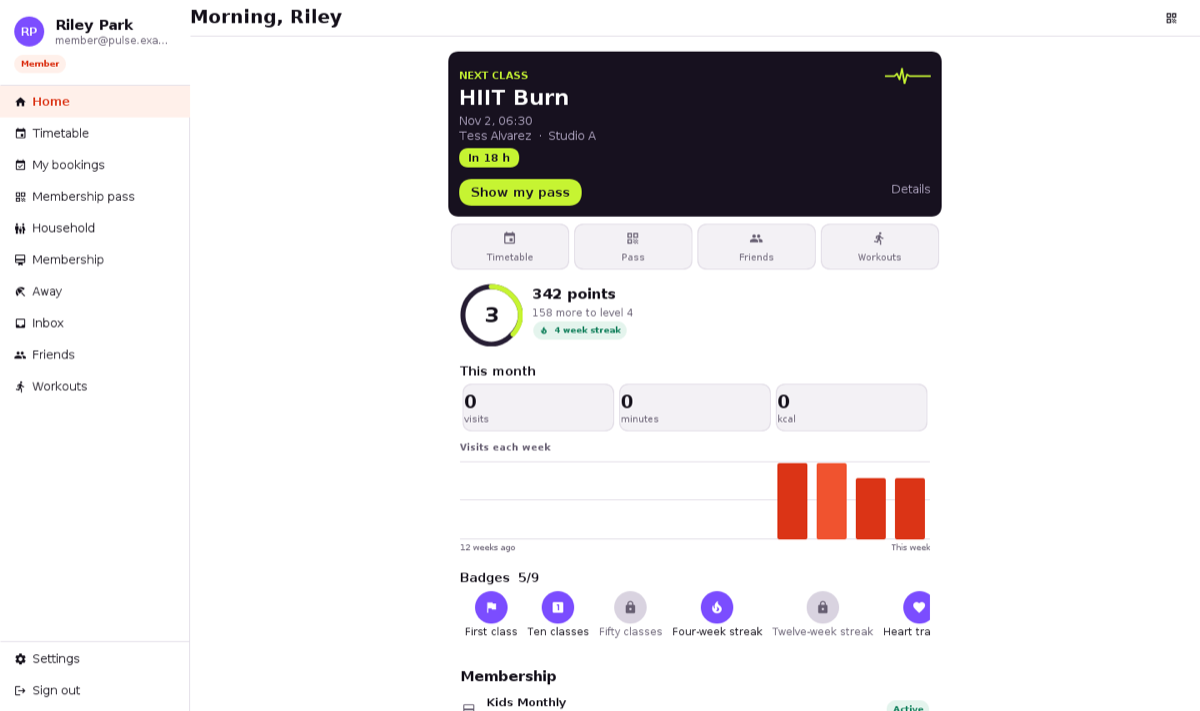
The member’s home leads with the next class booked, with the time, the trainer and the room, and how long until it starts. Under it are this month’s visits, the week streak, the points and level, and the badges.
The timetable and booking
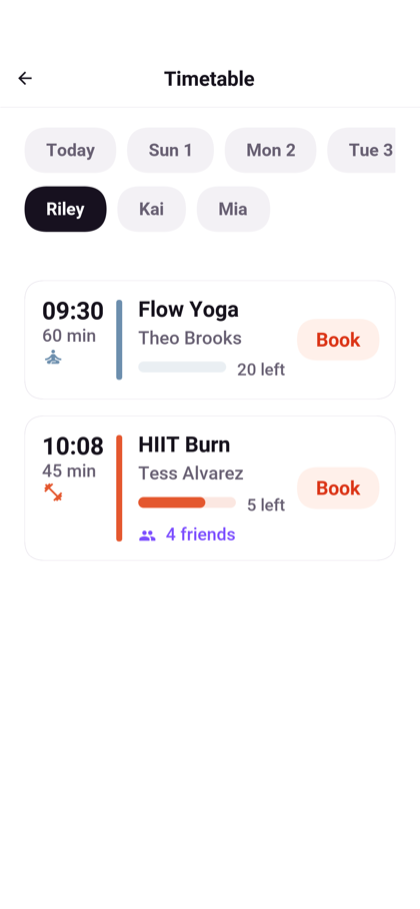
The timetable lists the classes at each location by day, with the places left, which update live as other members book. Pills at the top pick the day and the person in the household, and picking a person shows only the classes open to them. Booking takes a place if one is free and joins the waitlist if not. When someone gives a place back, the first person waiting is moved into the class and told so at once.
A place given back at least 12 hours before the class is free. Later than that it counts as a late cancellation, and a class from a pack is spent. Someone booked who never comes is marked a no-show once the class is over.
A booking is refused when the class has already started, when the person is outside the class’s age range on the day of the class, when the waiver isn’t signed, or when no membership covers the class.
The household
An account holder books for up to eight people: themselves and their children. Each child has their own membership, their own place in a class and their own door pass, but only the account holder signs in. A child’s age is worked out from their date of birth on the day of each class, so a child grows into the next age band without anyone changing anything.
The door pass
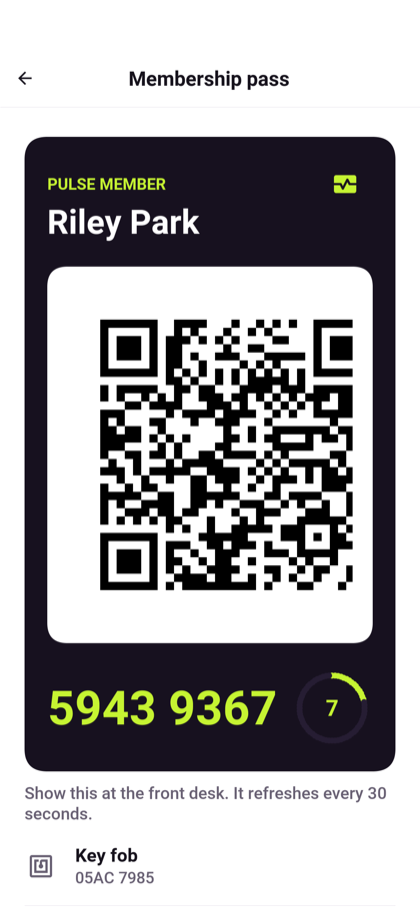
The pass is a QR code that changes every 30 seconds. It’s computed on the phone, so it works with no signal. A pass is good once: a screenshot shown a second time is refused as already used. A child without a phone gets an NFC fob or wristband instead. If a phone is lost, replacing the pass makes the old codes and the old fob stop opening the door at once.
The membership
The plans on sale are monthly, annual, class packs and drop-ins. Joining takes the first payment; changing plan takes what’s left of the old period off the first invoice. A membership can be frozen for one week to three months, and cancelled.
When a renewal is declined the card is tried again after one, three and seven days. The membership stays usable through the first retry; from the second failure it’s past due and the door says so; after the last retry the invoice waits to be paid by hand from the wallet. A member who brings a friend gets a credit when the friend first pays.
Away periods
A member who is travelling or injured says when they’ll be away. No marketing reaches them meanwhile, and they can choose to freeze their billing for the same time.
Visits, workouts and friends
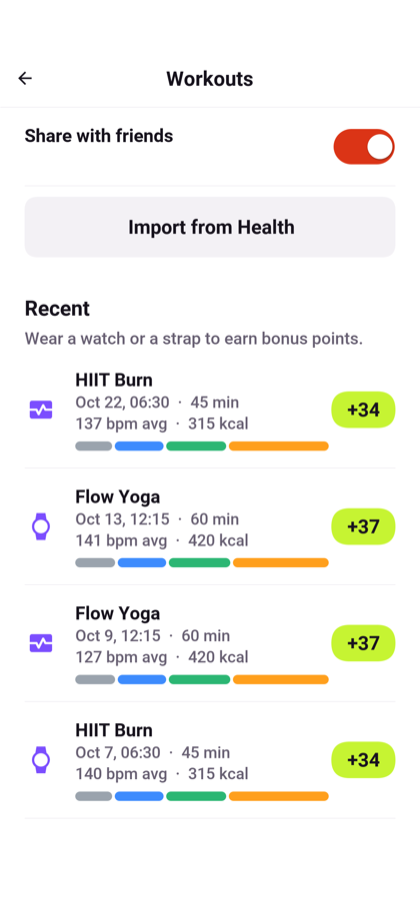
The member’s page shows this month’s visits, the streak of weeks with a visit, and the last twelve weeks. Workouts recorded by the phone’s health store or the watch are kept with their heart rate. A member can share their heart rate with the trainer during a class.
Points, levels and badges
Coming to a class, recording a workout and keeping a weekly streak earn points, and points raise the member’s level. A workout recorded with a heart-rate strap or a watch earns extra points, since it shows how hard the member worked. Badges mark milestones: the first class, ten and fifty classes, a four- and a twelve-week streak, a first workout with heart rate, a class worn with a strap or a watch, a minute in zone 5, and ten hours of workouts. Tapping a badge says how it is earned.
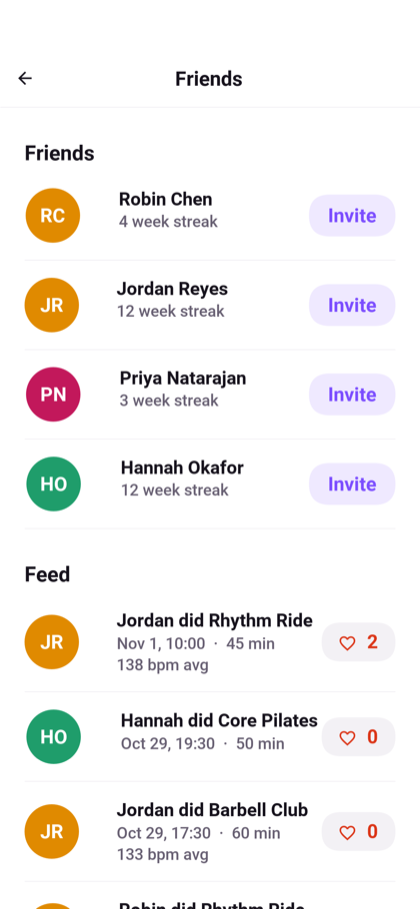
Friends are added by the e-mail they sign in with, and nothing about a member is shown to someone they haven’t accepted. The feed shows friends' visits and the workouts they chose to share, kudos can be given for them, and a friend can be invited to a class.
The timetable shows which friends are booked into each class.
Messages and quiet hours
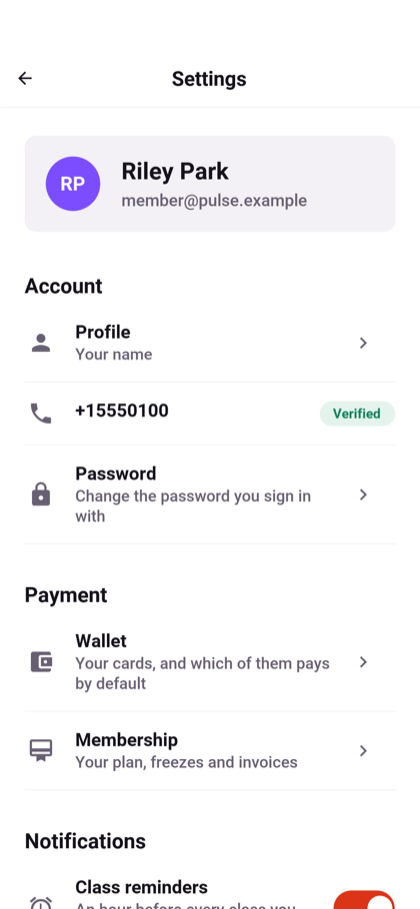
Two kinds of message arrive without anyone sending them: an invitation to a class starting within a day and a half that’s still under 60% full, sent to members who have taken that kind of class before, and a reminder that the studio misses them after two weeks without a visit. Neither is sent to a member who is away or who turned promotions off, and neither arrives during quiet hours, which are 10 PM to 7 AM until the member changes them in the settings.
The watch
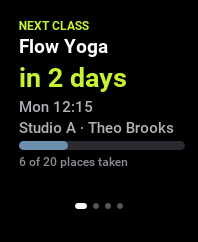
On a paired watch, Pulse is four pages, swiped sideways, and a fifth for a trainer. The first is the next class: its name, a countdown, the room and the trainer, and a bar of how full it is.
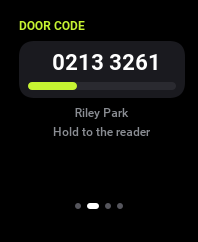
The second is the door code, with a bar counting down to the next one. The code is the same one the phone’s pass shows, so the watch opens the door with the phone left in the locker.
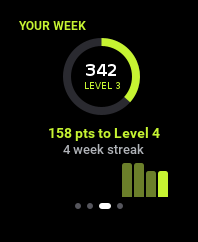
The third is the week: a ring of the points toward the next level, the points still needed, the week streak and the visits of the last eight weeks as bars.
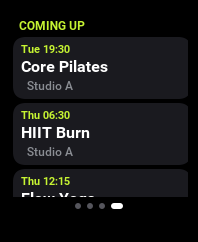
The last lists the classes booked after the next one.
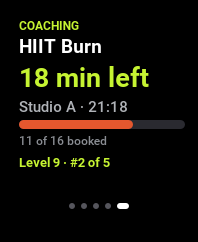
A trainer’s watch adds a coaching page: the class they teach now or next, the minutes until it starts or until it ends, the room and its places taken, and the trainer’s level and place among the studio’s coaches.
The trainer
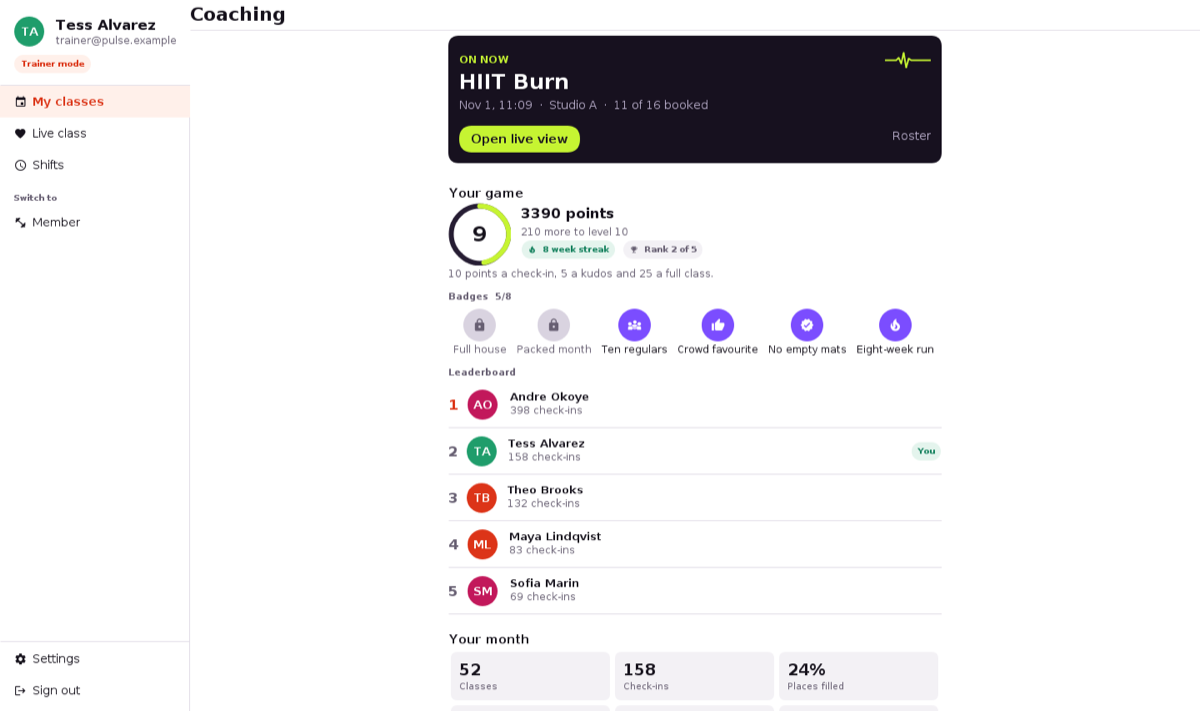
The trainer’s home leads with the class on now, or the next one, on a dark card with a button for the live view and one for the roster.
Under the card is the trainer’s own game. Members earn points for coming; a trainer earns them for the people they coach: 10 for each check-in to their classes, 5 for each kudos on a workout from them, and 25 for a class with every place booked. The points count over the last eight weeks, so a level reflects how the trainer is coaching now rather than how they once did, and every 400 points is a level. The ring shows the level and the way to the next one, and next to it are the weeks running in which the trainer taught, and their place among the studio’s coaches.
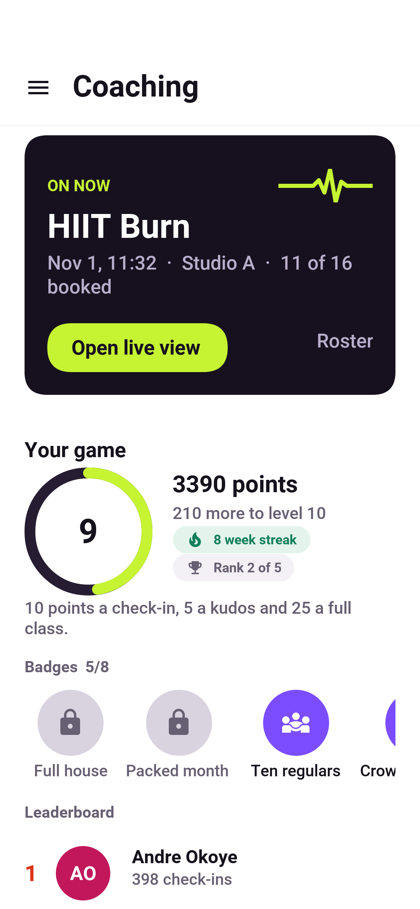
The badges reward what a studio needs from a coach: a full class, five full classes in four weeks, ten regulars, 25 kudos, nine in ten booked members turning up, eight weeks of teaching without a gap, a hundred check-ins, and being the studio’s top coach. Tapping a badge says how it’s earned and whether it is.
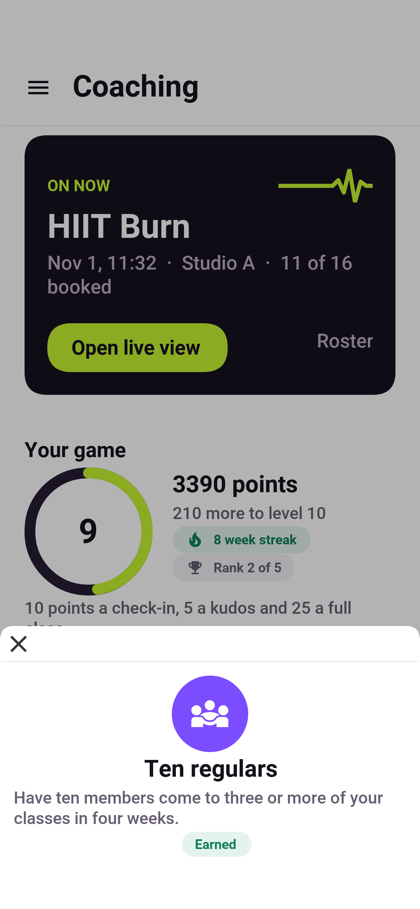
The leaderboard ranks every coach who taught in the last four weeks by the people who came, with the trainer’s own row marked. The trainer’s month follows: the classes taught, the check-ins, how full the classes were and how many of those booked came, the regulars who came three times or more, and the kudos received. A chart shows the check-ins of each of the last eight weeks, and under it the kinds of class that drew the most people.
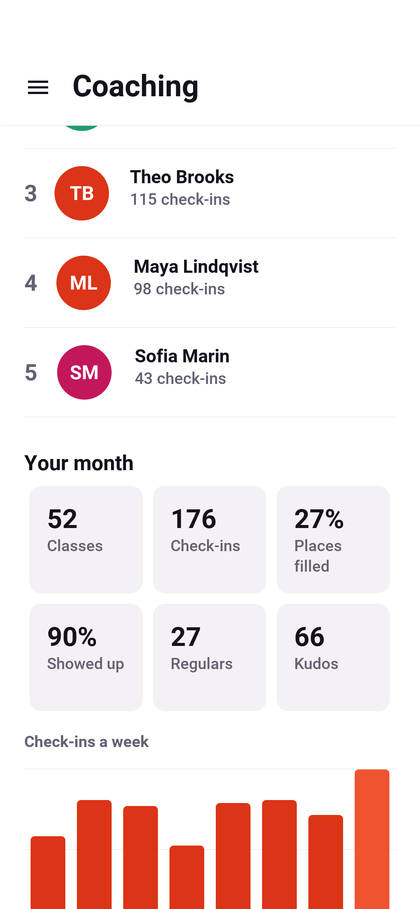
The week’s classes follow, a day at a time, each with how many places are taken, and a full class says so. The roster of each class shows the members booked, the ones waiting and the ones who came, with what the trainer needs to know about each person: a first visit, their age, their heart rate, and any medical note. Attendance can be marked by hand for someone the door didn’t see, and corrected for 30 minutes after the class ends.
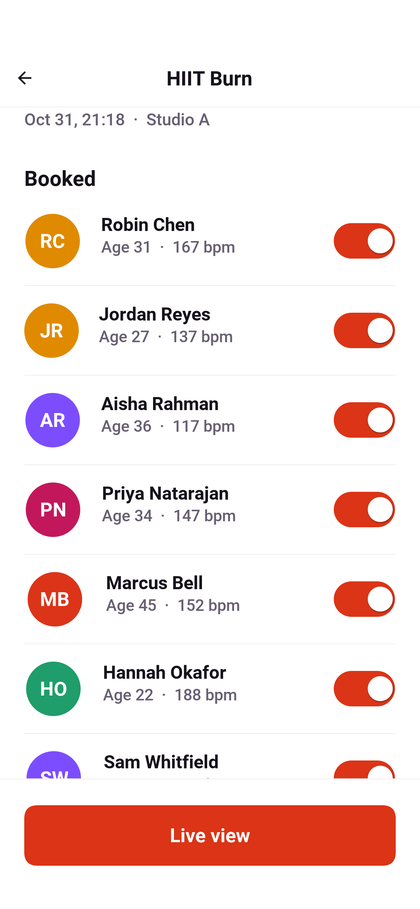
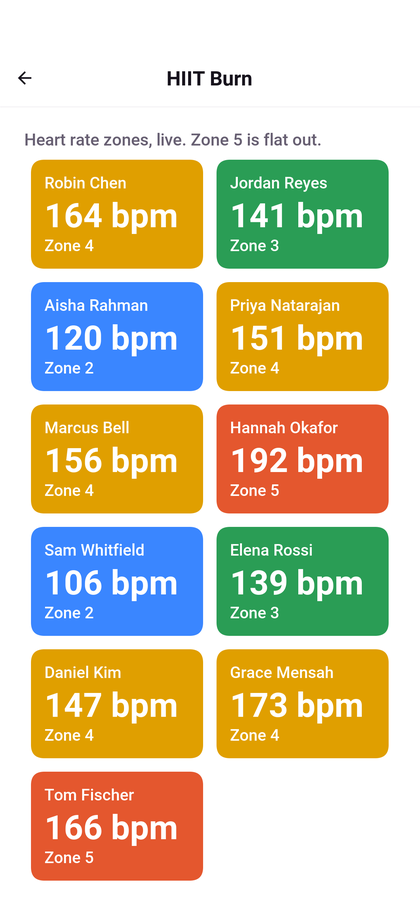
During a class, members who share their heart rate appear with their current zone, one to five, worked out from their age.
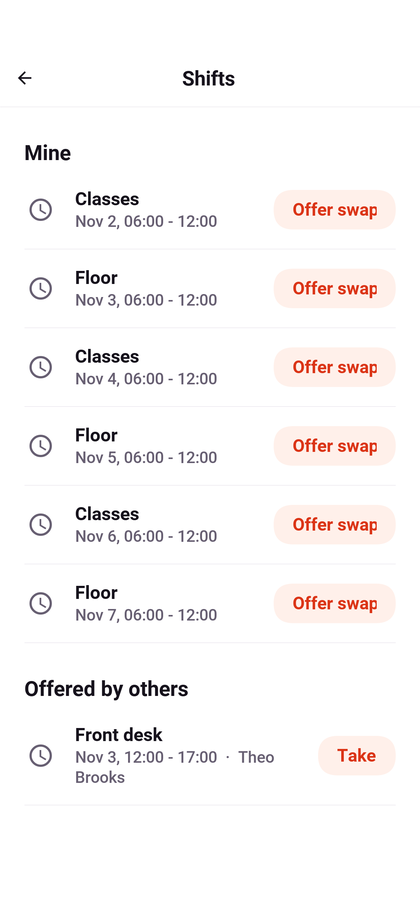
The trainer’s shifts list the ones to come. A trainer offers a shift they can’t work to the others, withdraws the offer while nobody has taken it, and takes a shift another trainer offered.
The front desk and the kiosk
The desk checks people in by scanning the pass, reading a fob, or finding the member by name. Every check-in answers: admitted, or refused with the reason to read out, such as a membership that’s past due or a class the person isn’t booked into. A booking counts for a visit from an hour before its class until 30 minutes after it starts.
Someone who comes in without a membership is recorded as a walk-in: a guest, a day pass or a free trial, paid in cash, by card or not at all. The owner’s campaigns follow up on them.
The desk’s day shows who came, what was taken and what starts soon. Signed in on a tablet by the door, the desk account runs as the kiosk: a member holds up their pass and the screen turns green or red.
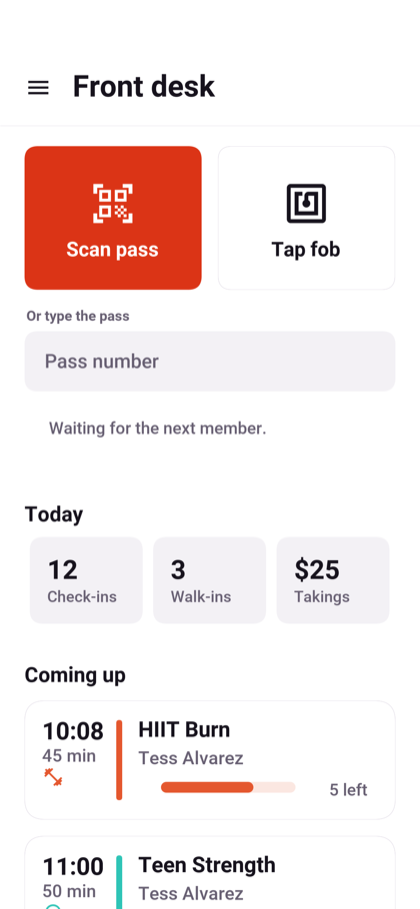
The desk’s home opens with two large buttons, one to scan a pass and one to read a fob, and a field to type a pass number. Under them are today’s check-ins, walk-ins and takings, the classes coming up, and the people who just came in, admitted or turned away.
The owner
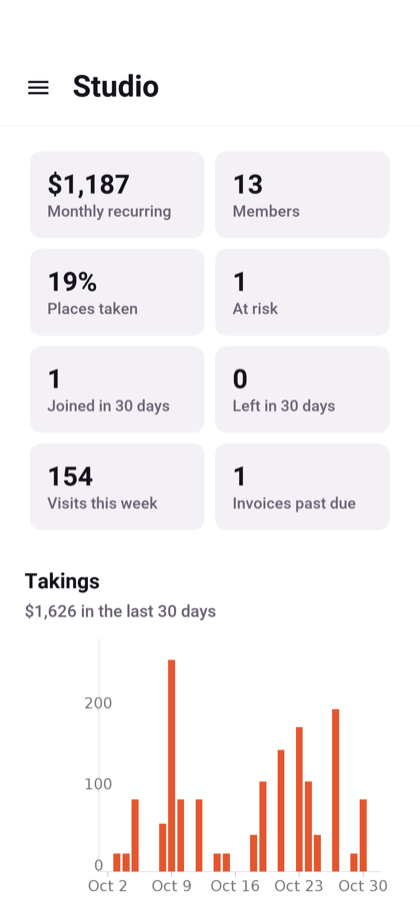
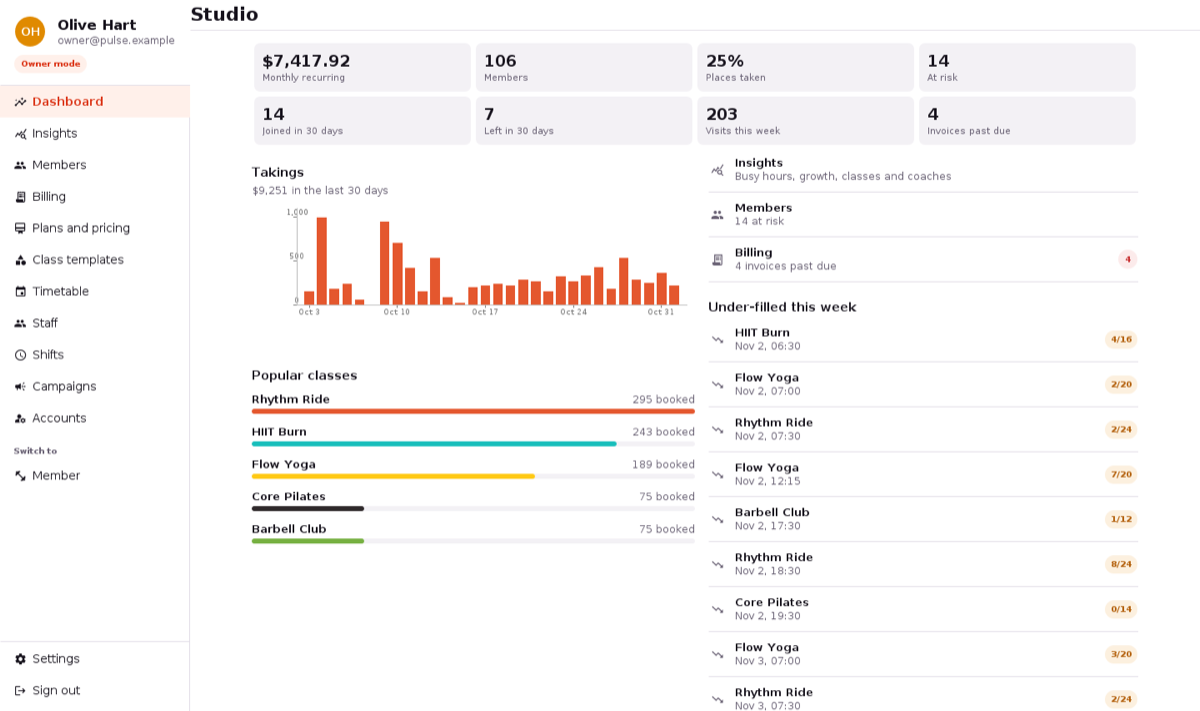
The dashboard opens with the recurring revenue a month, the members, the share of places taken in the last week’s classes, and the members who haven’t been in for two weeks and didn’t say they’d be away. Under them are who joined and who left in the last 30 days, the visits this week and the invoices past due; the takings of each day for the last 30 days; the kinds of class booked most, ranked; and the classes in the next two days that are under half full, each with a button to fill it.
Insights
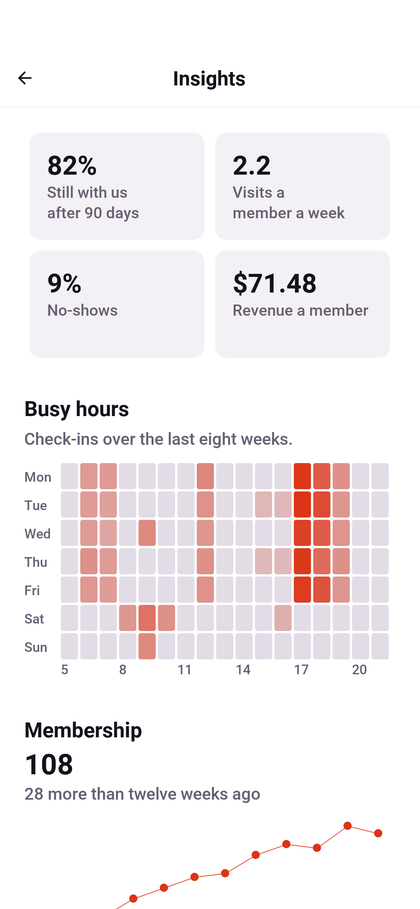
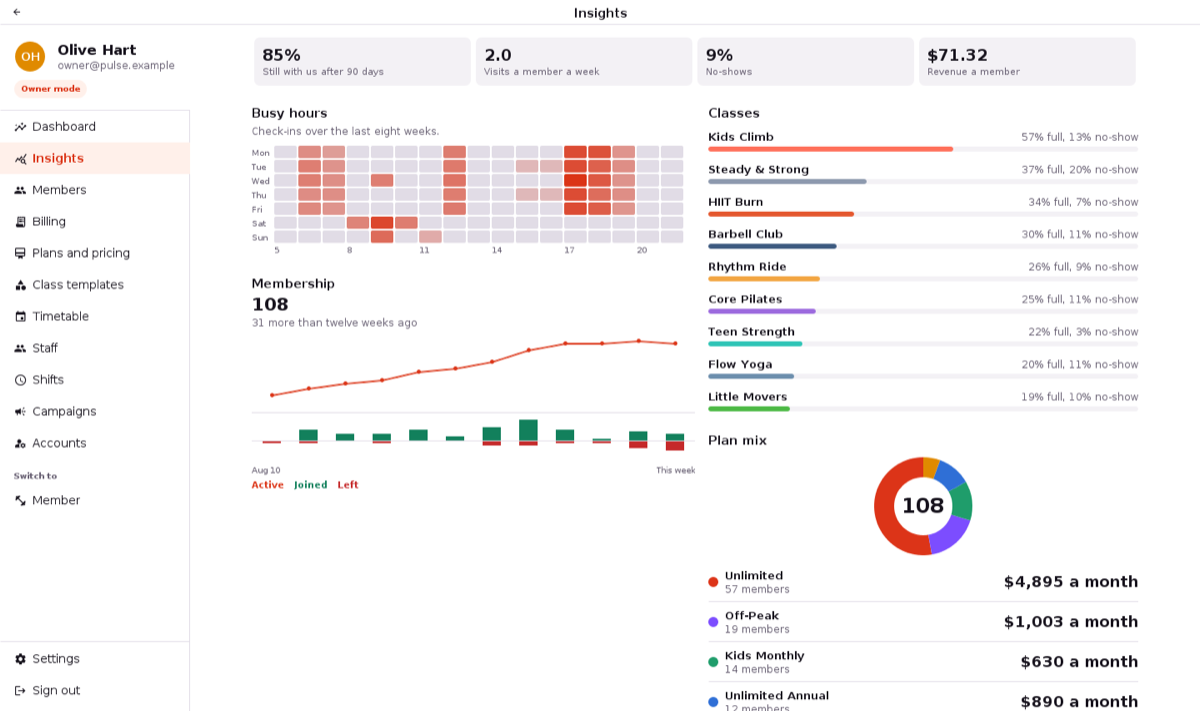
The Insights screen is where the owner looks further back. It opens with four numbers: the share of members who joined 90 days ago or more and are still members, the visits of a member in a week, the share of bookings nobody came to, and the monthly recurring revenue of a member.
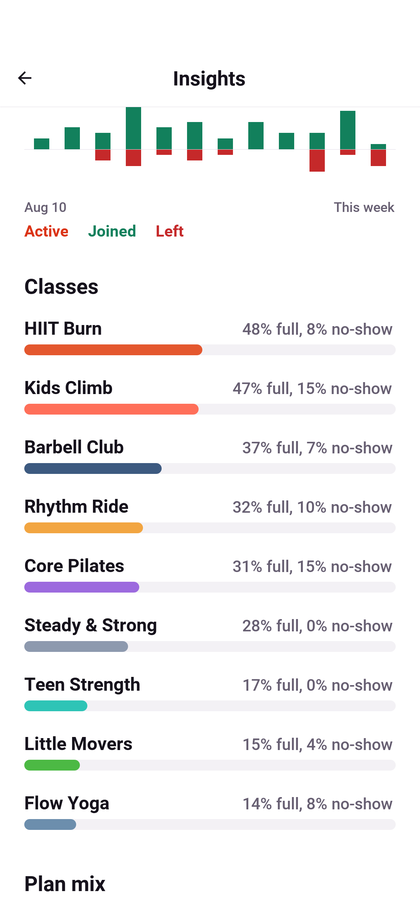
The busy hours are a grid of the days of the week by the hours the studio is open, each cell as dark as the check-ins in that hour over the last eight weeks. Under it, the membership: how many members there are against twelve weeks ago, a line of the active members of each week, and bars of who joined and who left.
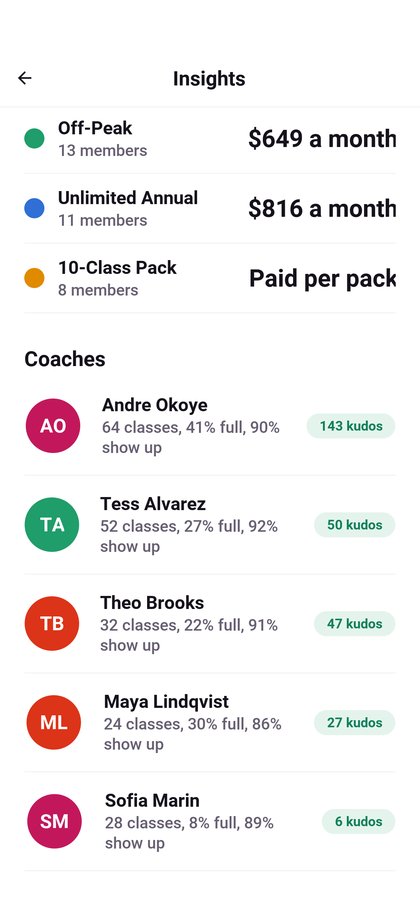
The classes are ranked by how full they ran, each with its share of no-shows. The plan mix is a ring of the members on each plan, with what each plan brings in a month; a class pack is paid by the pack, so it says that instead.
The coaches are ranked by their check-ins, each with their classes, how full those were, how many booked came, and their kudos.
Members
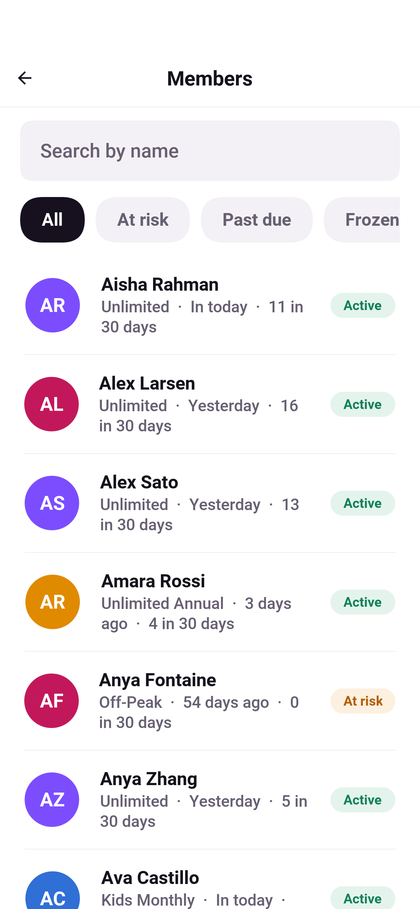
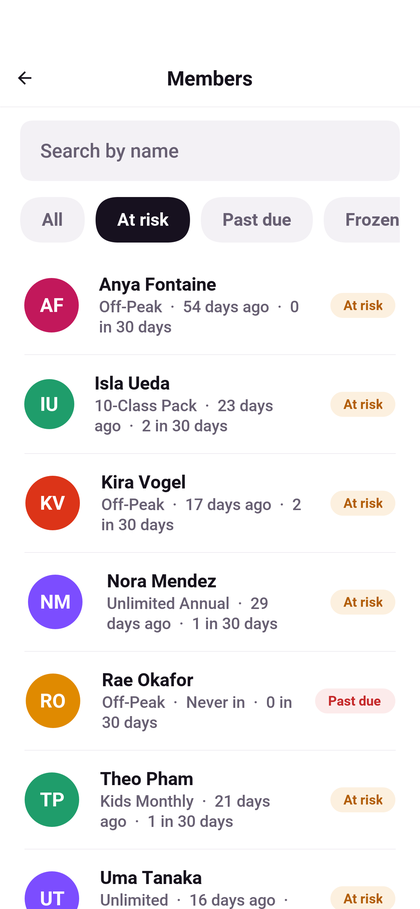
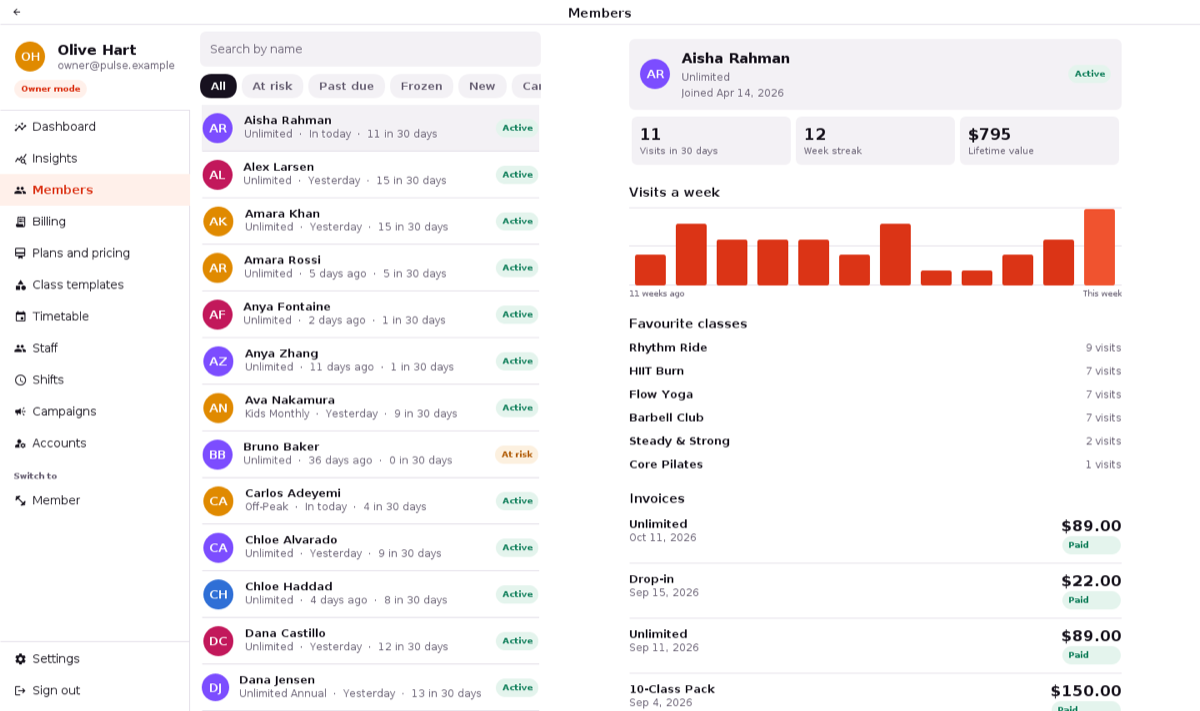
The members list searches by name and filters to the members at risk, past due or frozen. Each row shows the plan, the last visit and the visits in 30 days, and a pill that says where the member stands.
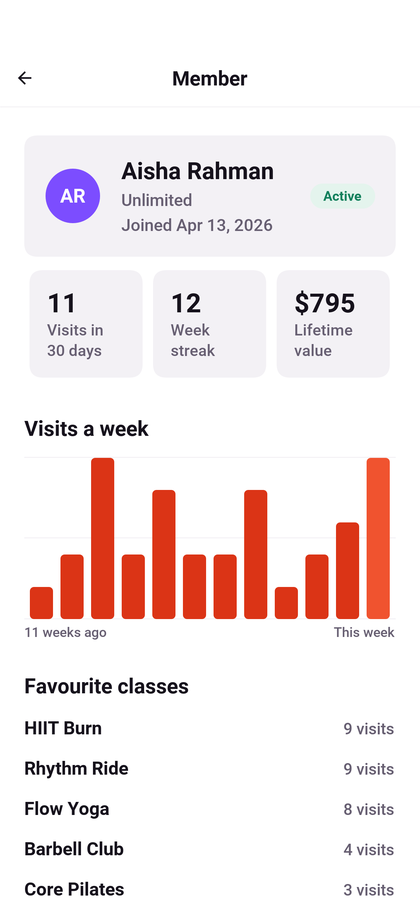
A member’s page has the visits in 30 days, the week streak and what the member has paid in all, a chart of the visits of each of the last twelve weeks, the classes they come to most, and their invoices.
Billing
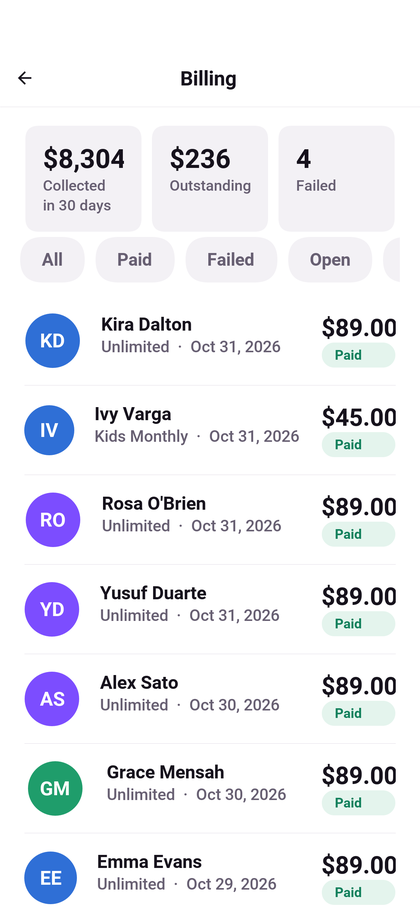
Billing totals what was collected in the last 30 days, what’s outstanding and how many charges failed, and lists the invoices, filtered to paid, failed, or open. A failed invoice shows which attempt it’s on and when the next one runs; the owner can void a failed or open invoice, with a reason.
Plans, classes and the timetable
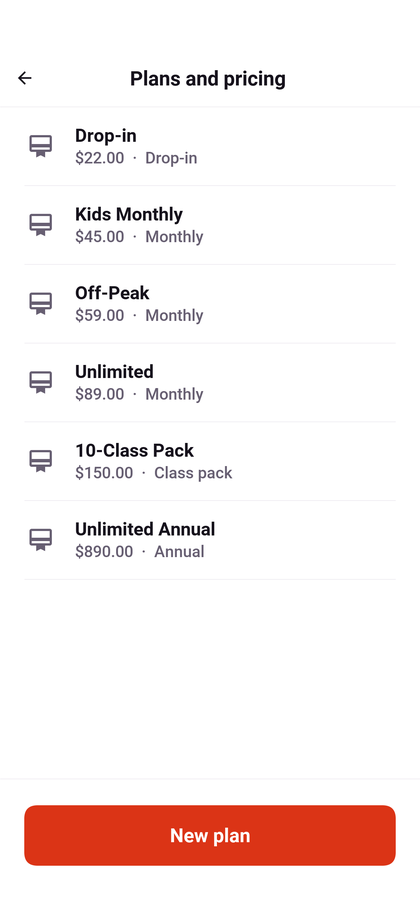
The plans list every way to pay: drop-ins, monthly and annual memberships, class packs, and plans for children or off-peak hours. The owner adds and changes them, and a change of price reaches members at their next renewal.
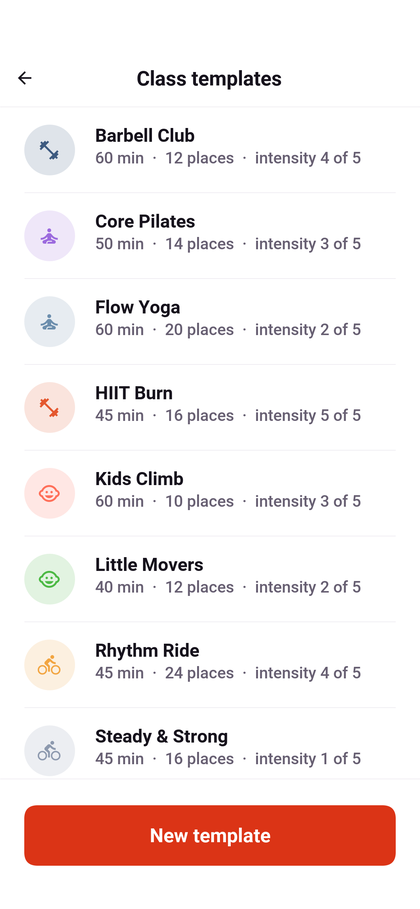
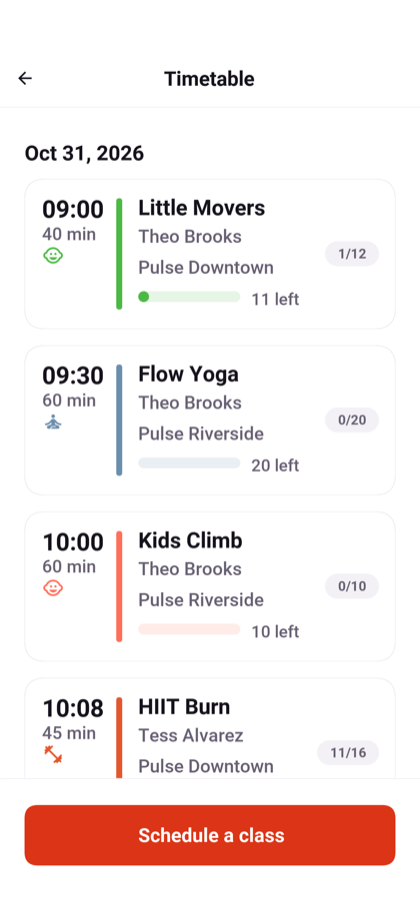
The class templates are the kinds of class the studio gives, each with its length, its places, and how hard it is. A template is what the timetable schedules: the owner puts a class on the timetable for a number of weeks, with its trainer and its room, and cancels a single class with a reason the members booked into it are told.
Staff and shifts
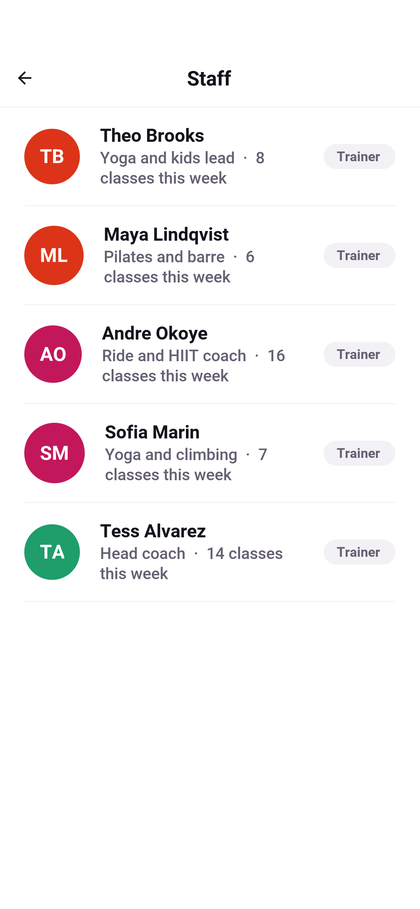
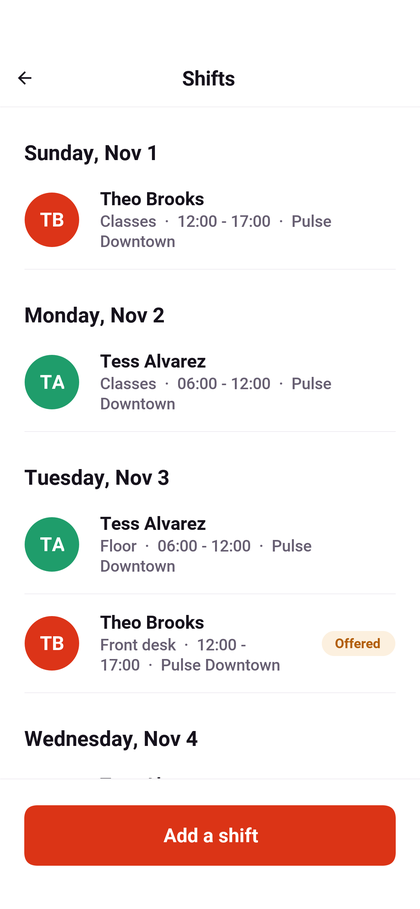
The staff list shows each person’s title and their classes this week, and the owner gives or takes away their roles. The shifts are the whole studio’s rota a day at a time: who works, the duty, the hours, and the site when there is more than one. A shift a trainer offered to the others is marked, and the owner adds shifts.
Campaigns
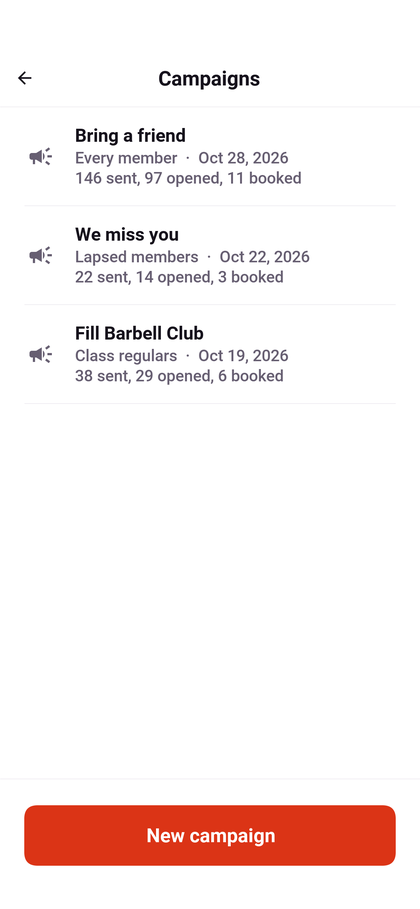
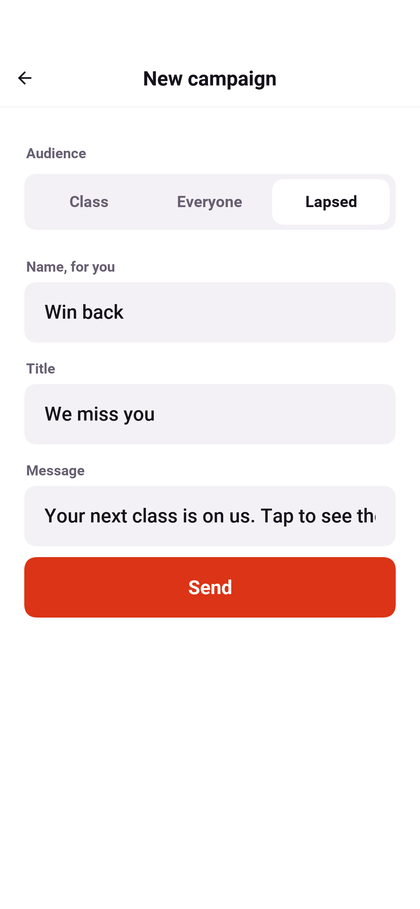
A campaign goes to everyone who took a kind of class, to every active member, or to the members who haven’t been in for a month, as a push notification and a message in the member’s inbox. Each campaign counts how many were sent, opened, and booked. The dashboard’s quiet classes and its members at risk each open a new campaign aimed at them.
Accounts
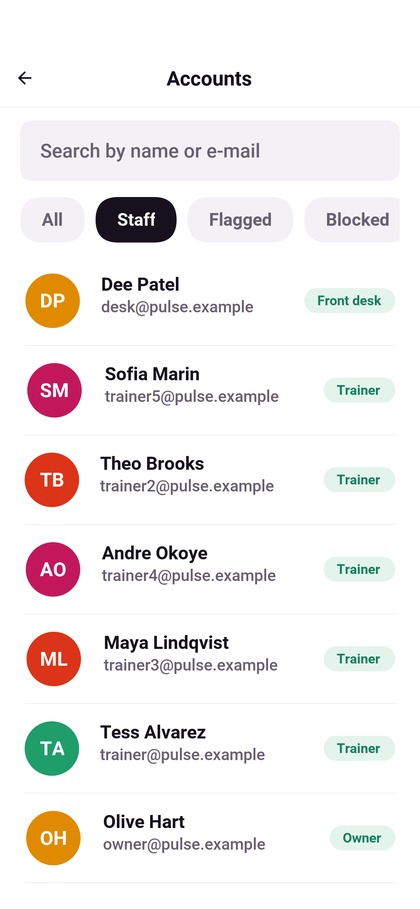
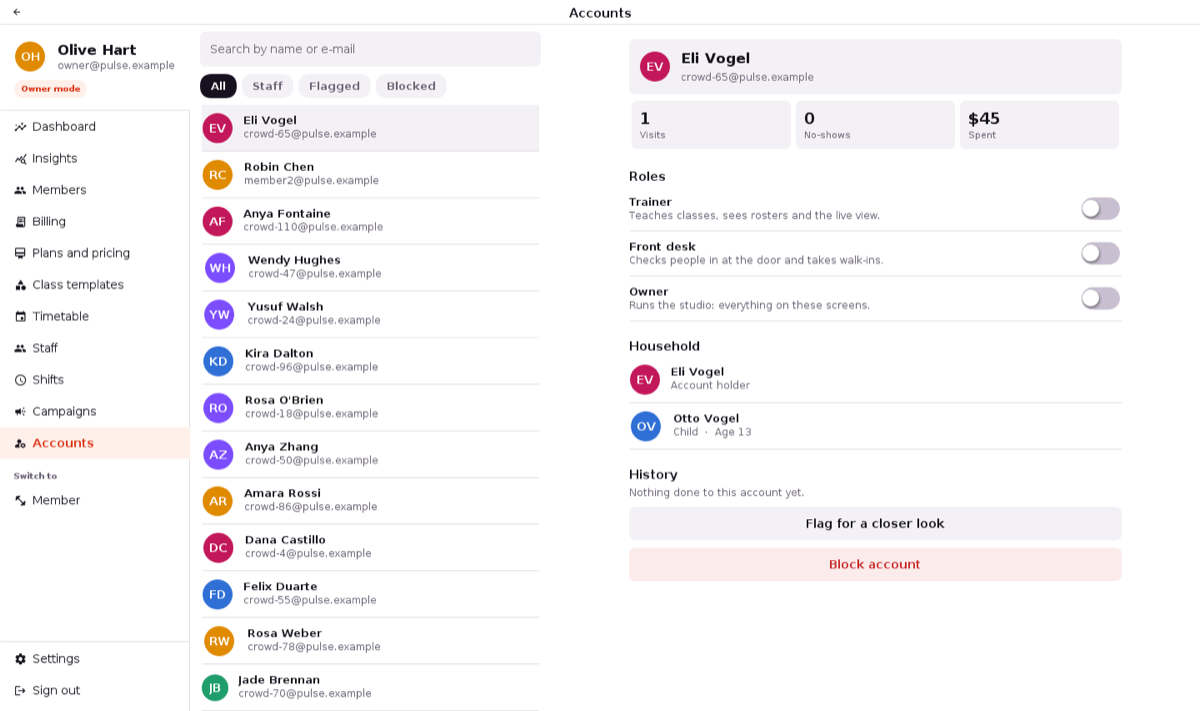
Accounts is the administration of everyone who can sign in: members and staff alike, searched by name or e-mail and filtered to the staff, the flagged, or the blocked. Each row carries the account’s highest role or its standing.
An account’s page has its visits, its no-shows and what it has spent, its roles as switches, the people in its household with any missing waiver, and its history: every flag, block and change of roles, with who did it, when, and why. An owner can’t take away their own owner role, which would leave nobody to give it back.
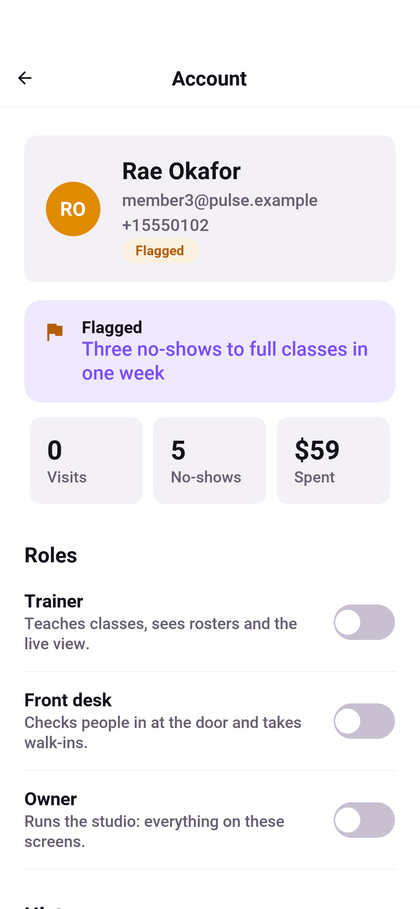
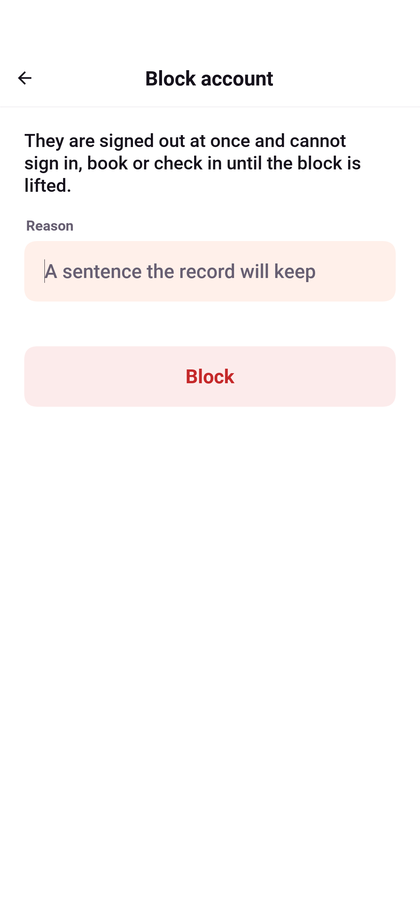
The owner flags an account for the other owners to look at, which leaves it working, or blocks it, which signs it out at once and stops it signing in, booking, or checking in. Both ask for a reason, which the history keeps.
On a desktop
The front office usually runs on a computer, so Pulse rearranges itself on a wide window: the desktop app, a tablet, or a browser window wider than a phone. The menu stays open down the left edge, with the current screen highlighted, and the dashboards spread into two columns.
Lists become master and detail. Picking a member or an account opens it next to the list rather than on a screen of its own, and the search and filters stay where they were.
The trainer and the member get the same docked menu, with their home centered next to it.
In a browser
The server can host the app itself, so the whole studio can be tried in a browser:
cd scripts/pulse
backend/server.sh web
CN1_PROFILE=dev backend/server.sh run
Then open http://localhost:8080/. A browser offers less than a phone: the door
pass, health data and the watch are features of the phone app.