A sales deck, a lecture, a quarterly review: each is a list of slides, and each
was most likely written in PowerPoint, Keynote or LibreOffice Impress.
com.codename1.presentation reads those files, plays them, edits them and
writes them back, on every platform and with no native code.
SlideShowIt is the third of the office packages, beside com.codename1.spreadsheet and
com.codename1.wordprocessing, and it shares their parts rather than
repeating them. The text in a slide is word processor text: paragraphs, runs
and styles from com.codename1.wordprocessing, laid out by DocumentLayout
and edited in place by a DocumentView. A chart on a slide is a
com.codename1.ui.chart.Chart, and a diagram is arranged by
com.codename1.graph.
| Format | Read | Write |
|---|---|---|
PowerPoint ( | Yes | Yes |
OpenDocument presentation ( | Yes | Yes |
Keynote ( | Yes | No |
PowerPoint 97-2003 ( | Yes | No |
Codename One slides ( | Yes | Yes |
No | Yes |
Reading and writing files
Presentation.read takes a stream and a format, and write saves a
presentation in another. Keynote and the old binary PowerPoint format are read
only; open one and save it as .pptx to keep editing it elsewhere.
public void convert(String path) throws IOException {
    FileSystemStorage fs = FileSystemStorage.getInstance();
    Presentation deck;
    try (InputStream in = fs.openInputStream(path)) {
        // .pptx, .odp, .key, .ppt or .cn1slides, by the file's extension
        deck = Presentation.read(in, Presentation.Format.forFileName(path));
    }
    for (String warning : deck.getWarnings()) {
        System.out.println("While reading: " + warning);
    }
    try (OutputStream out = fs.openOutputStream(path + ".pptx")) {
        deck.write(out, Presentation.Format.PPTX);
    }
    try (OutputStream out = fs.openOutputStream(path + ".pdf")) {
        deck.write(out, Presentation.Format.PDF);
    }
}
A reader never drops content without a word. Whatever it cannot convert, such
as an embedded video or an effect the model has no counterpart for, is named in
getWarnings(), and the rest of the slide still loads.
.cn1slides is the package’s own format, a ZIP of one XML file. It keeps
everything the model holds exactly, so use it to store a presentation your
application made or changed.
The model
A Presentation is immutable: a slide size in points, a theme, and a list of
Slide objects. Each slide has a background, its elements from back to front,
speaker notes, a transition and its builds. The elements are:
ShapeElement: one of the preset shapes (ShapeGeometry.presets()lists them) with a fill, an outline and optional text. A text box is a shape with no fill.PictureElement: a picture, cropped and flipped as needed.TableElement: a word processorTable.ChartElement: categories, series and values, drawn as a column, bar, line, area, pie, doughnut, scatter or radar chart.DiagramElement: nodes and the edges between them, arranged as a process, a hierarchy, a cycle or a radial diagram.GroupElement: elements moved and scaled together.
Every change makes a new object, so a presentation can be shared between
threads and compared with equals. Build a slide in code the same way a reader
does:
// These names are also classes elsewhere in Codename One (annotations.buildhints,
// ui.animations, ui.table, ui.editor), so they are imported by name.
import com.codename1.presentation.Build;
import com.codename1.presentation.Transition;
import com.codename1.wordprocessing.Table;
import com.codename1.wordprocessing.TextStyle;
        List<SlideElement> e = new ArrayList<SlideElement>();
        e.add(ShapeElement.textBox("a1", 50, 20, 860, 80, TextFrame.of("a1t", "Shapes and fills",
                TextStyle.DEFAULT.withSize(34).withBold(true).withColor(0x1b2a41), Paragraph.LEFT)
                .withAnchor(TextFrame.MIDDLE)));
        e.add(new ShapeElement("a2", "Star", "star5", 70, 140, 220, 220, 0, false, false,
                Fill.gradient(0xff8a00, 0xffd84d, 45), new LineStyle(0x7a4500, 2),
                null, null, null));
        e.add(new ShapeElement("a3", "Card", "roundRect", 340, 150, 260, 140, 0, false, false,
                Fill.gradient(0x2f6fb3, 0x58b4e8, 90), LineStyle.NONE,
                TextFrame.of("a3t", "Gradient card", TextStyle.DEFAULT.withSize(22)
                        .withColor(0xffffff).withBold(true), Paragraph.CENTER)
                        .withAnchor(TextFrame.MIDDLE), null, null));
        e.add(new ShapeElement("a4", "Badge", "ellipse", 660, 140, 220, 220, 0, false, false,
                Fill.solid(0x3a8f5c), new LineStyle(0x1e5532, 4).withDash(LineStyle.DASH),
                null, null, null));
        e.add(ShapeElement.line("a5", 120, 470, 840, 470, new LineStyle(0x1b2a41, 3)
                .withArrows(LineStyle.ARROW_OVAL, LineStyle.ARROW_TRIANGLE)));

        // the star zooms in with the card; the badge fades in after them
        List<Build> builds = new ArrayList<Build>();
        builds.add(Build.entrance("a2", Build.ZOOM));
        builds.add(Build.entrance("a3", Build.FLY).withTrigger(Build.WITH_PREVIOUS));
        builds.add(Build.entrance("a4", Build.FADE).withTrigger(Build.AFTER_PREVIOUS));

        // the speaker notes are blocks, as in a document
        List<Block> notes = new ArrayList<Block>();
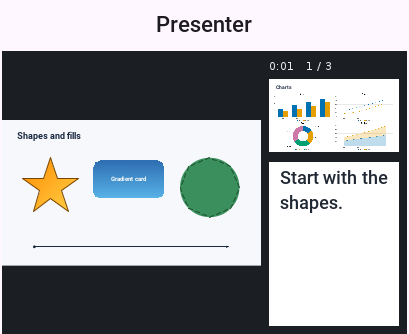
        notes.add(new Paragraph("n1", RichText.of("Start with the shapes.")));
        Slide slide = new Slide("s1", null, Fill.solid(0xf6f8fb), e, notes, Transition.DEFAULT,
                builds, false);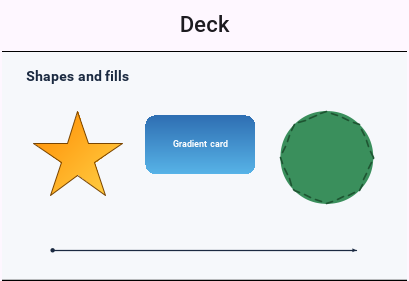
Charts
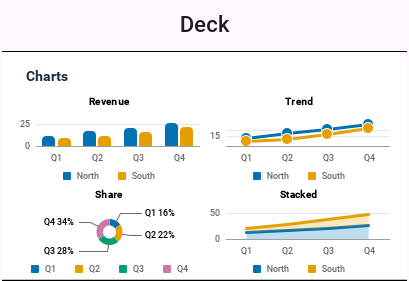
A ChartElement holds the numbers, not a picture of them. On screen it becomes
a live Chart, which animates in when its slide appears; in a PDF it is drawn
by the same chart code, so the two look alike. PowerPoint and LibreOffice files
keep their charts as data too, so the numbers stay editable after a round
trip.
// These names are also classes elsewhere in Codename One (annotations.buildhints,
// ui.animations, ui.table, ui.editor), so they are imported by name.
import com.codename1.presentation.Build;
import com.codename1.presentation.Transition;
import com.codename1.wordprocessing.Table;
import com.codename1.wordprocessing.TextStyle;
        String[] quarters = {"Q1", "Q2", "Q3", "Q4"};
        String[] regions = {"North", "South"};
        double[][] sales = {{12, 17, 21, 26}, {9, 11, 16, 22}};
        List<SlideElement> e = new ArrayList<SlideElement>();
        e.add(ShapeElement.textBox("b1", 50, 20, 860, 80, TextFrame.of("b1t", "Charts",
                TextStyle.DEFAULT.withSize(34).withBold(true).withColor(0x1b2a41), Paragraph.LEFT)
                .withAnchor(TextFrame.MIDDLE)));
        e.add(new ChartElement("b2", ChartElement.COLUMN, 40, 100, 430, 210,
                quarters, regions, sales).withTitle("Revenue"));
        e.add(new ChartElement("b3", ChartElement.LINE, 490, 100, 430, 210,
                quarters, regions, sales).withTitle("Trend"));
        e.add(new ChartElement("b4", ChartElement.DOUGHNUT, 40, 320, 430, 210,
                quarters, regions, sales).withTitle("Share"));
        e.add(new ChartElement("b5", ChartElement.AREA, 490, 320, 430, 210,
                quarters, regions, sales).withTitle("Stacked").withStacked(true));
        List<Block> notes = new ArrayList<Block>();
        notes.add(new Paragraph("n2", RichText.of("The numbers.")));
        Slide slide = new Slide("s2", null, Fill.solid(0xffffff), e, notes,
                Transition.of(Transition.PUSH, 700).withDirection(Transition.FROM_RIGHT),
                null, false);
Diagrams and tables
A DiagramElement lists nodes and edges and names an arrangement. Where each
box goes is worked out by the layouts of com.codename1.graph, so adding a
node rearranges the diagram instead of overlapping it.
// These names are also classes elsewhere in Codename One (annotations.buildhints,
// ui.animations, ui.table, ui.editor), so they are imported by name.
import com.codename1.presentation.Build;
import com.codename1.presentation.Transition;
import com.codename1.wordprocessing.Table;
import com.codename1.wordprocessing.TextStyle;
        List<SlideElement> e = new ArrayList<SlideElement>();
        e.add(ShapeElement.textBox("c1", 50, 20, 860, 80, TextFrame.of("c1t", "Diagrams",
                TextStyle.DEFAULT.withSize(34).withBold(true).withColor(0x1b2a41), Paragraph.LEFT)
                .withAnchor(TextFrame.MIDDLE)));
        e.add(DiagramElement.process("c2", 40, 110, 880, 110,
                "Plan", "Design", "Build", "Ship"));

        List<DiagramElement.Node> nodes = new ArrayList<DiagramElement.Node>();
        nodes.add(new DiagramElement.Node("ceo", "CEO", "roundRect", 0x1b2a41));
        nodes.add(new DiagramElement.Node("cto", "CTO", "roundRect", 0x2f6fb3));
        nodes.add(new DiagramElement.Node("cfo", "CFO", "roundRect", 0x3a8f5c));
        nodes.add(new DiagramElement.Node("eng", "Engineering", "rect", 0x58b4e8));
        nodes.add(new DiagramElement.Node("ops", "Operations", "rect", 0x7cc49a));
        List<String[]> edges = new ArrayList<String[]>();
        edges.add(new String[] {"ceo", "cto"});
        edges.add(new String[] {"ceo", "cfo"});
        edges.add(new String[] {"cto", "eng"});
        edges.add(new String[] {"cfo", "ops"});
        e.add(new DiagramElement("c3", DiagramElement.HIERARCHY, 40, 250, 520, 270,
                nodes, edges, 0x2f6fb3, 0xffffff));

        e.add(new TableElement("c4", Table.ofText("t1", new String[][] {
            {"Stage", "Weeks"}, {"Plan", "2"}, {"Design", "3"}, {"Build", "6"}, {"Ship", "1"}}),
                600, 260, 320, 200));
        List<Block> notes = new ArrayList<Block>();
        notes.add(new Paragraph("n3", RichText.of("How we work.")));
        Slide slide = new Slide("s3", null, Fill.gradient(0xffffff, 0xe3ebf5, 90), e, notes,
                Transition.of(Transition.ZOOM, 600), null, false);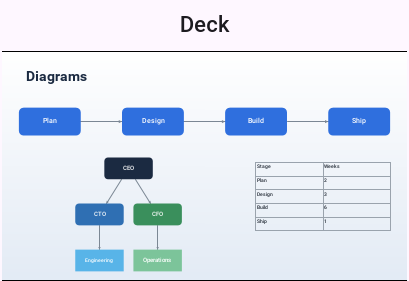
The slides go into a presentation in order:
public Presentation deck(Slide shapes, Slide charts, Slide diagrams) {
    List<Slide> slides = new ArrayList<Slide>();
    slides.add(shapes);
    slides.add(charts);
    slides.add(diagrams);
    return new Presentation(Presentation.WIDE_WIDTH, Presentation.WIDE_HEIGHT, slides,
            Theme.DEFAULT, "Sample deck", 1000, null);
}
Playing a presentation
SlideShow is a component that plays a presentation. A tap on the right of the
screen, a swipe to the left or the right arrow key moves forward; a tap on the
left, a swipe to the right or the left arrow key goes back. Hidden slides are
skipped.
public Form show(Presentation deck) {
    Form form = new Form("Deck", new BorderLayout());
    SlideShow show = new SlideShow(deck);
    form.add(BorderLayout.CENTER, show);
    return form;
}
Moving forward first plays the slide’s builds, a click at a time, and then the transition into the next slide: fade, push, cover, uncover, wipe or zoom, from any side. A build makes an element appear, fade, fly in, zoom or wipe in, fade out again or pulse for emphasis. Builds that start with the previous one or after it play together as one step, and a slide whose first build does not wait for a click plays it as soon as the slide appears.
Transitions and builds are painted by SlideAnimation from a progress value,
so any frame can be drawn on its own. That is how a thumbnail can show a slide
halfway through its builds, and how the screenshot tests check every frame:
public void paintHalfway(Graphics g, Presentation deck, Slide slide, int x, int y,
        float scale) {
    SlideRenderer renderer = new SlideRenderer();
    // 400 milliseconds into the slide's first build step
    long elapsed = 400;
    Map<String, SlideRenderer.ElementState> states = SlideAnimation.states(slide, 0, elapsed);
    renderer.paint(g, deck, slide, x, y, scale, states);
}
Presenter mode
In presenter mode the slide shares the screen with the next slide, the speaker notes and a clock. Put it on the second screen of a desktop application, or use it to rehearse.
public Form presenter(Presentation deck) {
    Form form = new Form("Presenter", new BorderLayout());
    SlideShow show = new SlideShow(deck);
    show.setPresenterMode(true);
    form.add(BorderLayout.CENTER, show);
    return form;
}
Editing
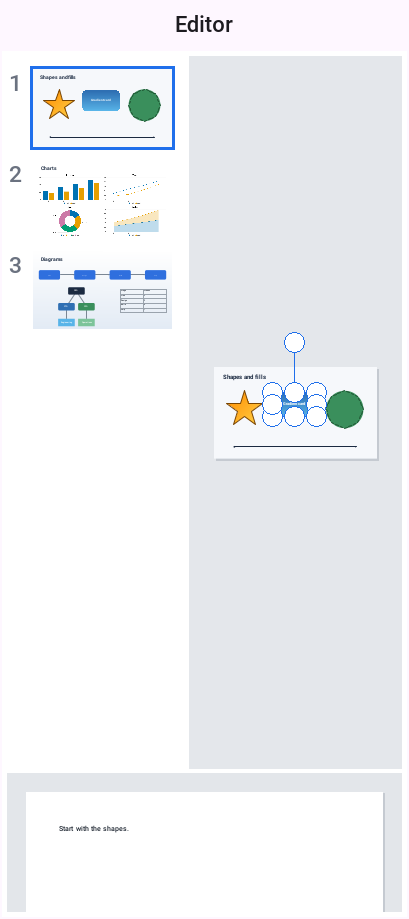
SlideView is an editor: the slides as thumbnails down the side, the slide
being edited in the middle and its notes below. Tap an element to select it.
Drag it to move it, drag a square handle to resize it and the handle above it to
rotate it; the rotation snaps to multiples of 15 degrees. Double tap a shape to
type into it.
public Form editor(Presentation deck) {
    PresentationModel model = new PresentationModel(deck);
    SlideView editor = new SlideView(model);
    Form form = new Form("Editor", new BorderLayout());
    form.add(BorderLayout.CENTER, editor);
    editor.setSelection("a3");
    return form;
}
The text editor that opens in a shape is a DocumentView, so selection, the
clipboard, the keyboard and input methods work as they do in a document.
Everything the editor does goes through its PresentationModel, and each drag
or text edit is a single undo step. Your own commands use the same model:
// These names are also classes elsewhere in Codename One (annotations.buildhints,
// ui.animations, ui.table, ui.editor), so they are imported by name.
import com.codename1.presentation.Build;
import com.codename1.presentation.Transition;
import com.codename1.wordprocessing.Table;
import com.codename1.wordprocessing.TextStyle;
    public void edits(PresentationModel model) {
        model.beginGroup();
        model.addSlide(model.getSlideCount());
        int at = model.getSlideCount() - 1;
        String id = model.newId('e');
        model.addElement(at, ShapeElement.textBox(id, 50, 20, 860, 80, TextFrame.of(id + "t",
                "Next steps", TextStyle.DEFAULT.withSize(34).withBold(true), Paragraph.LEFT)));
        model.setTransition(at, Transition.of(Transition.FADE, 500));
        model.endGroup();
        // one step undoes the slide and everything on it
        model.undo();
    }
PDF and pictures
Presentation.Format.PDF writes one page per visible slide, each the size of
the slide. A slide becomes an image with SlideRenderer.toImage, for a share
sheet or a list of thumbnails. The screen, the PDF and the image are all painted
by the same code, so they match.