The build-time transcoder in the previous chapter is the cheapest way to ship an icon or an
illustration you have when you build the app. Some artwork only arrives at run time: a user
opens a Photoshop file, a design is pulled from Figma, or the app lets people draw. The
com.codename1.art package handles those cases. It reads layered documents into one tree,
renders them the same way on every platform, lets code and users change them, and writes
them back.
| Format | Read | Write | Notes |
|---|---|---|---|
SVG | yes | yes | Static SVG 1.1 / Tiny 1.2: shapes, paths, |
Photoshop PSD / PSB | yes | yes | Layers, groups, masks, vector masks, clipping, layer styles, adjustment layers; the writer produces layered 8-bit RGB |
Sketch | yes | no | The ZIP format of Sketch 43 and later: pages, artboards, symbols with overrides, styles |
Figma | yes | no | The REST API’s file JSON, fetched with |
| yes | yes | Lossless native format: a ZIP of JSON and PNG |
Loading and rendering
ArtFormats.read detects the format from the content, so a file name is never needed. The example below
turns an SVG that arrived as text into an image:
String svg = "<svg xmlns='http://www.w3.org/2000/svg' width='160' height='120'>"
        + "<defs><linearGradient id='sky' x2='0' y2='1'>"
        + "<stop offset='0' stop-color='#4fc3f7'/><stop offset='1' stop-color='#e1f5fe'/>"
        + "</linearGradient></defs>"
        + "<rect width='160' height='120' fill='url(#sky)'/>"
        + "<circle cx='120' cy='34' r='16' fill='#ffca28'/>"
        + "<path d='M0 120 L50 60 L85 95 L110 70 L160 120 Z' fill='#43a047'/>"
        + "</svg>";
InputStream in = new ByteArrayInputStream(svg.getBytes("UTF-8"));
ArtDocument doc = ArtFormats.read(in);      // SVG, PSD, Sketch, Figma or .cn1gfx
Image image = ArtRenderer.toImage(doc, 2);  // two pixels per document unit
Form form = new Form("Runtime SVG", new BorderLayout(BorderLayout.CENTER_BEHAVIOR_CENTER));
form.add(BorderLayout.CENTER, new Label(image));
form.show();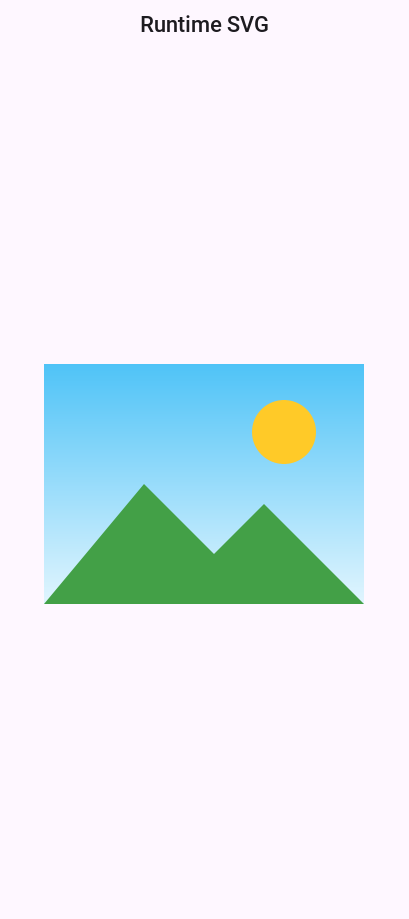
The document tree
Each format arranges its layers differently. A PSD is a flat list in which marker records open and close groups; Sketch spreads pages and symbol masters across several JSON files; Figma nests frames inside canvases; SVG refers to gradients, masks and reusable shapes by id. The readers turn them all into the same tree, so everything after loading works without knowing the source.
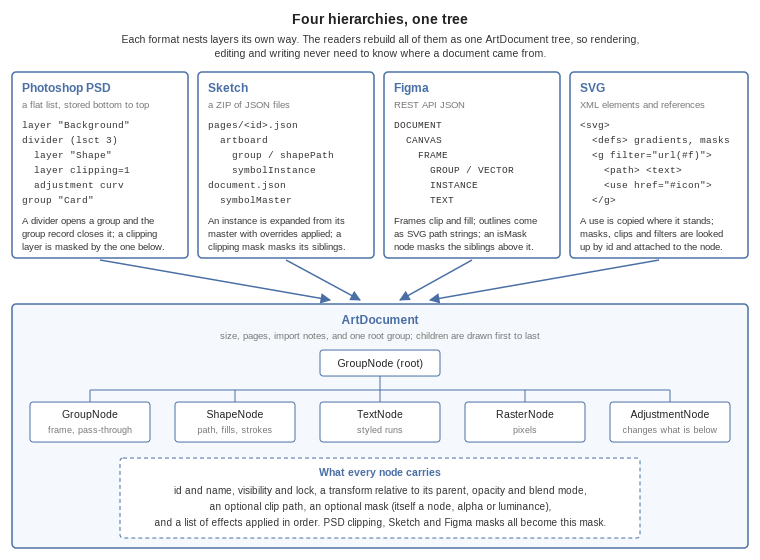
Masks deserve a note, because each format expresses them differently: a Photoshop clipping
layer is masked by the layer below it, a Sketch layer with a clipping mask masks the siblings
that follow it, and a Figma isMask node masks the siblings above it. In the tree all three are
the same thing, a node set as another node’s mask, so the editor and the writers treat them
alike.
Rendering is done in software by ArtRenderer. That’s slower than drawing a
GeneratedSVGImage, but it means a document has the same pixels on iOS, Android, the
desktop and the web, with every blend mode and effect. Render once at the size you need and
keep the Image.
Image.createSVG falls back to this renderer on platforms with no native SVG support, so code
that called createSVG before now works everywhere. The fallback renders the document once,
at the size it declares, into an ordinary Image; a document over 4096 pixels on a side fails
with an IOException there, and is rendered with ArtRenderer.toImage at a smaller scale
instead.
Effects
A document can also be built in code. This one has a gradient card with a drop shadow, a bevelled badge with an outer glow, and a rectangle in multiply mode that darkens what it covers:
ArtDocument doc = new ArtDocument(320, 200);
ShapeNode card = ShapeNode.rect(20, 20, 130, 90, 14);
card.fill(GradientPaint.linear(20, 20, 150, 110,
        new float[]{0, 1}, new int[]{0xff7e57c2, 0xff26c6da}));
card.getEffects().add(com.codename1.art.effects.Effects.dropShadow(0x66000000, 6, 8, 10, 0));
ShapeNode badge = ShapeNode.ellipse(235, 65, 50, 50);
badge.fill(new SolidPaint(0xffffb300));
badge.getEffects().add(com.codename1.art.effects.Effects.bevel("inner", 6, 1, 120, 30));
badge.getEffects().add(com.codename1.art.effects.Effects.outerGlow(0xccffd54f, 12, 0));
ShapeNode overlap = ShapeNode.rect(110, 90, 150, 80, 0);
overlap.fill(new SolidPaint(0xffef5350));
overlap.setBlendMode(BlendMode.MULTIPLY);   // darkens what lies below it
TextNode label = new TextNode("Layers", 22, 0xff212121);
label.setTransform(Matrix.translate(30, 180));
doc.getRoot().getChildren().add(card);
doc.getRoot().getChildren().add(badge);
doc.getRoot().getChildren().add(overlap);
doc.getRoot().getChildren().add(label);

Form form = new Form("Effects", new BorderLayout());
form.add(BorderLayout.CENTER, new ArtView(new ArtModel(doc)));
form.show();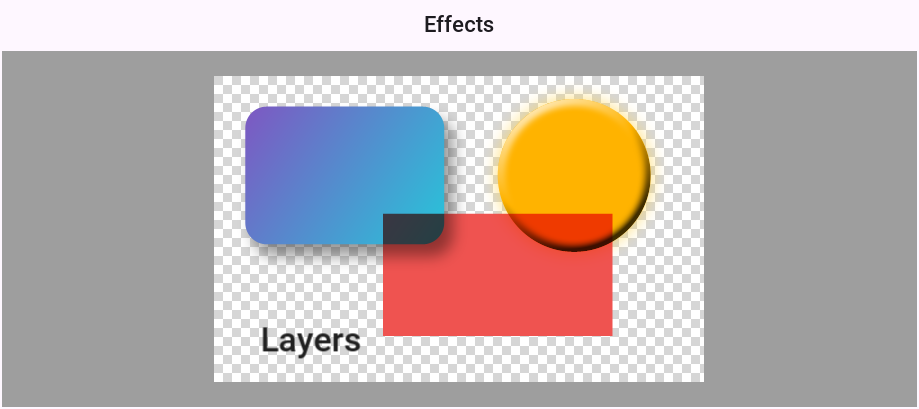
Every node is drawn in the same order of steps. Knowing it explains most surprises, such as why a shadow follows a mask’s shape or why an adjustment layer changes only what’s below it:
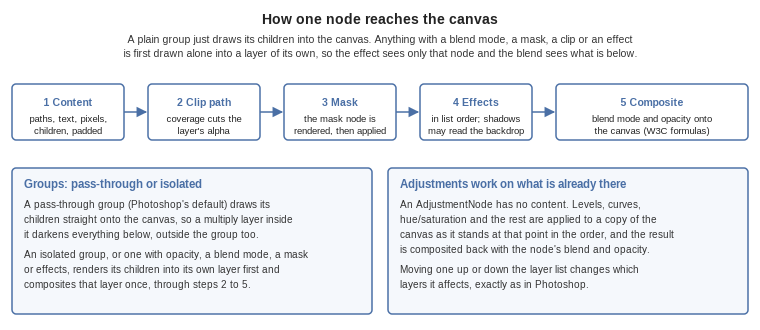
Every effect a supported format defines has a renderer; none is kept in the model and
ignored. That covers drop and inner shadows, outer and inner glows, Gaussian, motion, zoom
and background blurs, strokes, color, gradient and pattern overlays, bevel and emboss
(stroke emboss too), satin,
Photoshop’s adjustment layers (levels, curves, hue/saturation, color balance, selective
color, gradient maps and the rest), and the whole SVG filter primitive set. Effects live in
com.codename1.art.effects as Effect objects with named parameters, so an editor can
add, change and remove them.
Geometry is treated the same way. Sketch’s subtract, intersect and difference operations keep exactly the region they describe, and SVG text on a path follows its path.
Formats that can’t hold an effect get it baked in. A PSD written from a document keeps groups and blend modes as Photoshop layers; a node with effects becomes a rendered layer, and an adjustment is applied to the pixels below it.
Import notes
What a reader can’t represent is recorded on the document instead of being
dropped. Read ArtDocument.getNotes() after a load to tell users what changed:
String svg = "<svg xmlns='http://www.w3.org/2000/svg' width='40' height='40'>"
        + "<rect width='40' height='40' fill='#1e88e5'>"
        + "<animate attributeName='opacity' from='1' to='0' dur='1s'/></rect></svg>";
ArtDocument doc = ArtFormats.read(svg.getBytes("UTF-8"));
for (ImportNote note : doc.getNotes()) {
    Log.p("Import: " + note);
}
SVG animation and script are ignored, since a document is static.
Photoshop smart objects and text layers are shown as the pixels the file stores for them.
A Figma file fetched without
geometry=pathshas no vector outlines;FigmaClientalways asks for them.Sketch files older than version 43 (a SQLite database) are rejected.
Figma
Figma documents come from its REST API. Pass a token the user supplies. FigmaClient never
stores it:
String token = "PERSONAL_ACCESS_TOKEN";              // typed by the user
Display.getInstance().startThread(() -> {
    try {
        FigmaClient figma = new FigmaClient(token);  // never stored
        ArtDocument doc = figma.fetch("FILE_KEY");    // blocks: off the EDT
        Display.getInstance().callSerially(() -> {
            Form form = new Form("Figma", new BorderLayout());
            form.add(BorderLayout.CENTER, new ArtView(new ArtModel(doc)));
            form.show();
        });
    } catch (IOException err) {
        Log.e(err);
    }
}, "figma").start();
fetch requests the file with its geometry, then downloads the image fills it uses.
Images are fetched over HTTPS only, and the token isn’t sent with them. Call setOAuth(true)
for an OAuth access token instead of a personal access token. To read a file you
downloaded yourself, use FigmaReader.read(json, images); FigmaReader.imageRefs lists the
image references the JSON needs.
Editing
ArtModel wraps a document for editing. Every change goes through it so it can be undone,
and listeners hear about it:
ArtModel model = new ArtModel(new ArtDocument(400, 300));
ShapeNode box = ShapeNode.rect(10, 10, 100, 60, 8);
box.fill(new SolidPaint(0xff1e88e5));
model.add(box);
model.setBlendMode(box, BlendMode.MULTIPLY);
model.addEffect(box, com.codename1.art.effects.Effects.dropShadow(0x80000000, 4, 4, 8, 0));
model.undo();                       // the shadow is gone again
model.beginGroup();                 // several changes, one undo step
model.setOpacity(box, 0.5f);
model.setName(box, "Half box");
model.endGroup();
Changes made inside beginGroup() / endGroup() are a single undo step. Undo snapshots share
pixel data with the document, so code that paints into a RasterNode must give the node a
copy of its raster first: node.setImage(node.getImage().copy()).
The editor
ArtEditor is a ready-made drawing editor: an ArtView with a toolbar, a layers panel and
an inspector.
ArtModel model = new ArtModel(new ArtDocument(400, 300));
ShapeNode sun = ShapeNode.ellipse(300, 80, 40, 40);
sun.fill(new SolidPaint(0xffffca28));
model.add(sun);
ShapeNode hill = ShapeNode.rect(0, 200, 400, 100, 0);
hill.fill(new SolidPaint(0xff66bb6a));
model.add(hill);
model.select(sun, false);

ArtEditor editor = new ArtEditor(model);
Form form = new Form("Draw", new BorderLayout());
form.add(BorderLayout.CENTER, editor);
form.show();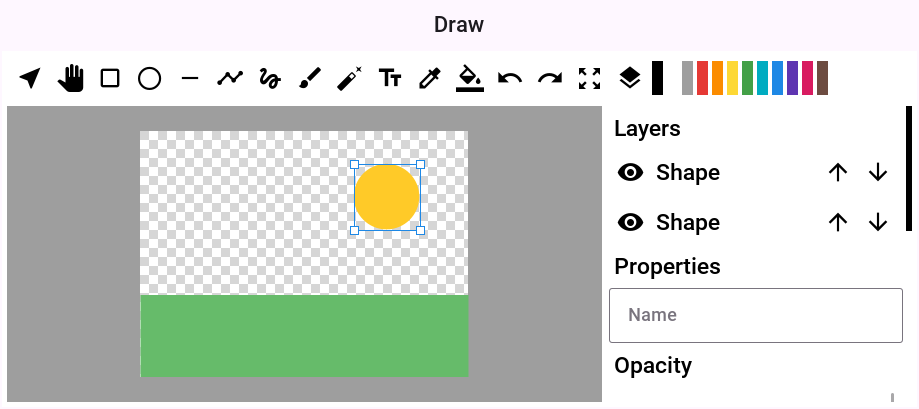
Its tools select, move and resize; pan; draw rectangles, ellipses, lines, Bezier paths and
freehand strokes; paint and erase pixels; place text; pick colors; and fill shapes or pixel
regions. Pinch zooms the view. exportSvg, exportPsd, exportPng and exportNative
save the result. The layers panel and the inspector are ordinary containers
(getLayersPanel, getInspector). ArtView can be used by itself to show a document with
pan, zoom and hit testing.
Limits
The readers are written for files from untrusted sources. Image dimensions, layer counts,
decompressed sizes, ZIP entries and the depth of use and symbol references are capped. A
file over the limits fails with an IOException; it never exhausts memory.