Every visible thing in a Game Builder level — the ground a player walks on, a coin to collect, an enemy, a 3D crate — is drawn from an asset. This chapter explains what an asset is, how assets are organized into packs and resolved by the catalog, where their artwork comes from, and how to create your own (either by authoring a pack JSON entry or by importing an image inside the editor). It closes with a note on terrain materials, a related-but-separate concept, and pointers for finding more art.
The classes live in com.codename1.gaming.level: AssetDef, AssetPack and
AssetCatalog.
What an asset is
An asset is a reusable template — an AssetDef — not a thing in your level. It says
"this is what a coin looks like and what default values a coin has," and any number of
coins in any number of levels reference that one definition by id.
An AssetDef carries:
| Field | Meaning |
|---|---|
| The stable string key (for example, |
| The human-readable display name shown in the editor palette (for example, |
|
|
| The natural pixel size of the art (default 32×32). |
| A base ARGB colour used to render a flat placeholder until real artwork is available
(default |
| Whether a level should hold at most one of these (for example, the player / spawn point). |
| An optional reference to the source art (a resource path, an SVG/Lottie key, or the
|
| The default authoring property values copied onto a freshly placed element — a coin’s
|
Asset (template) versus placed element (instance)
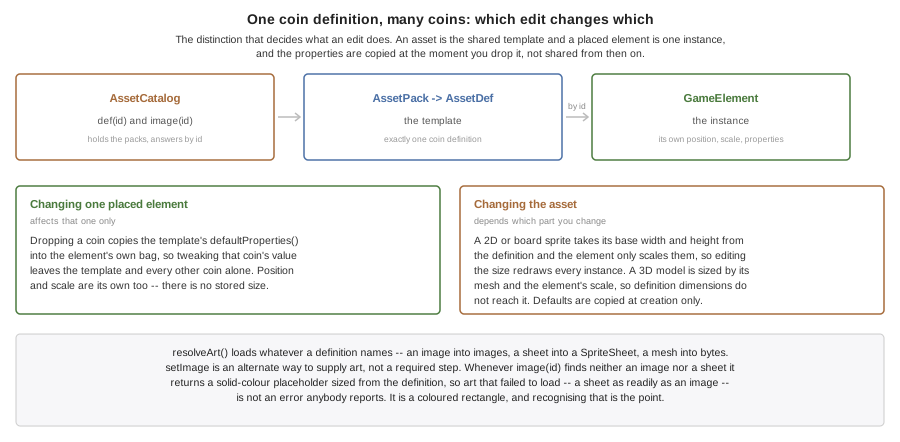
Keep this distinction clear:
An asset (
AssetDef) is the shared template. There is exactly onecoindefinition.A placed element (
GameElement) is one instance in a level. It stores its own position, size and property values, and references the template throughGameElement#getAssetId().
When you drop a coin into a level, the editor creates a GameElement whose assetId is
coin and copies the asset’s defaultProperties() into the element’s own property bag
(see StarterPacks.addActor, which does exactly this with el.properties().putAll(def.defaultProperties())).
You can then tweak that one coin’s value without affecting the template or any other
coin. Changing the asset’s size or art, conversely, affects how every instance that
references it’s drawn.
How assets are structured
Assets are grouped into packs, and packs are indexed by a catalog:
AssetPack— a named, ordered group ofAssetDef`s (`add(def),get(id),assets()). The order is the order they appear in the palette. AGameLevelnames the pack it draws from viaGameLevel#getAssetPack().AssetCatalog— holds one or more packs and answers two questions for any asset id:def(id)returns theAssetDef(used for kind, size and default props), andimage(id)returns the artwork. Real art is supplied viasetImage(id, image); until thenimage(id)returns a cached solid-colour placeholder sized from the def and tinted with itsgetColor(), so a level always realizes to something visible.
The built-in packs
The editor ships four starter packs in the classpath resource /gamebuilder-packs.json,
loaded by StarterPacks.loadCatalog() (which calls AssetCatalog.load(InputStream)).
The same catalog drives both the editor palette and a generated game’s runtime loader.
| Pack id | Name | Asset ids |
|---|---|---|
| Platformer |
|
| Top-Down RPG |
|
| Board & Card |
|
| 3D Kit |
|
StarterPacks.defaultPackFor(mode) picks kit3d for MODE_3D, board for MODE_BOARD
and platformer otherwise.
The JSON format is {"packs":[{"id":..,"name":..,"assets":[ … ]}]}. Here is one real
asset entry from the platformer pack — the player:
{ "id": "player", "name": "Player", "kind": "actor",
  "w": 28, "h": 32, "color": "#4D86FF", "unique": true,
  "defaults": { "lives": 3, "jumpHeight": 96 } }
Each JSON key maps onto an AssetDef field (see AssetDef.fromMap): kind is
"tile" or "actor", w/h are the pixel size, color is #rrggbb, unique is a
boolean, source is the optional art reference, and defaults becomes
defaultProperties().
Where the art comes from
An AssetDef names an art format — TYPE_IMAGE, TYPE_SHEET or TYPE_MESH — and a
getSource() art file. AssetCatalog.resolveArt() loads each asset’s art from that file
into the catalog, so the same definition drives the editor palette and a shipped game.
Static images (TYPE_IMAGE)
A single .png/.jpg. resolveArt() decodes it; image(id) returns it and the level
realizer wraps it in a com.codename1.gaming.Sprite. The starter packs ship one image file
per asset (at the flat resource root, loaded as /<id>.png), so every starter sprite — ground, the player, the mountains — is a real file you can open in any editor and replace.
Sprite sheets (TYPE_SHEET)
One image laid out as a grid of equal frames, plus a frame size and rate (frameW,
frameH, fps). resolveArt() builds a com.codename1.gaming.SpriteSheet; the realizer
creates an animated com.codename1.gaming.AnimatedSprite that the scene advances each
frame. The starter coin is a six-frame sheet, so it spins at runtime with no code;
image(id) returns its first frame for the editor palette.
Meshes (TYPE_MESH)
A glTF/.glb model for a 3D level. resolveArt() keeps the file’s bytes and
GameSceneView.buildModels loads them with com.codename1.gpu.GltfLoader, realizing a
com.codename1.gaming.Model (and falling back to a primitive cube for an asset that has no
mesh). Sprite sheets and glTF loading are existing Codename One features; the asset model
just makes them first-class so the editor and runtime treat them as assets.
Imported art (the editor’s Import button)
The Import action opens the gallery (Display#openGallery) and hands the chosen image’s
bytes to GameBuilder.registerImportedAsset(…), which builds an image AssetDef (kind
from the active layer), adds it to a Custom pack and persists the PNG to
<gamesDir>/assets/ plus the pack definition to <gamesDir>/custompack.json. On the next
launch ProjectIO.loadCustomPack reads them back, so an imported image survives a reload.
Sprite sheets and glTF meshes are added the same way at the file level — drop the file into
<gamesDir>/assets/ and add a pack entry with the matching type (and frame size for a
sheet); resolveArt then loads it like any other asset. (A dedicated sheet/mesh import UI is
a natural follow-up.)
Generating the starter images
The bundled starter PNGs are produced once by a build-time generator
(StarterArtGenerator, which draws each sprite with Graphics through AssetArt) and
committed as resources — there’s no art-drawing code in the shipped runtime. Re-run the
generator after changing a starter sprite or pack.
In every case the catalog falls back to the flat-colour placeholder when an asset’s art is missing, so a level is never un-renderable.
Creating your own asset
There are two practical paths.
Path 1: Author a pack JSON entry
Add an entry to a pack’s assets array using the same format as the built-ins. For
example, a collectible key:
{
  "id": "key",
  "name": "Key",
  "kind": "actor",
  "w": 24,
  "h": 24,
  "color": "#E0C040",
  "unique": false,
  "defaults": { "opens": "door", "value": 1 }
}
Field by field:
id— unique string key your placed elements and any art will reference. Required.name— display name in the palette. Optional; defaults to the id.kind—"tile"to paint into grid cells,"actor"for a free-form entity. Anything other than"tile"is treated as an actor.w/h— natural pixel size. Optional; default 32.color—#rrggbbplaceholder colour used until real art is supplied. Optional.unique—trueto limit the level to one instance. Optional; defaultfalse.defaults— a map of default property values copied onto each placed element.source— the art file the runtime loads: a.png/.jpg(image, sheet) or a.glb/.gltf(mesh). Optional; the starter packs default it to<id>.png.type—"image","sheet"or"mesh". Optional; inferred fromsource(a.glbis a mesh) orframeW(a sheet) when omitted.frameW/frameH/frames/fps— sprite-sheet frame size, frame count (0 = all) and playback rate, for a"sheet"asset.
You can add this to a copy of gamebuilder-packs.json, or build a pack in code with
new AssetPack(id, name).add(new AssetDef(…)) and register it with
catalog.addPack(pack). To give it real art, point source at a bundled art file and
call catalog.resolveArt(), or supply an image directly with
catalog.setImage("key", image).
Path 2: Import an image in the editor
The no-code path: open your level in the Game Builder, select the layer you want the
asset to belong to (a tile layer for tiles, an entity/actor layer otherwise), and use the
Import action ("Import your own image as a new asset"). Pick a PNG (or other supported
image), and the editor creates the AssetDef and files it under the Custom pack. Once bound to a project, the editor also saves the PNG and a pack-JSON entry
under the project’s games/assets/ directory as described above. The new asset appears in the palette and is immediately
placeable.
Terrain materials
3D terrain surfaces use a different, pluggable concept: materials, not sprite assets. A
Material (com.codename1.gaming.level.Material) describes a surface — a base colour,
whether it’s solid (blocks movement), a friction multiplier, and an optional
artId for textured rendering — and is referenced everywhere by its string id.
Materials are resolved through MaterialRegistry, a process-wide registry that ships six
built-ins (MaterialRegistry.GRASS, ROAD, STONE, SAND, WATER, DIRT). WATER
is registered as solid. Applications add their own without changing the level format:
MaterialRegistry.register(new Material("lava", "Lava", 0xc0392b).setSolid(true));
Material m = MaterialRegistry.get("lava");   // never null; unknown ids return gray
Unknown ids resolve to a neutral gray placeholder, so a level that references a not-yet-registered material still loads. Materials cover terrain cells and `TerrainFeature`s; the sprite/model assets covered above are a separate system.
Where to get more
Reuse the built-in packs. The four starter packs cover platformer, top-down RPG, board/card and a small 3D kit out of the box — start there and only add what you need.
Import your own art. Any PNG (or supported sprite image) can be imported through the editor’s Import action and becomes a first-class asset in your project’s Custom pack. Authoring at the asset’s natural pixel size keeps it crisp.
Author packs as JSON. For larger sets, hand-author or generate
AssetPackJSON entries alongside the built-ins so the whole pack loads throughAssetCatalog.load.Use external game-art sources. Plenty of open game-art libraries and your own design tools (vector editors, pixel-art tools) can produce sprite sheets and tiles. Whichever source you use, you are responsible for honoring its license — check the terms for attribution and commercial-use requirements before shipping art you didn’t create.