Fieldline is a sample app with a server behind it, for any contractor that sends people to customers' sites: HVAC, electrical, plumbing, elevators, solar, fire safety, and inspection teams. A scheduling engine plans every technician’s day around skills, working hours, time off and travel. Technicians work the day from their phone. Dispatchers see the whole crew and move work between people. The app and the server are one Maven project, written in Java on both sides.
This chapter is the user’s guide: what each kind of user sees and can do. Fieldline: Building on the sample is the other half. It explains how the project is built and what to change to make it yours.
One app serves everyone. The server gives every account a set of roles, and the app opens on the screens for the role the account holds.
| Role | What it adds |
|---|---|
Technician | Follow the day as a route, check in on site, work a job’s checklist, take photos the assistant diagnoses, and finish with a report and the customer’s signature. Clock in and out, set working hours and limits, and ask for time off. |
Dispatcher | See the crew on a timeline, a Gantt chart and a map, reassign jobs, add new ones, cover an absence, decide time-off requests and run the optimizer. |
Administrator | Everything a dispatcher does, plus each technician’s limits, the labor rates, rush hours, time tracking and timesheets, and the roles of every account. |
Trying it
Start the server on the development profile. It needs nothing installed: the database is in memory, push notifications are printed on the console, and the assistant answers from rules built into the server:
cd scripts/fieldline
CN1_PROFILE=dev backend/server.sh run
Then run the app in the simulator, from another terminal:
cd scripts/fieldline
mvn verify -Psimulator -DskipTests -Dcodename1.platform=javase
The demo is a contractor with a crew of twelve based in Portland and a planned
working week of jobs. Every demo account has the password fieldline-demo:
a technician with a day of jobs | |
a second technician | |
runs the board and the planner | |
also runs the back office |
Sign in as the technician in one simulator and as the dispatcher in another: a change made on one reaches the other as it happens.
The technician
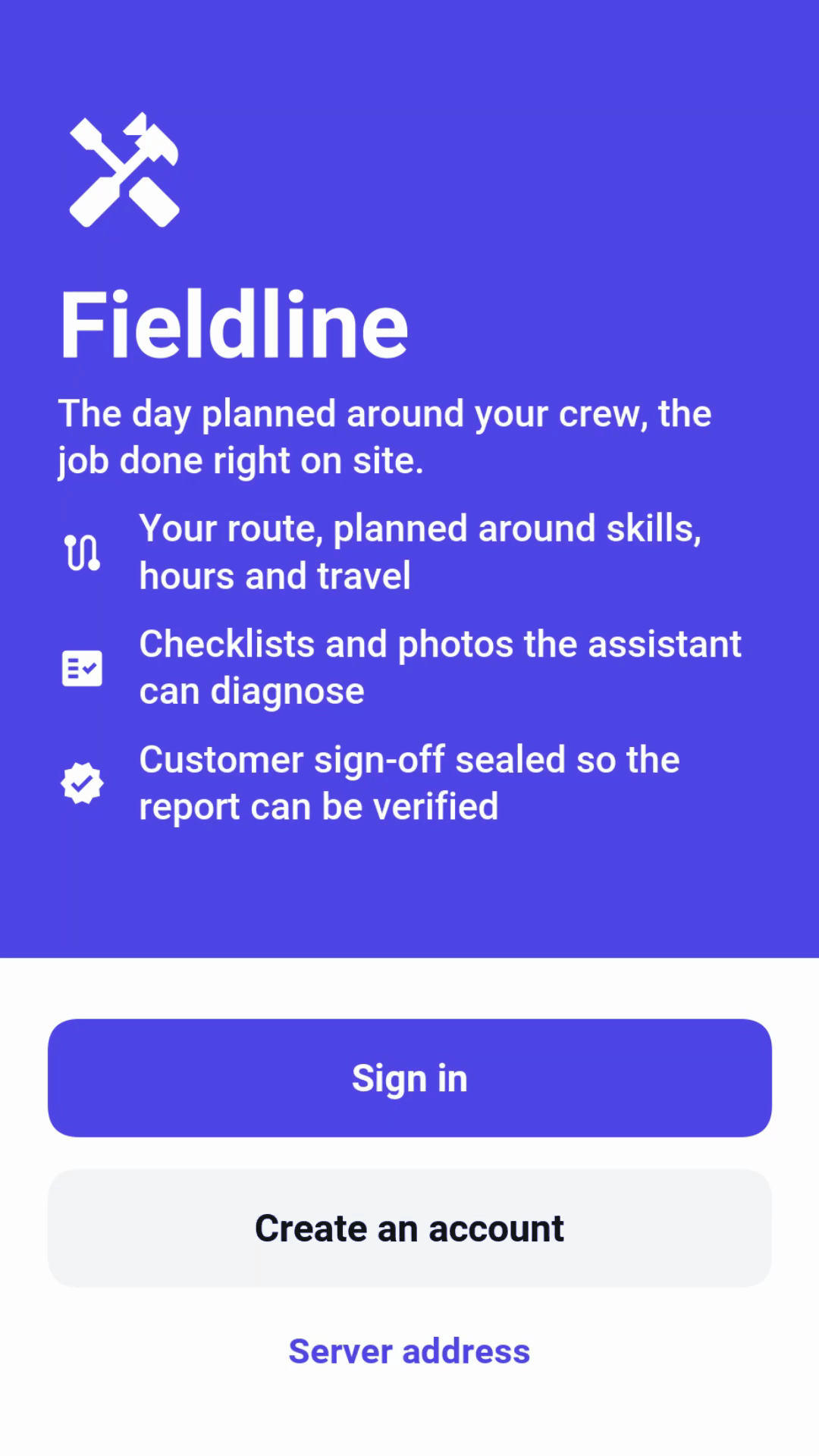
A technician signs in with the account the office set up. The app remembers the session, so the next time it opens straight on the day.
The day
The day opens on a map of the area with a sheet over it. The sheet greets the technician by name and says how many jobs are left, how long the driving takes and how much of the day is done. Below that are the clock and the next job, with a button to start driving to it.
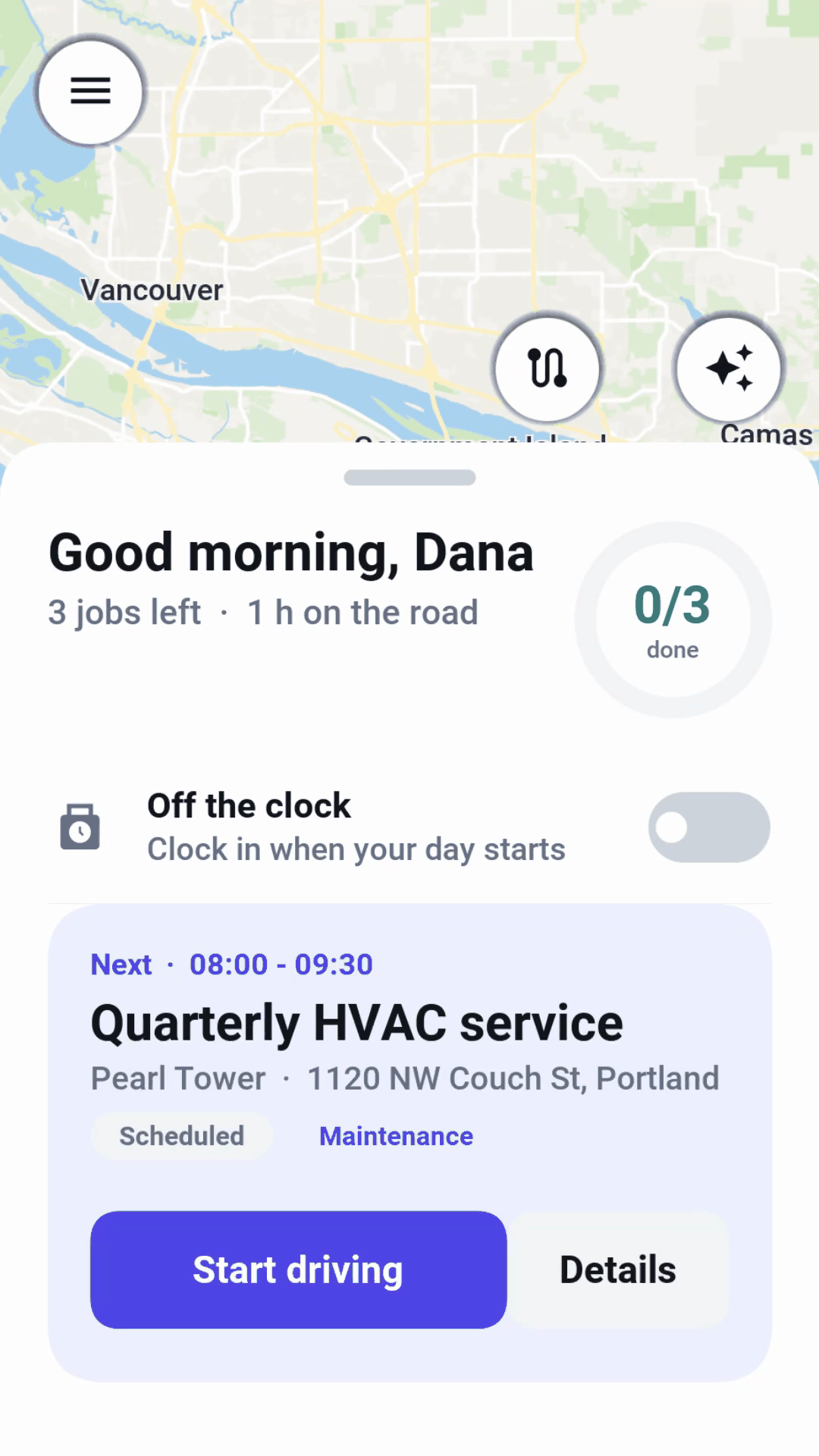
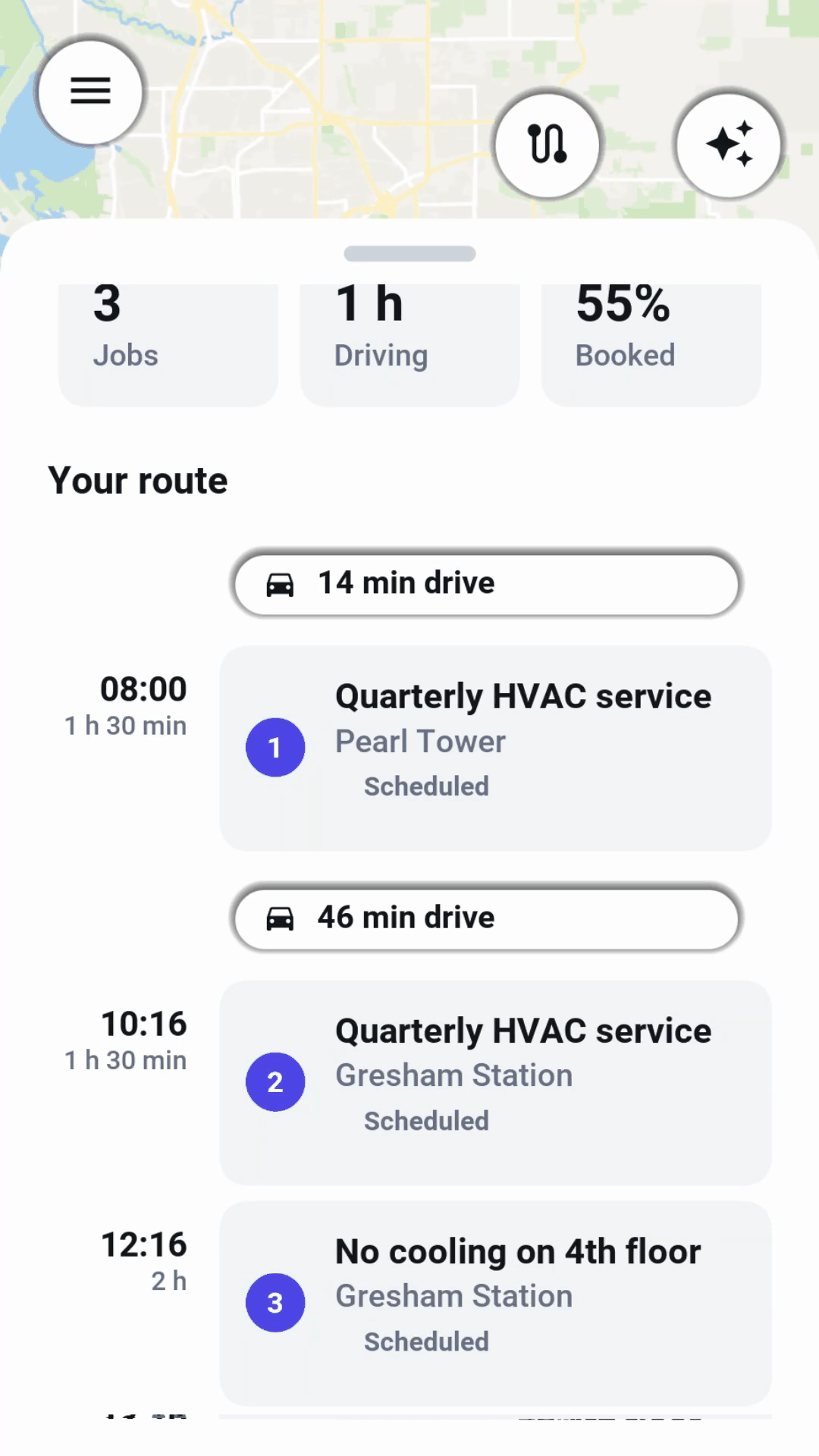
Dragging the sheet up shows the whole route: the number of jobs, the time on the road and how full the day is, then every stop in order with the drive between each one. The same stops are numbered on the map, and the route button above the sheet fits them all on the screen.
The switch on the sheet clocks the technician in and out. The time worked goes to the timesheet, and the unpaid meal break comes off it by the company’s pay rules. A finished job drops off the count, and the ring fills.
A job
Opening a job shows what the dispatcher knows about it: the site and its address, the window it’s booked for, the customer with a button to call them, directions, and the problem as it was reported. The steps along the bottom show how far the job has gone, from scheduled to completed.
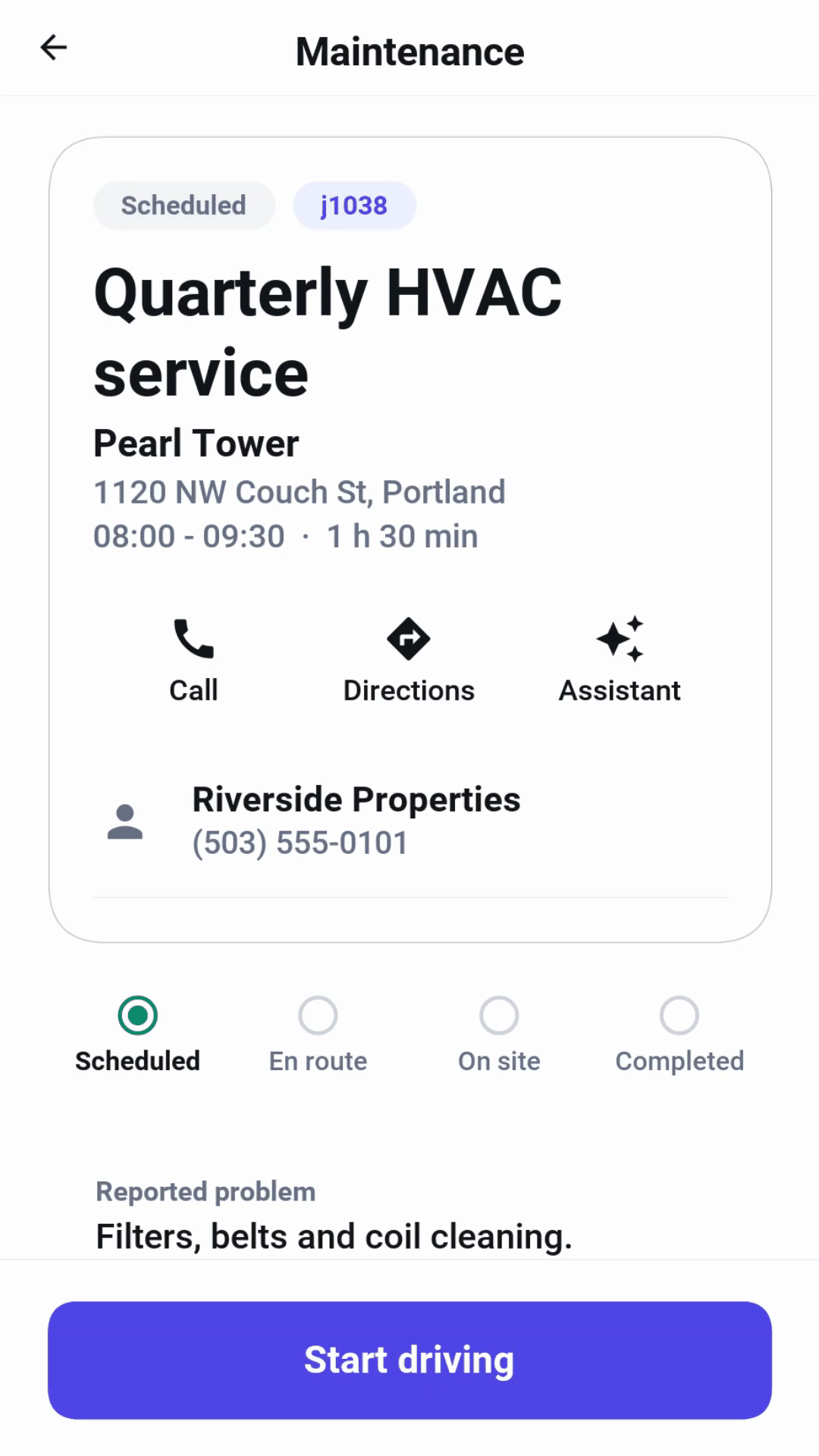
Start driving tells the dispatcher the technician is on the way. On arrival, Check in records the time and how far the phone is from the site, and the job moves to on site.
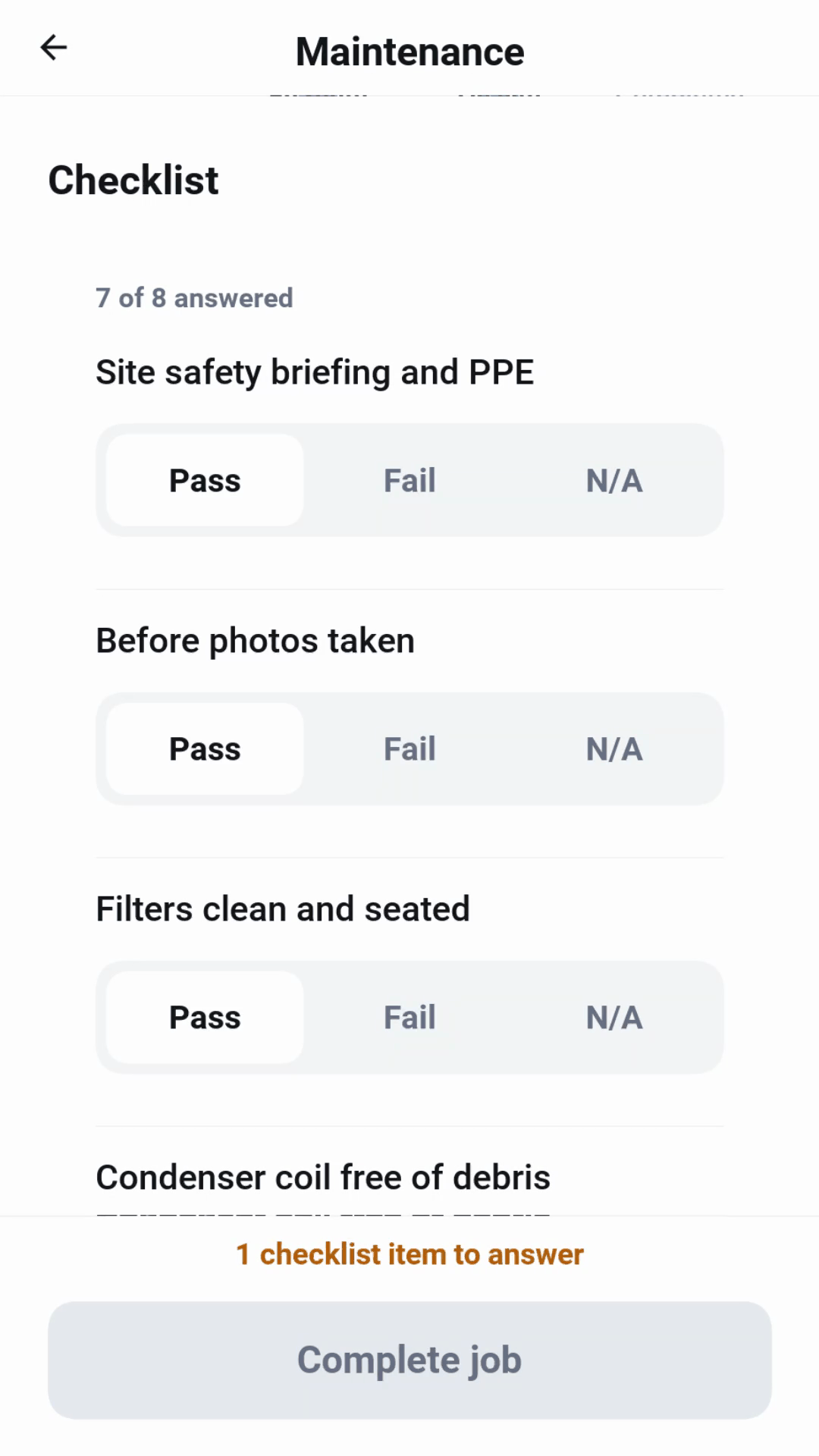
The checklist comes from the kind of job: a quarterly HVAC service checks different things than a fire alarm test. Every item is a pass, a fail or not applicable, and each answer is saved the moment it’s given, so a phone that loses signal or runs out of battery loses nothing. The job can’t be completed while an item is unanswered, and the button says how many are left.
A photo taken from the job goes to the assistant, which says what it sees: the likely issue, its severity, the probable cause, what to do and the parts it needs. The diagnosis shows as a card on the job.
The assistant
The assistant answers from the manuals for the equipment the crew services. Asked from a job, it knows the job, its checklist and its photos, so a question about a fault is answered from the manual for that unit, never from one for something else. Each answer names the manual it came from.
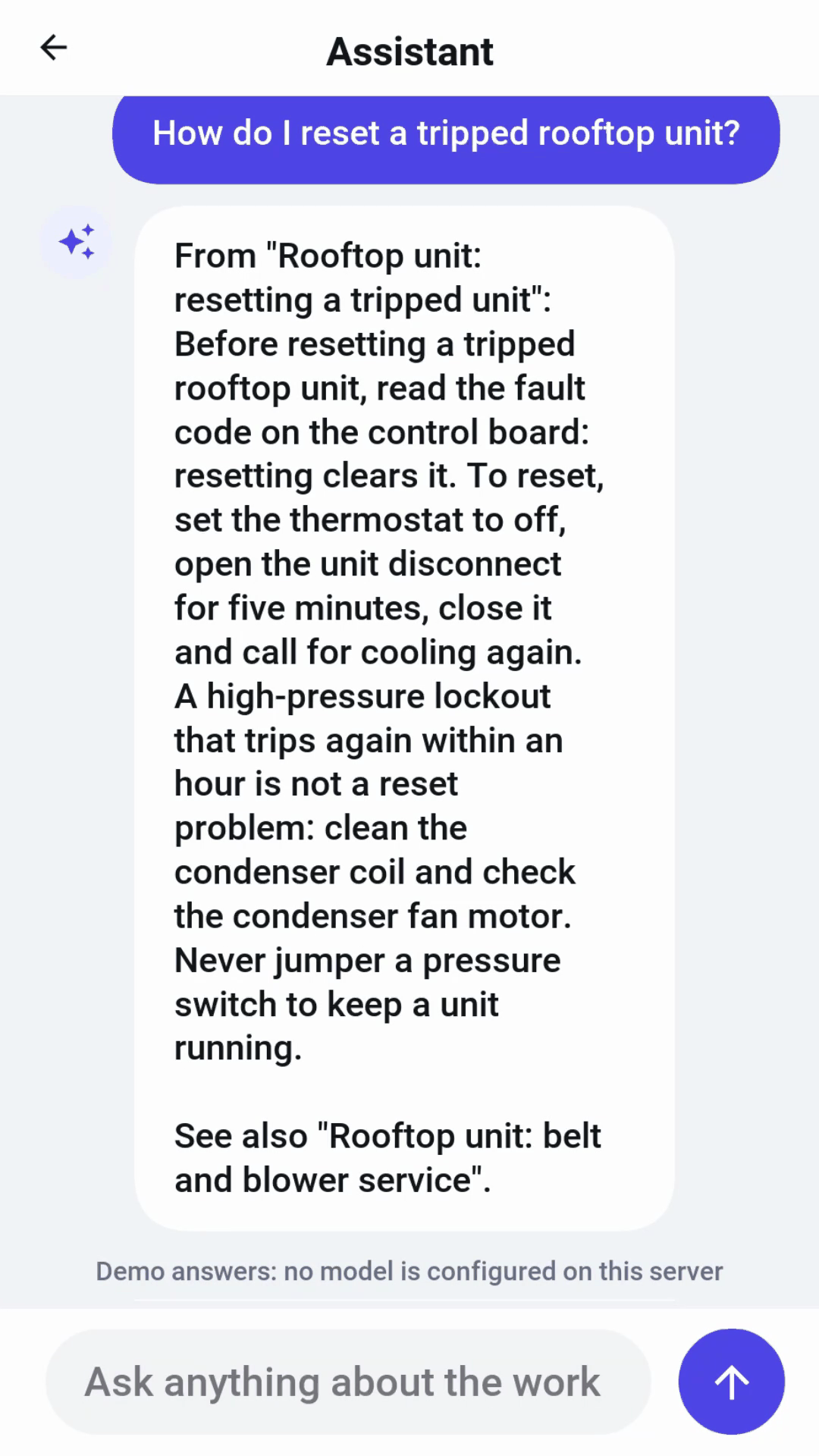
On a server with no model configured, the assistant answers from rules and a search of the manuals, and says so under the conversation. A model configured on the server makes the answers conversational. Nothing else changes.
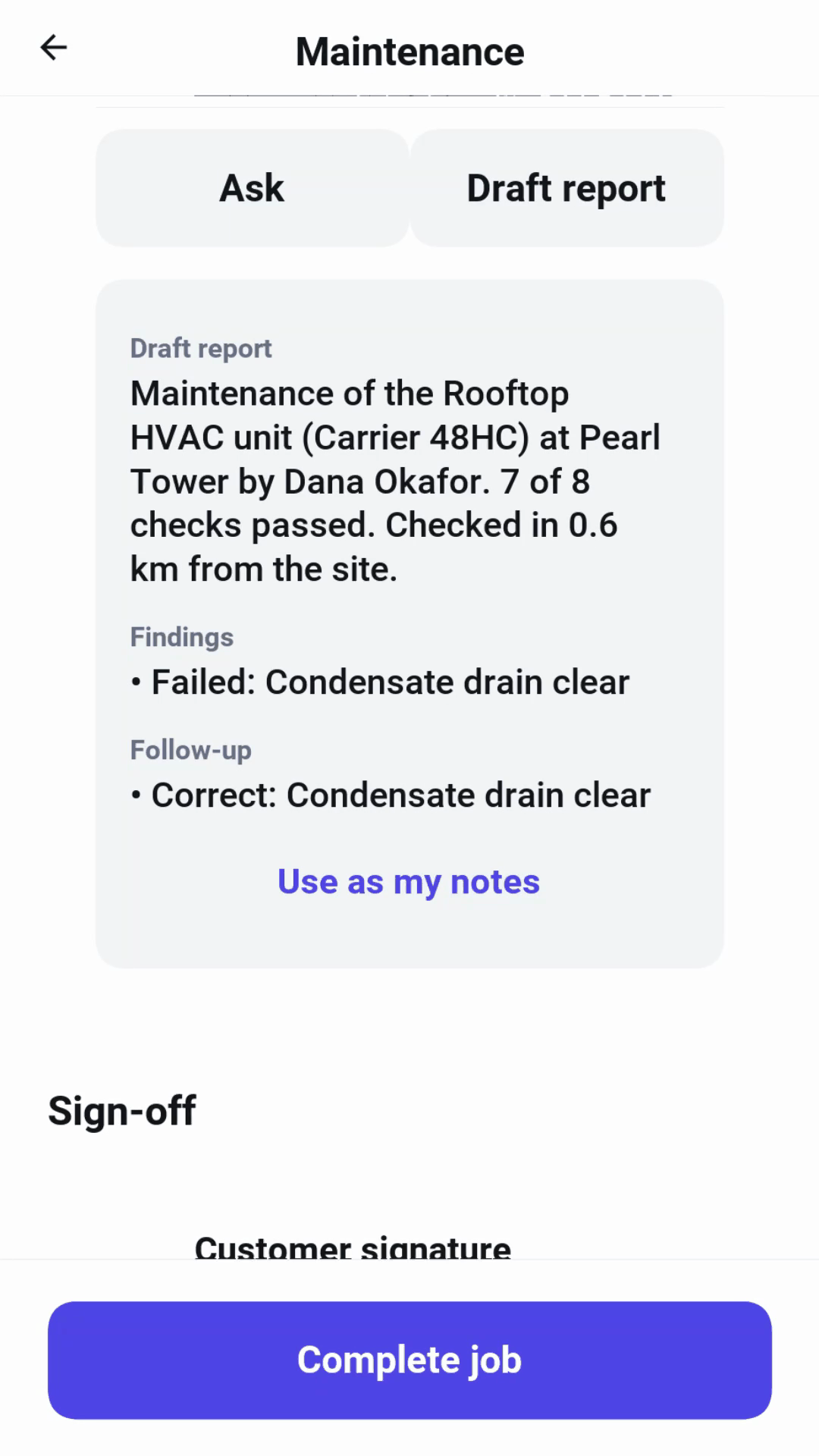
When the work is done, Draft report writes up the visit from the checklist, the findings and the follow-up, and the button under it puts the draft into the report for the technician to edit.
Sign-off
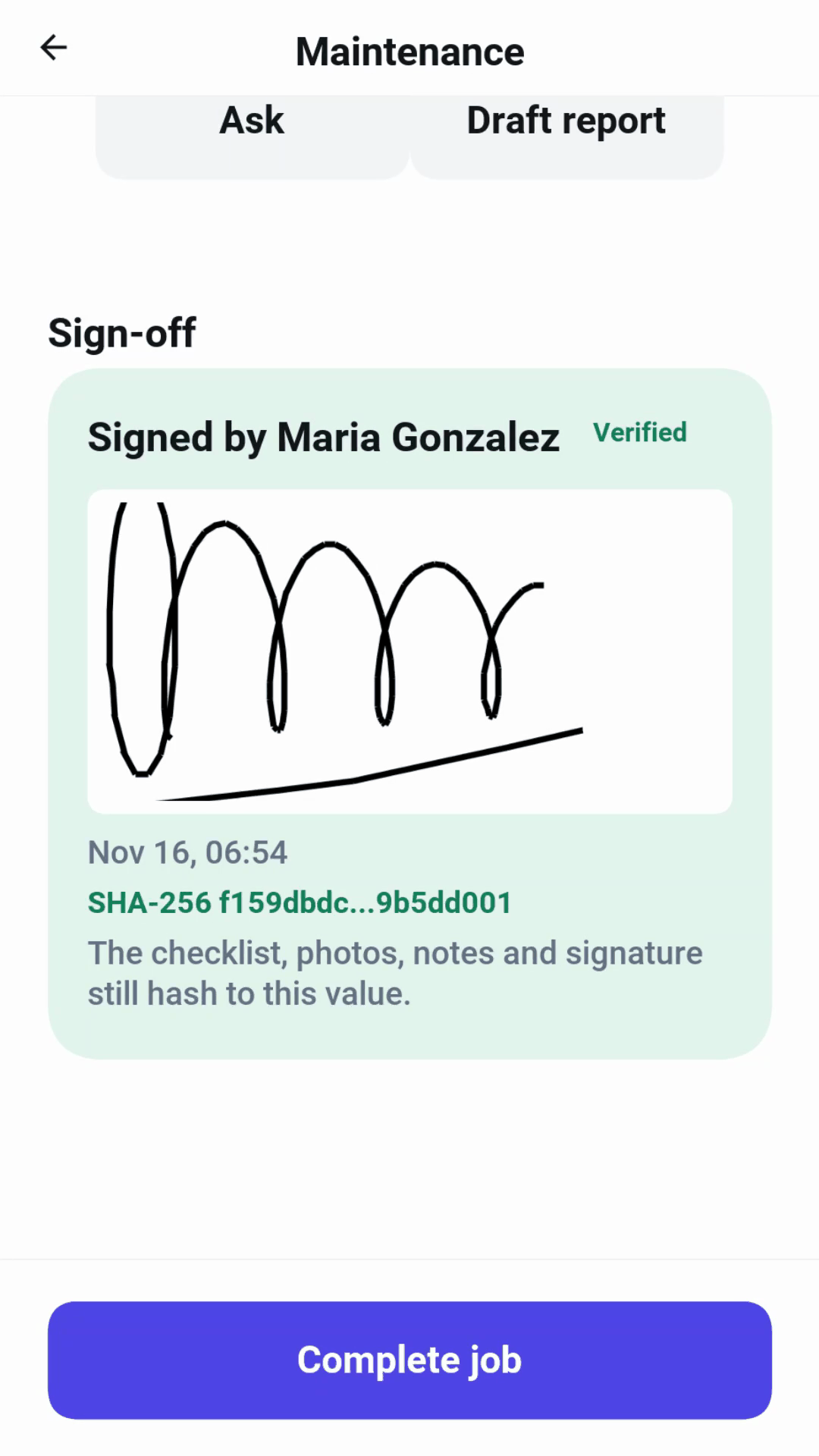
The customer signs on the screen, under a summary of what passed, what failed and how many photos were taken.
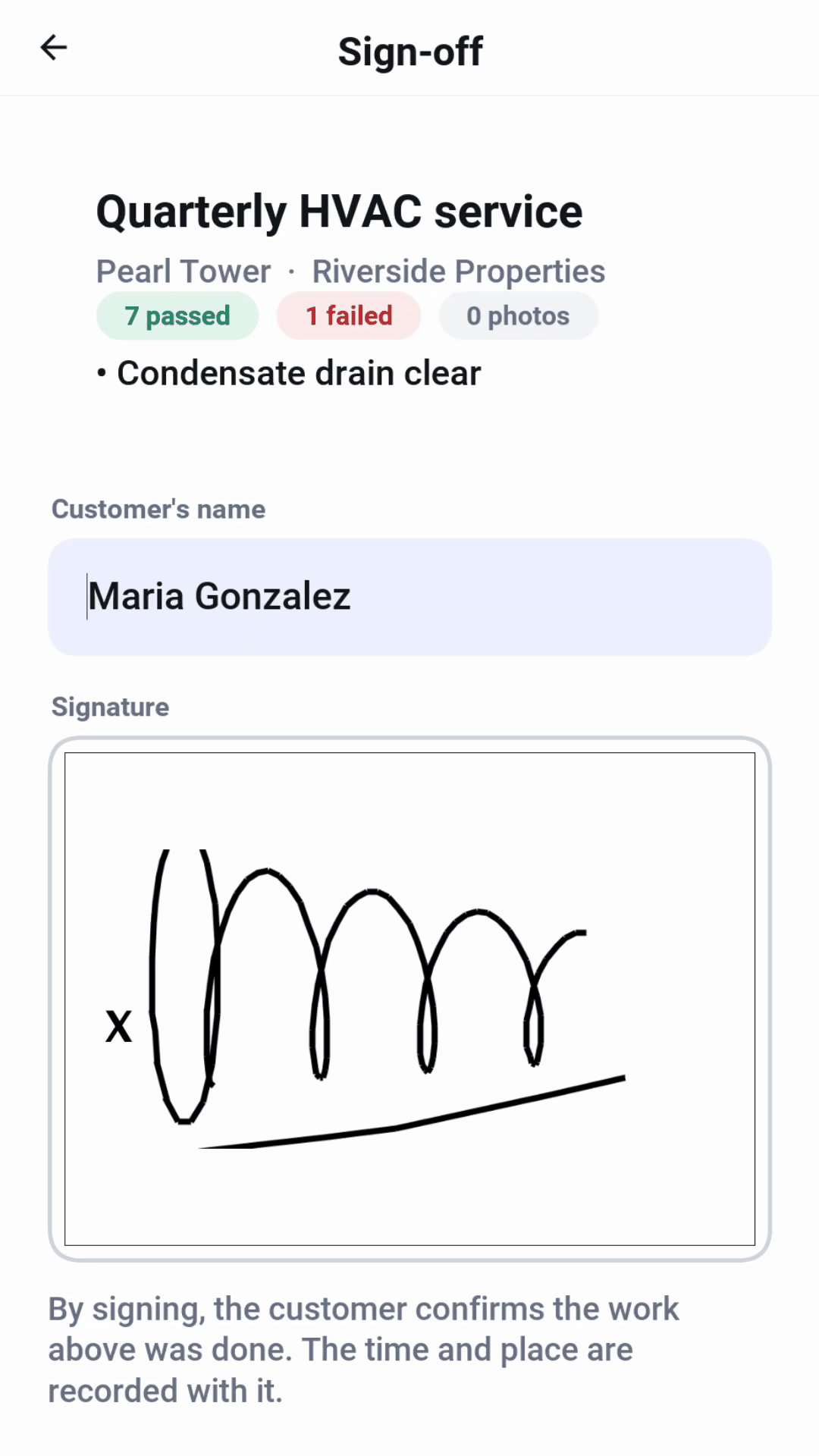
The signature is sealed with a hash of the signature, the checklist, the photos, the notes, the time and the place. The job shows the hash and checks it again each time it opens: if anything in the report has changed since the customer signed, it’s no longer marked verified.
Hours and time off
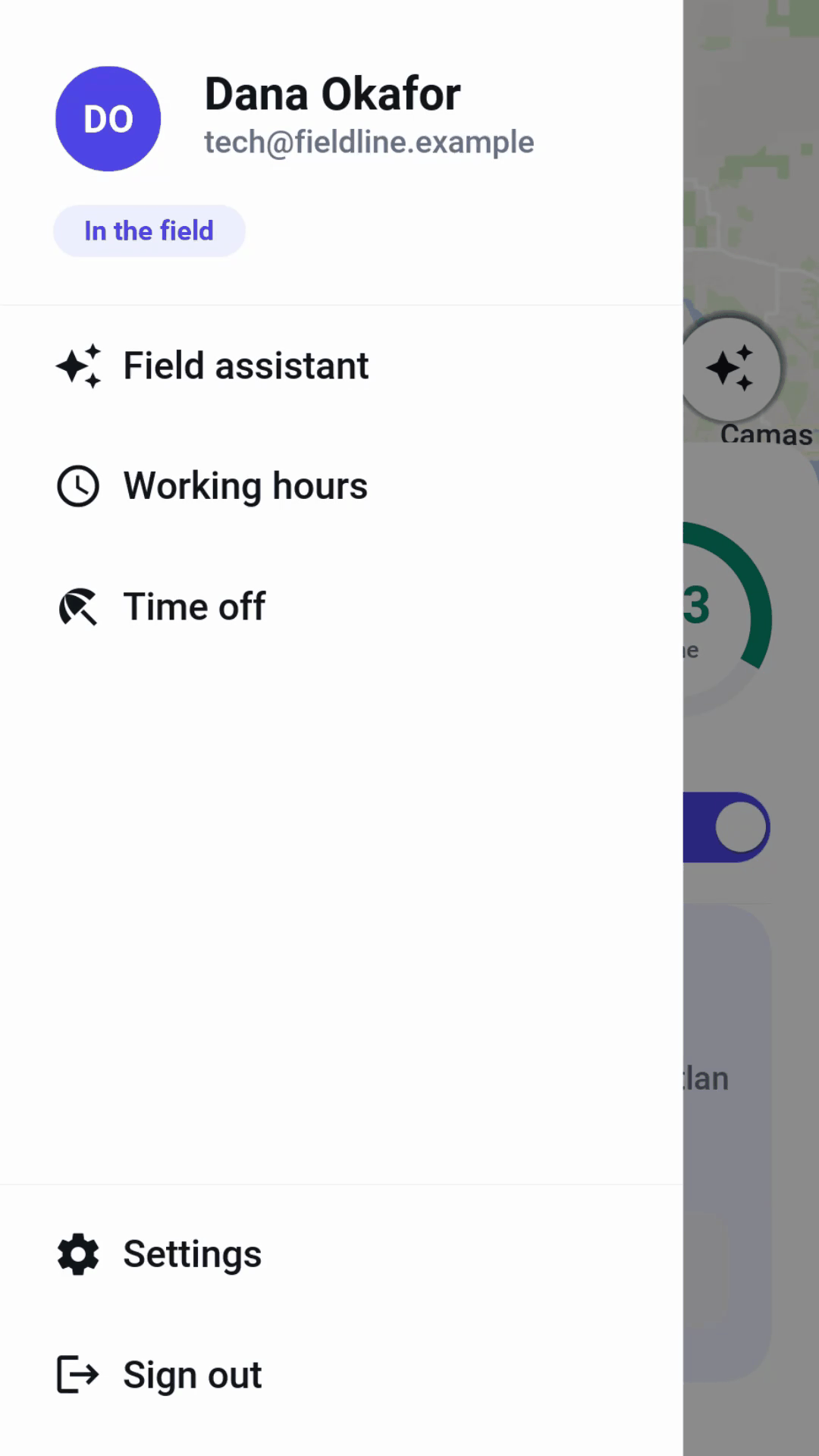
The menu holds everything besides the day’s work.
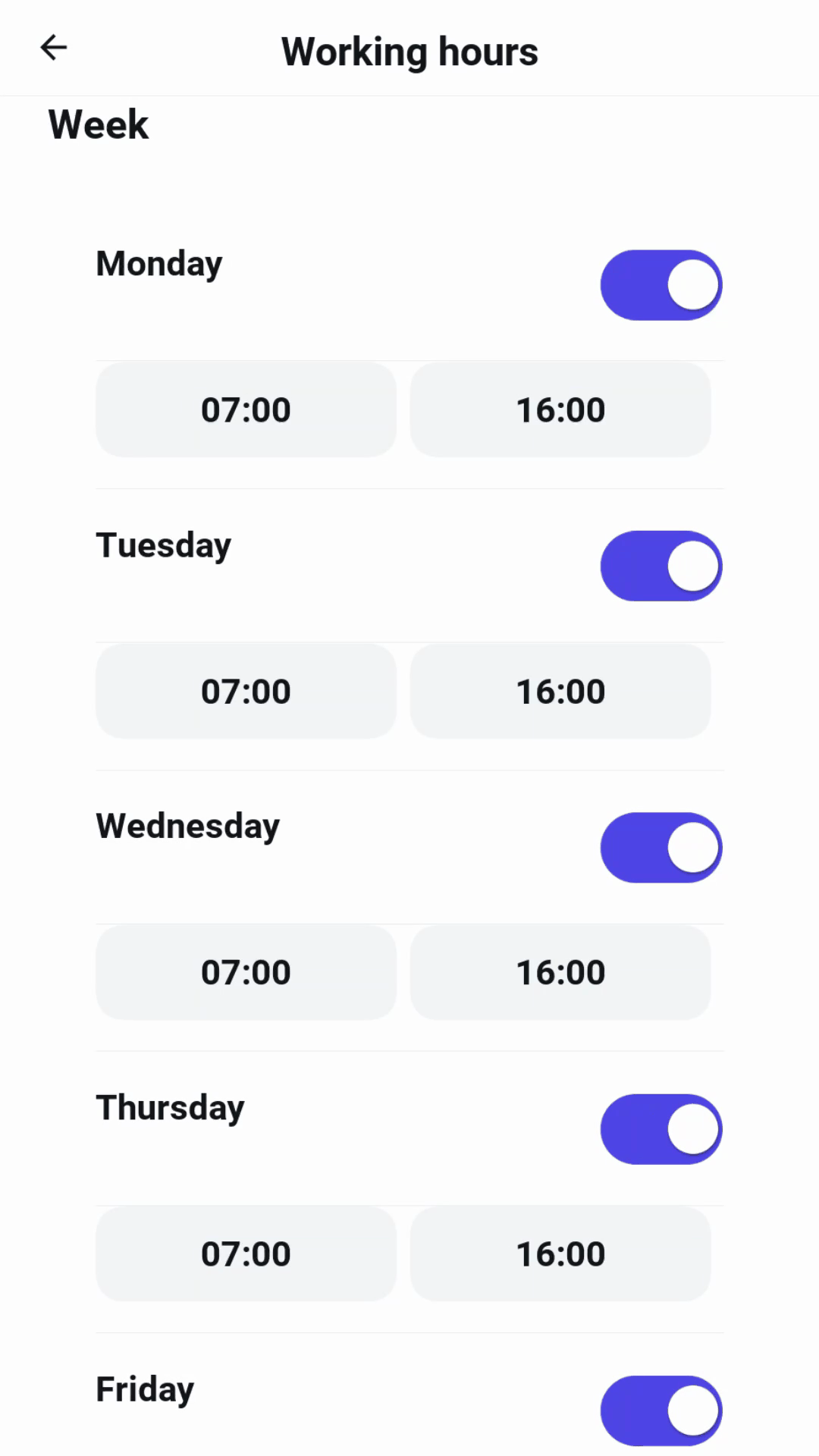
Working hours is the week the planner books into: the days the technician works, the hours on each, the longest drive they accept between jobs and the most hours in a week. The planner never books outside them, and saving them re-plans the week at once.
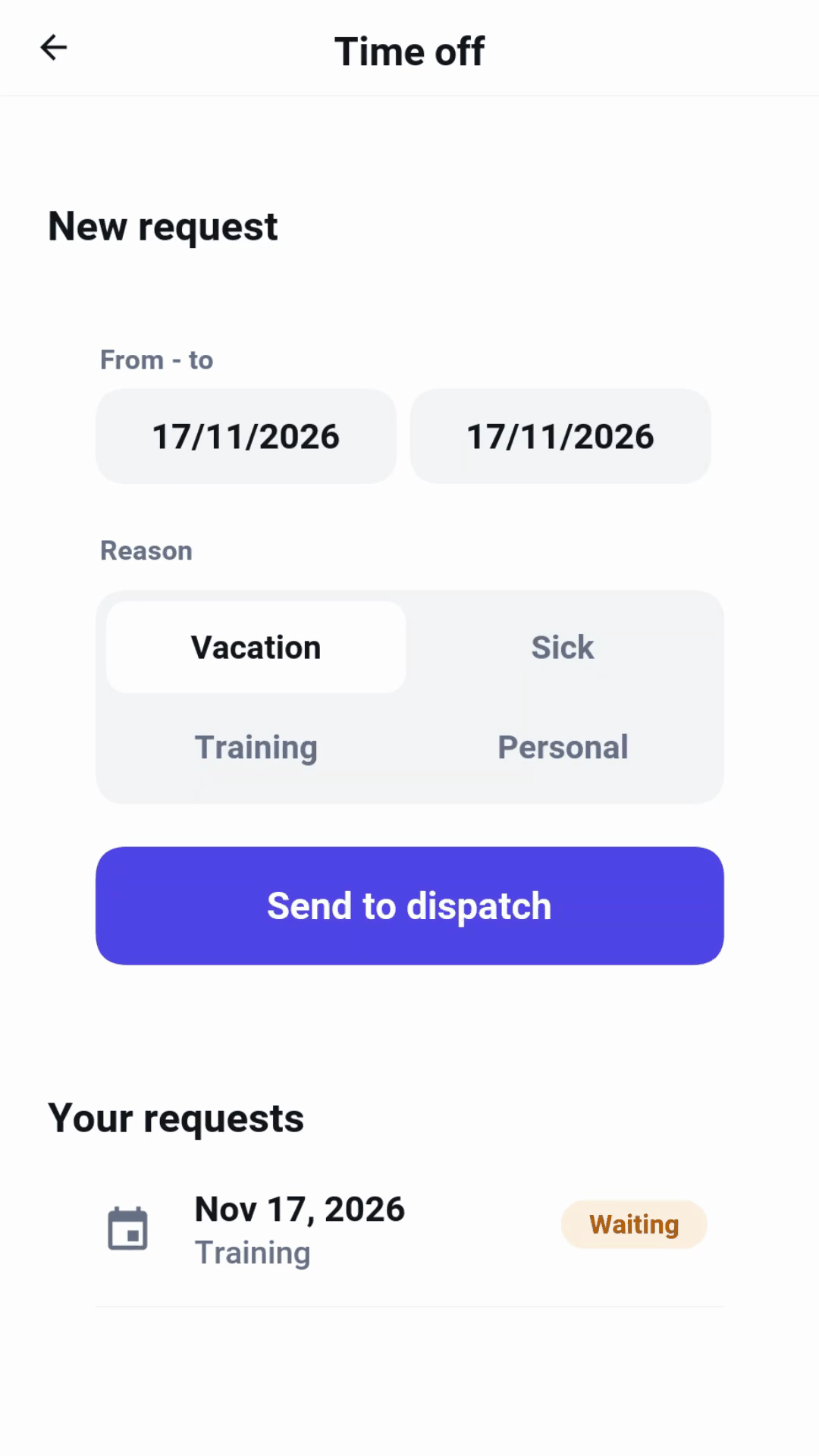
Time off asks the dispatcher for days away, with a reason. The request shows as waiting until the dispatcher decides, and then as approved or declined. The day’s jobs can also be added to the phone’s calendar from the settings.
The dispatcher
The dispatcher works at a desk, so the screens are laid out for a wide window with the places down the side. The same screens fit a tablet, and on a phone they stack.
The board
The board opens on today’s numbers: jobs scheduled, jobs no one can take, jobs past their deadline, the hours on the road and how much of the crew’s time is booked. Below them, the crew is one row each on a timeline, with the breaks striped. Beside it, Needs attention lists the time-off requests waiting and each unassigned job with the reason the planner couldn’t place it.
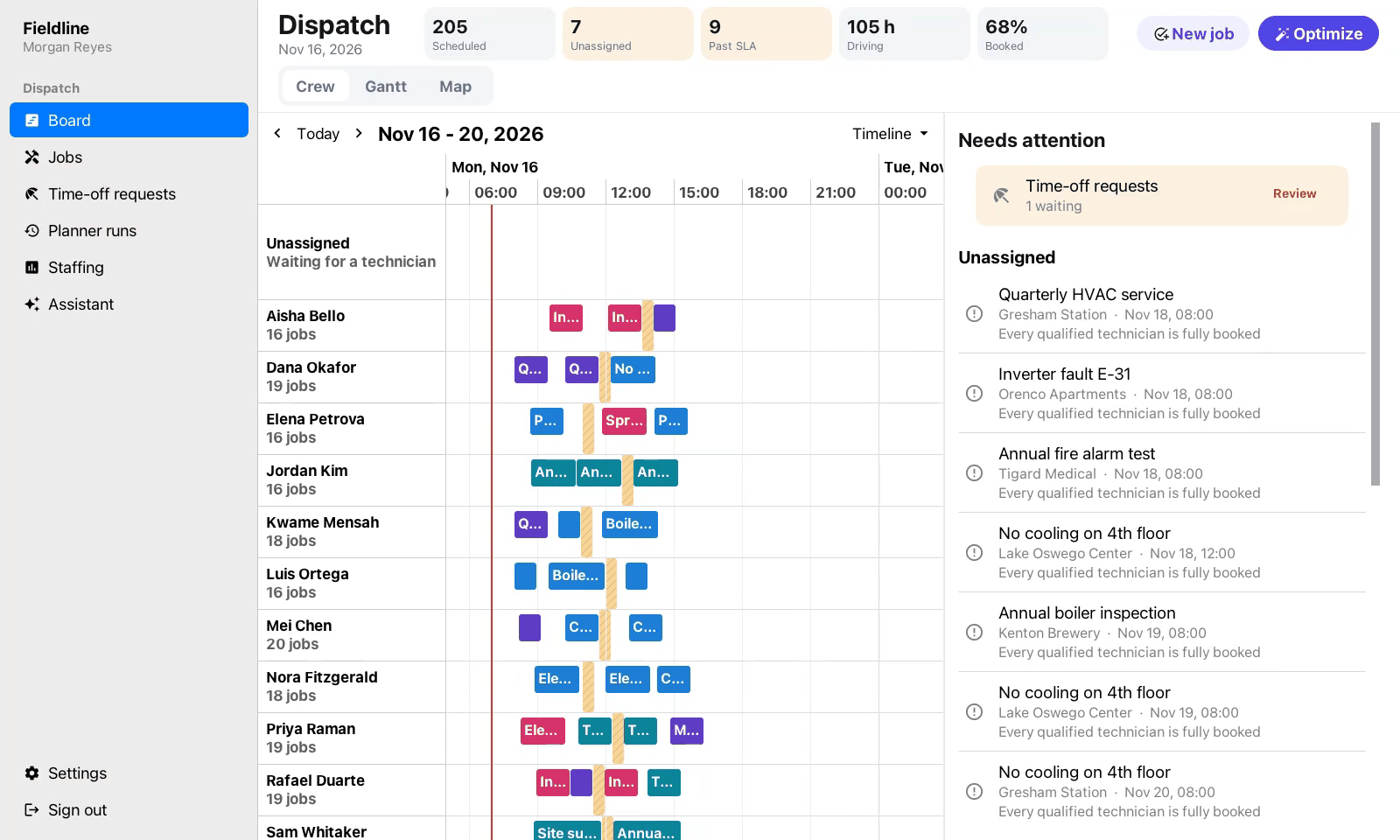
Tapping a job opens it. Dragging it to another row or time moves it, and the move is checked against every rule before it goes through: the technician’s skills and certificates, their hours and time off, the job’s window and the drive from the job before. A move that breaks one is refused with the reason. A new job goes to the planner, which finds it a place.
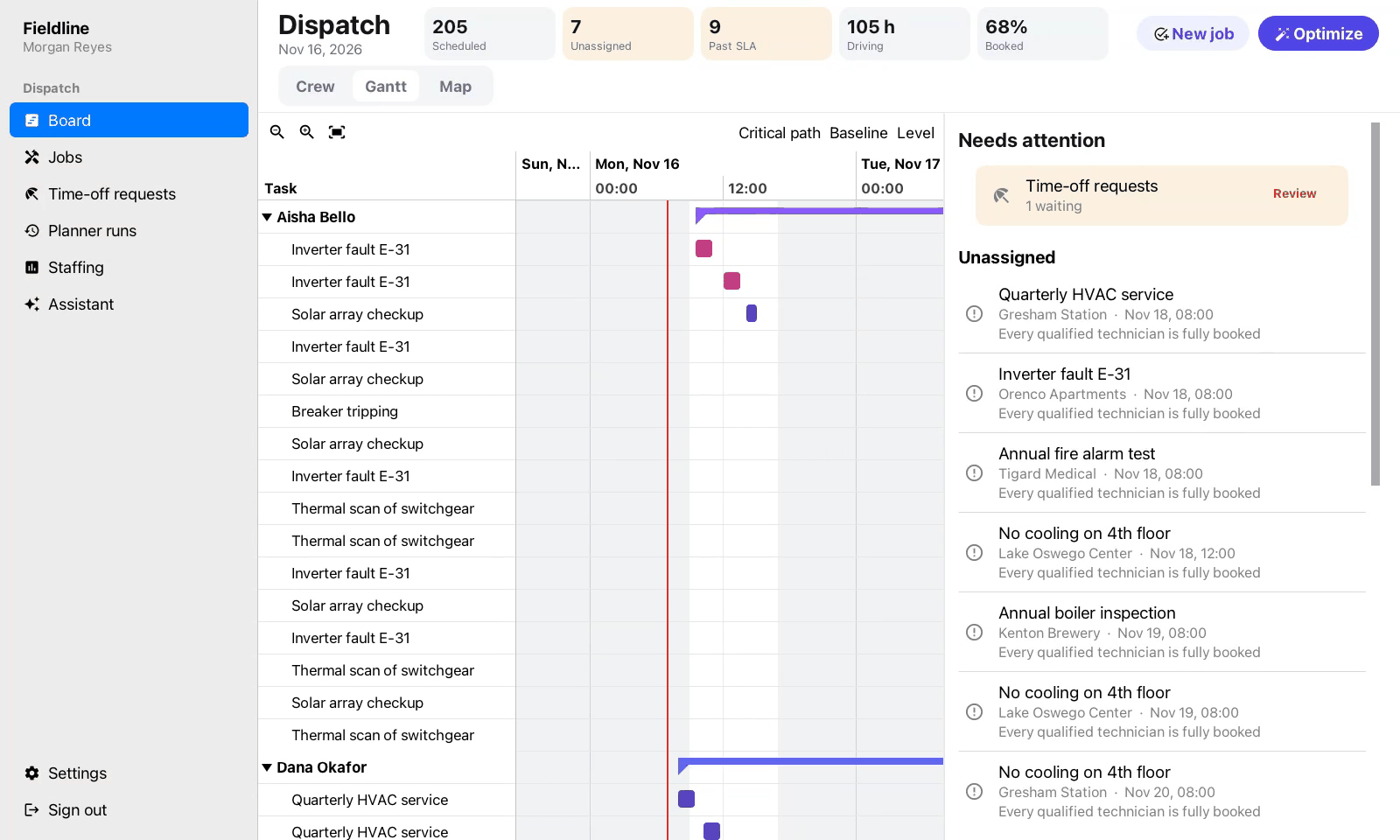
The Gantt view shows every technician’s jobs as bars against the plan before the last change, so what moved stands out.
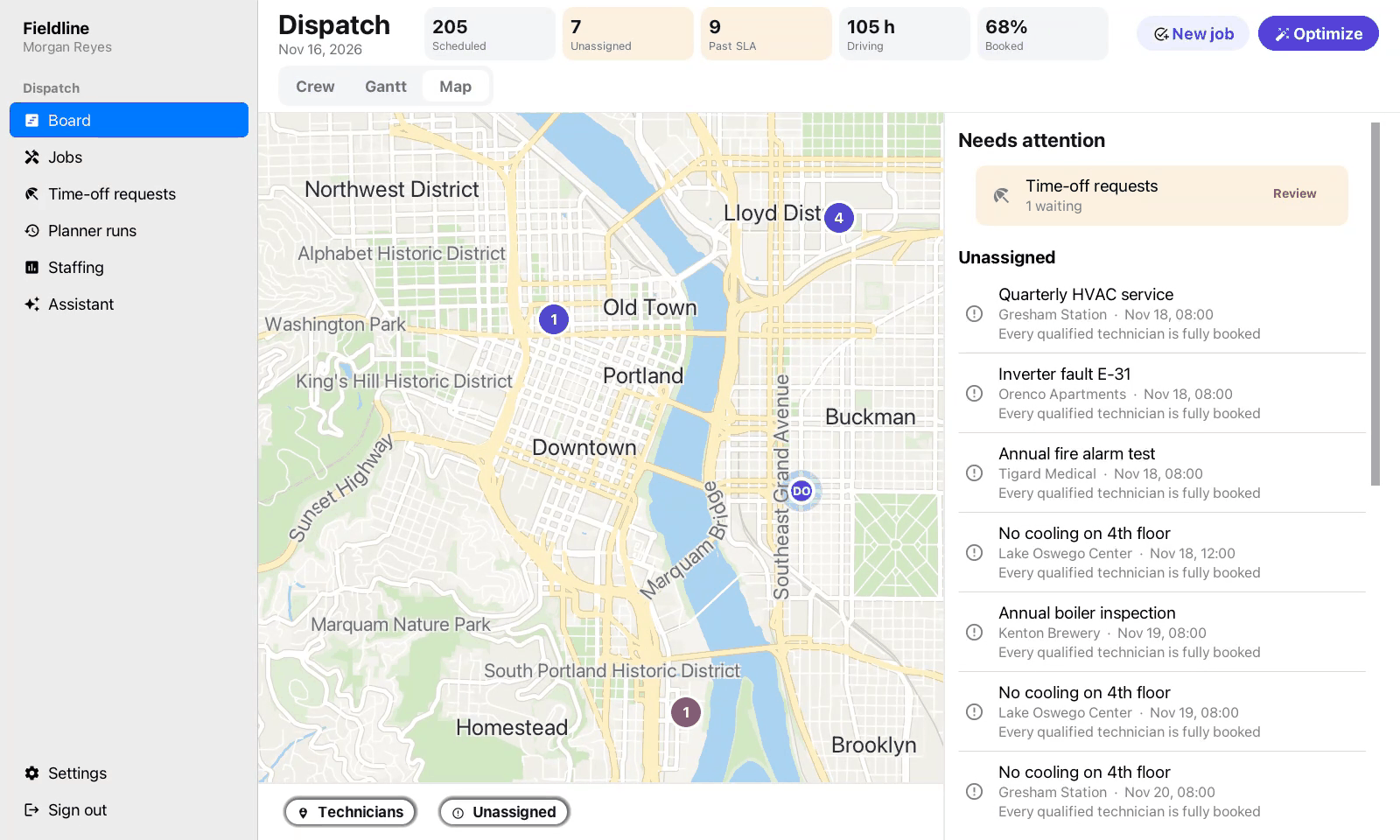
The map view shows where every technician is and the jobs no one has yet.
The planner
Optimize plans the week again. The result shows how the numbers changed and every job that moved, with where it went and why. Each run is kept under Planner runs, so a change can be traced to the run that made it.
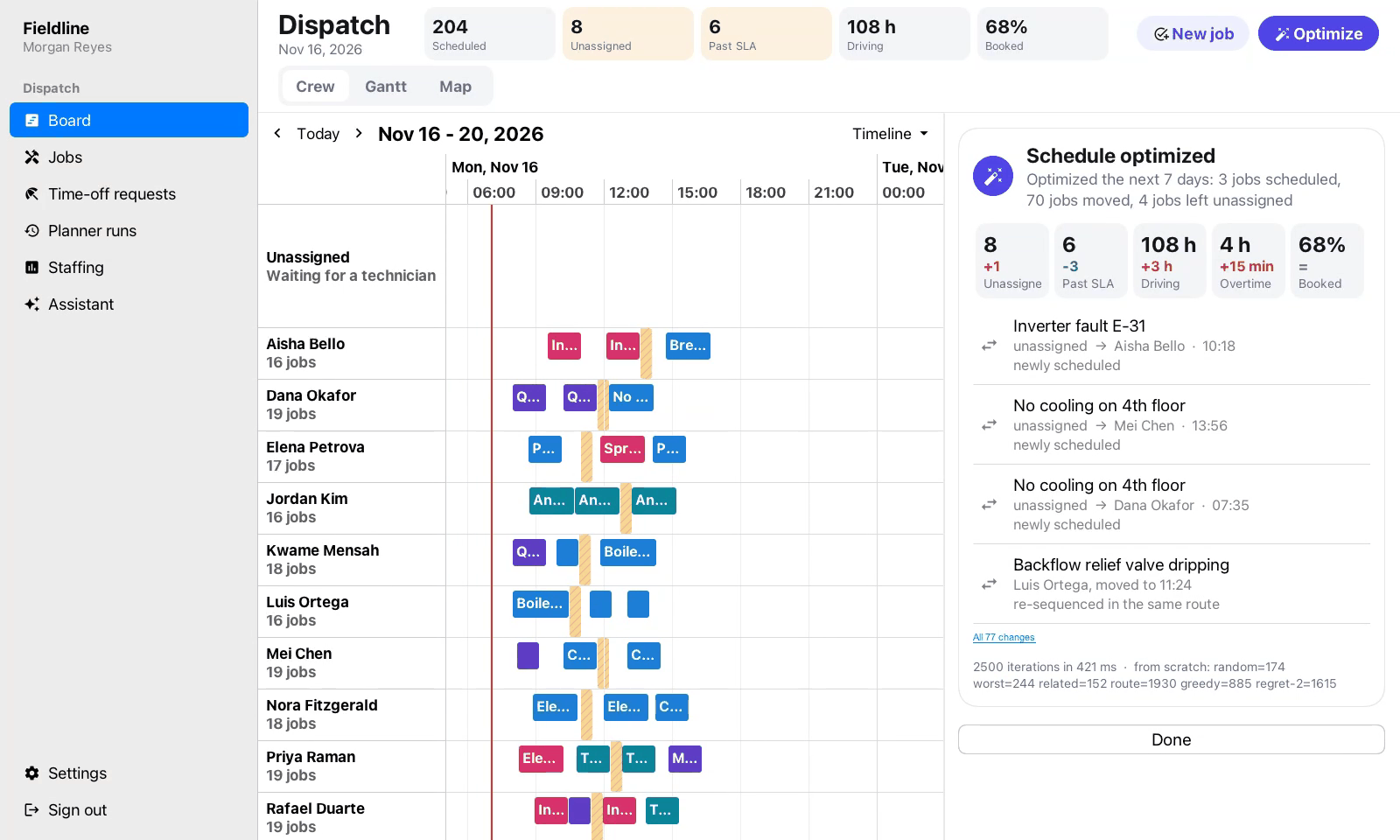
The planner keeps to the same rules as a move, and then weighs the rest: less driving, fewer missed deadlines, less overtime, each technician’s preferences, an even share of work, and the same technician for a site they visited before. When something changes in the middle of a week, it repairs the plan instead of starting again, and moves as few jobs as it can. Work already started is never moved.
Time off and absences
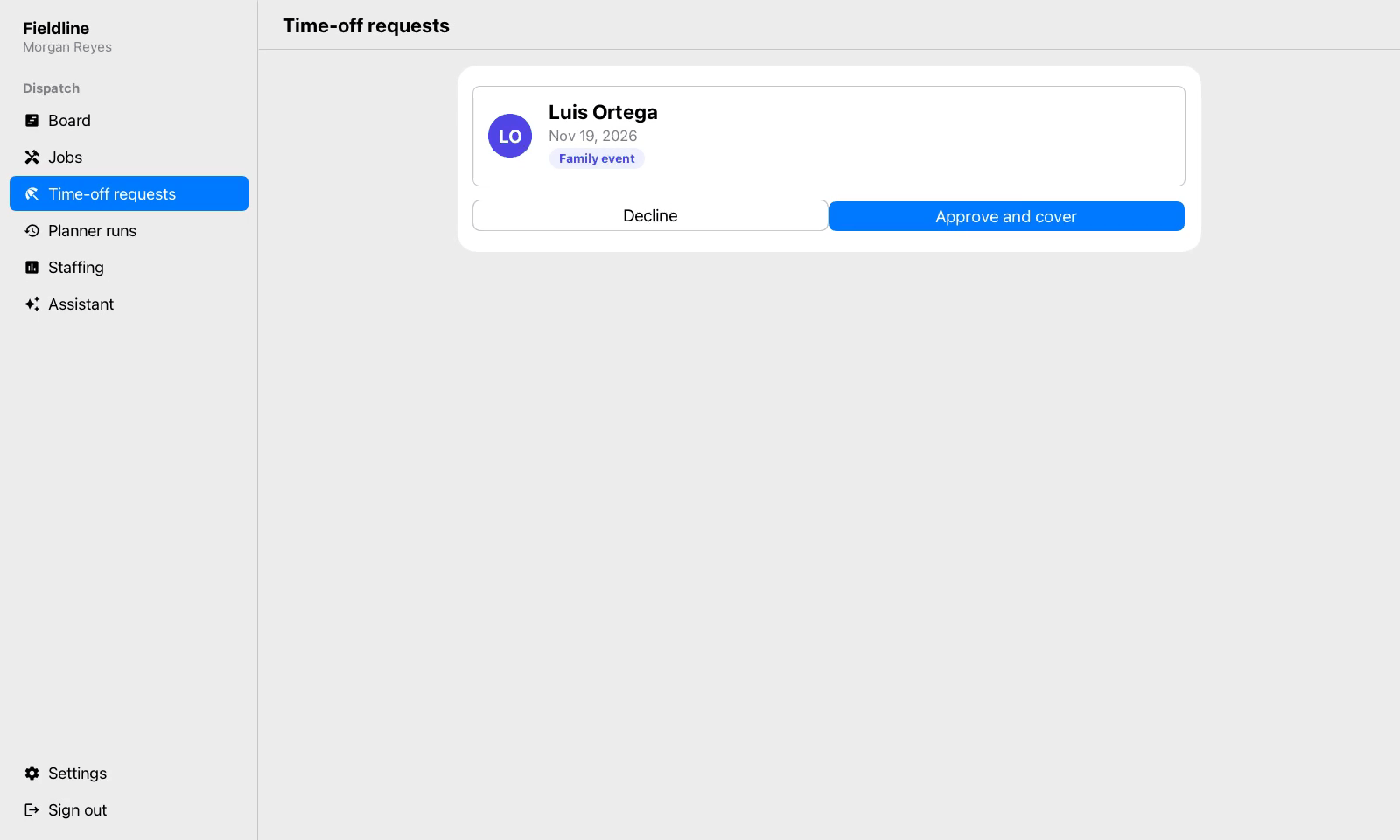
A technician’s time-off request waits under Time-off requests. A decision shows on the technician’s request. Approve and cover approves it and re-plans their jobs on those days onto the rest of the crew in one step.
The assistant
The dispatcher’s assistant takes requests in plain words, such as "Dana is out Thursday, cover her jobs." It works through the same planner as the board, and shows the run it made with the same figures and the same list of moves.
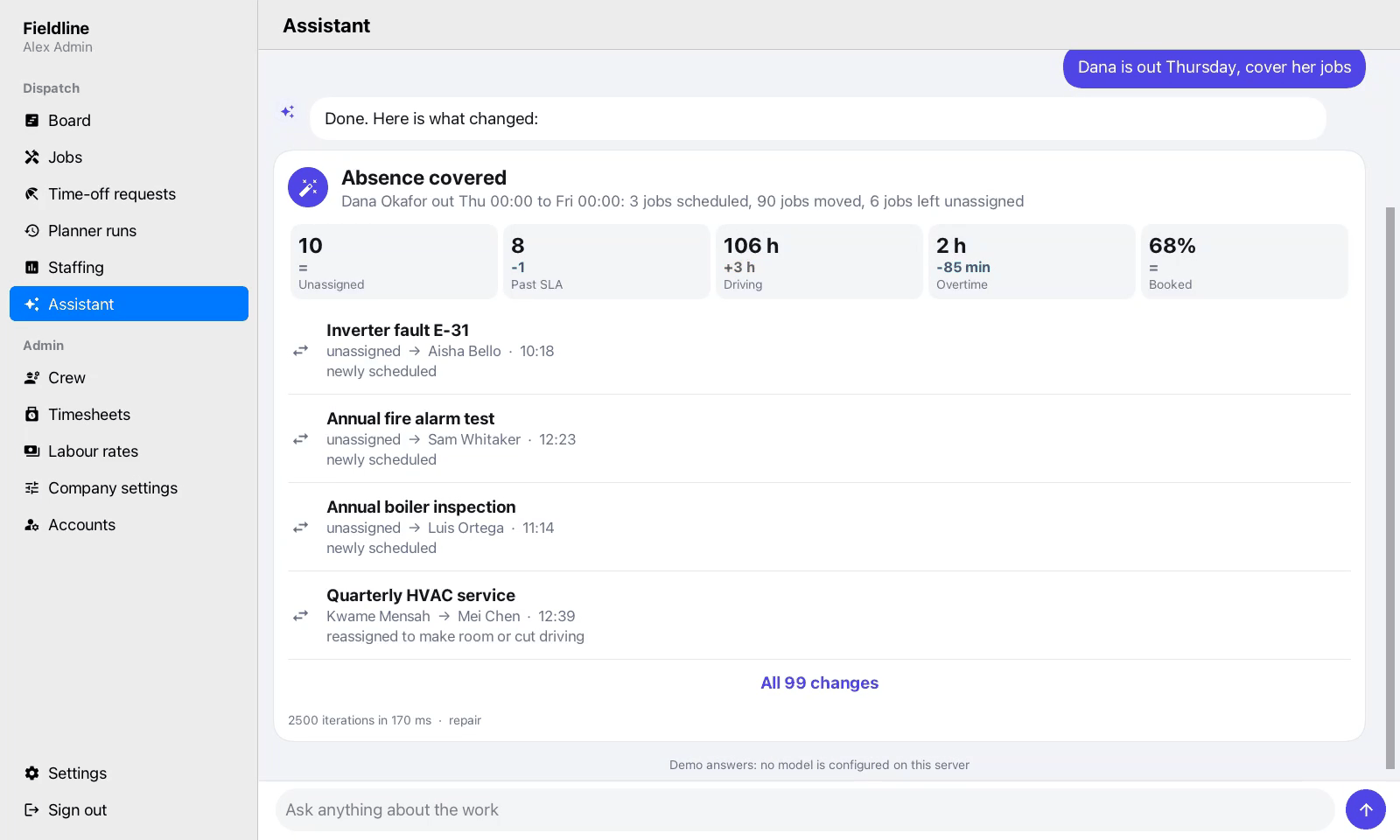
It also answers questions about the day: who is unassigned, who is qualified for a job, and what a technician has on today or tomorrow.
Staffing
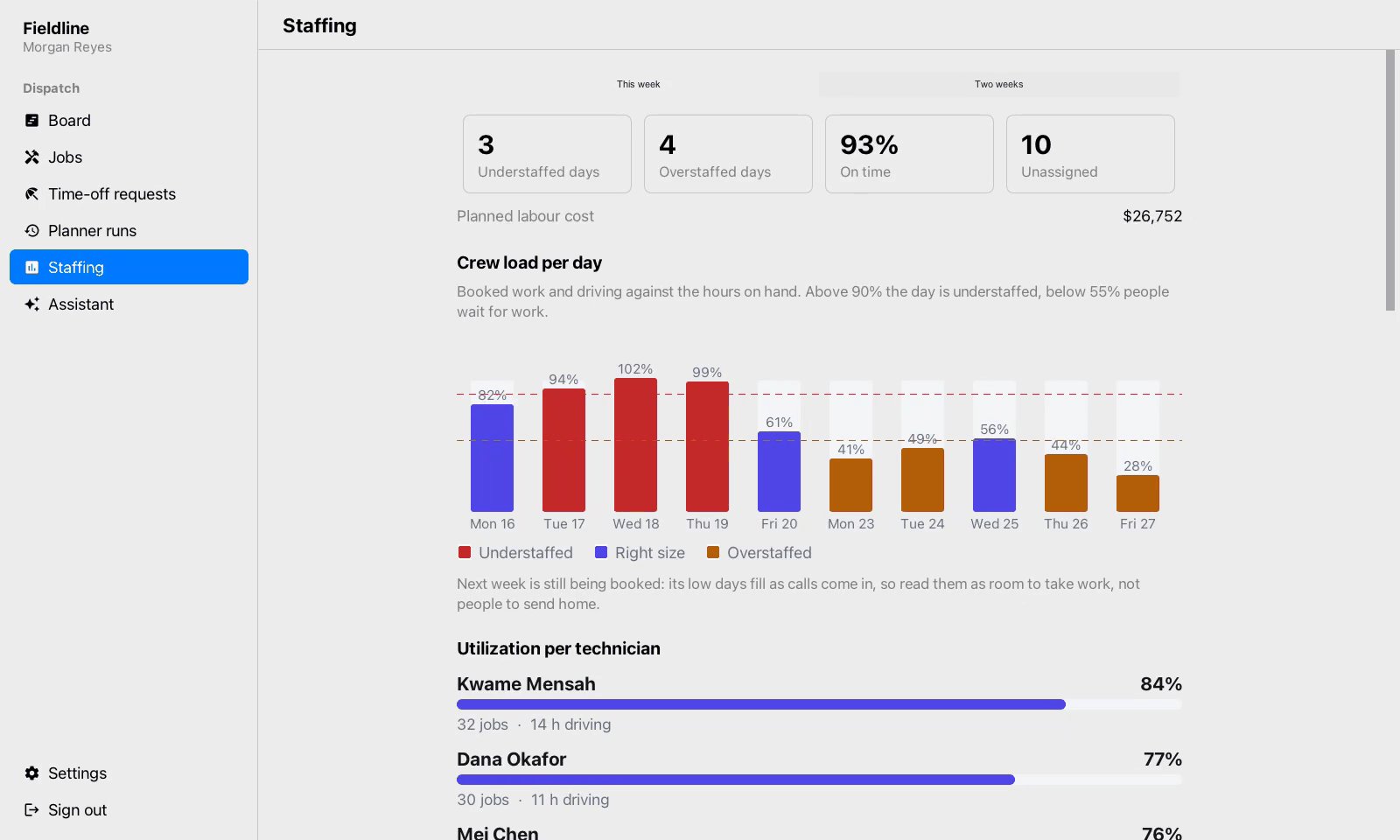
Staffing sets the work booked against the hours the crew has, day by day for this week or two. A day above 90% is understaffed and a day below 55% has people waiting for work. Below the chart, each technician’s share of the work shows who is carrying the week.
The administrator
The administrator sees everything the dispatcher sees, and an admin section of the back office.
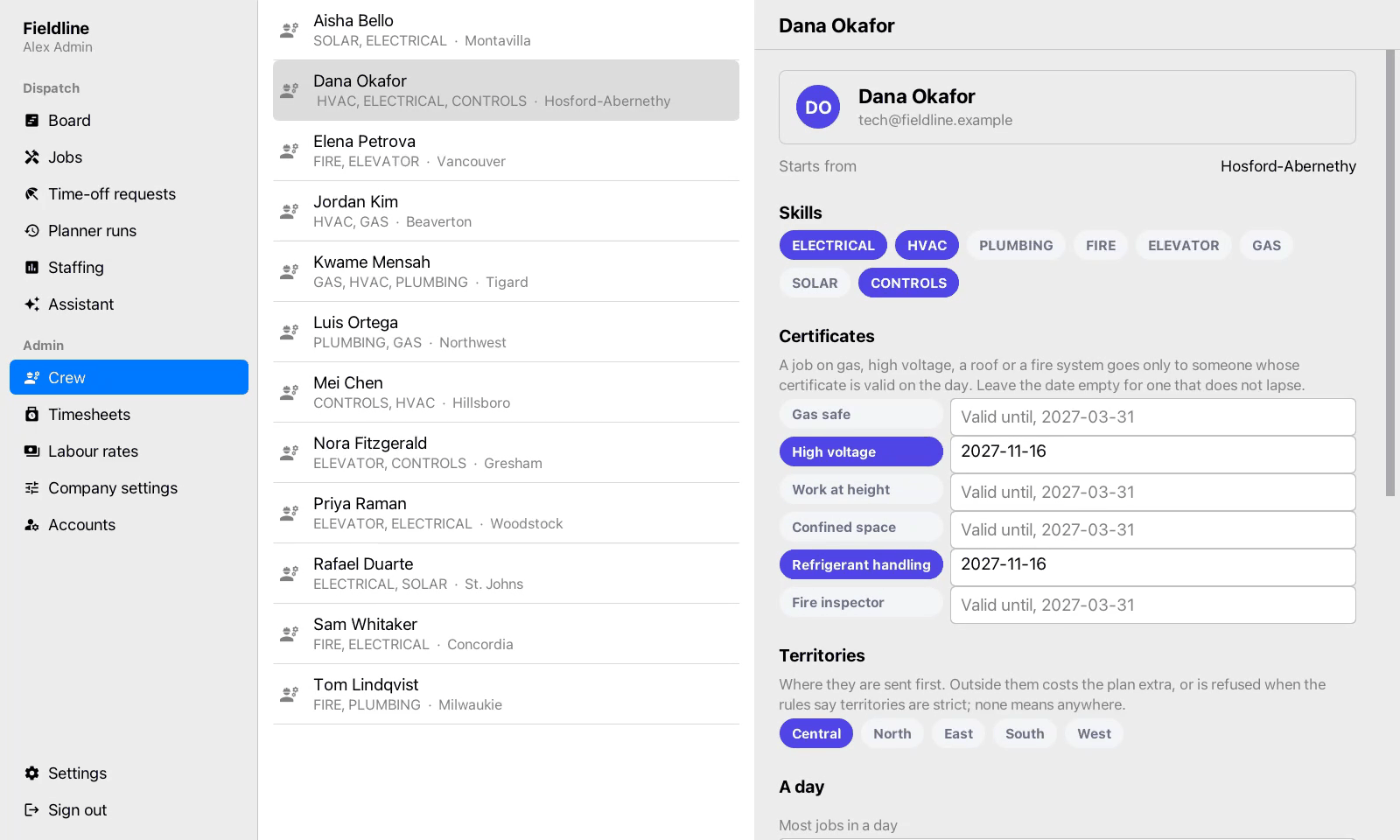
Crew is each technician’s skills, certificates with the date they lapse, territories, home base and limits. A job that needs a certificate goes only to someone whose certificate is valid on the day.
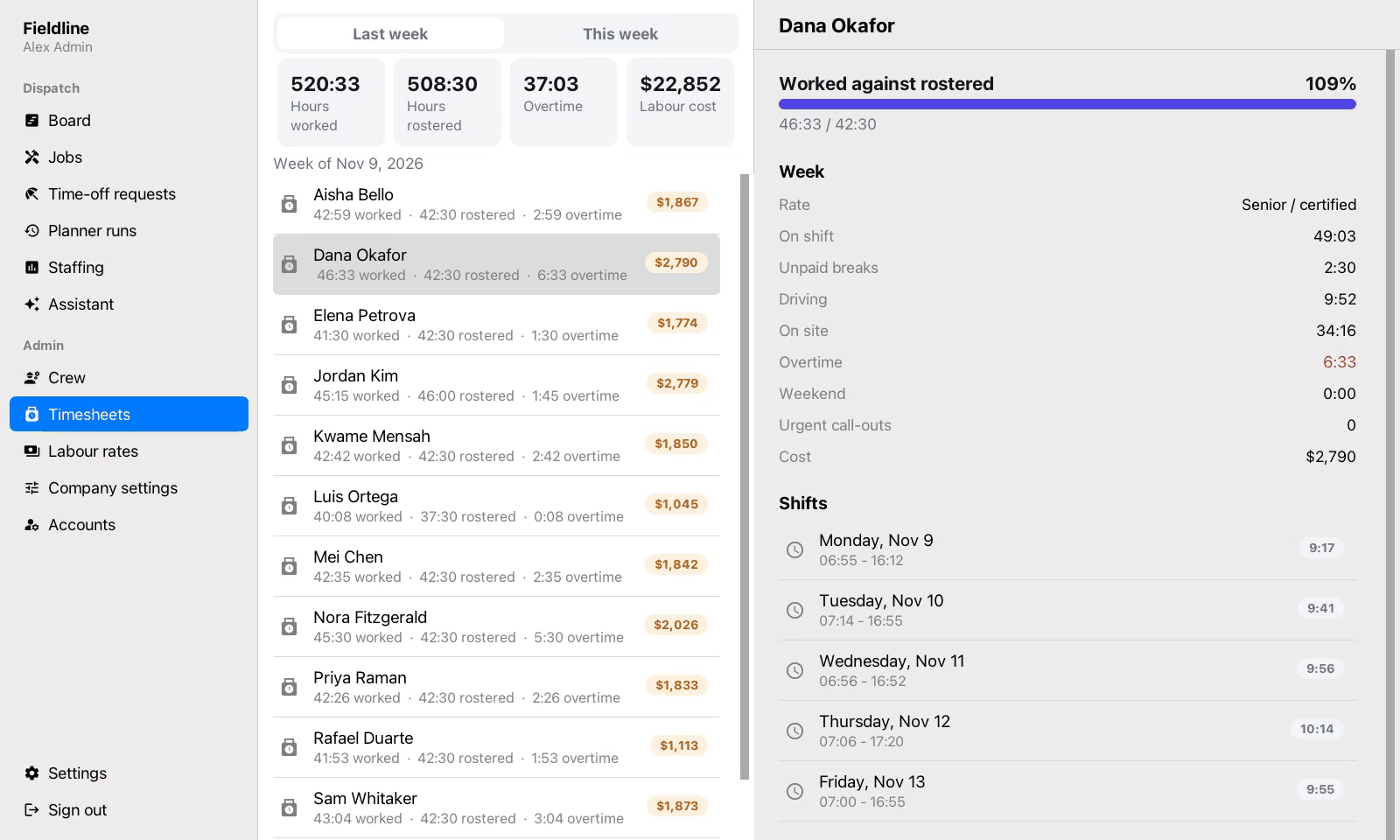
Timesheets add up the week from the clock: hours worked against hours rostered, overtime, and what the week costs. Each technician’s sheet lists their days, the time driving and on site, and the breaks taken.
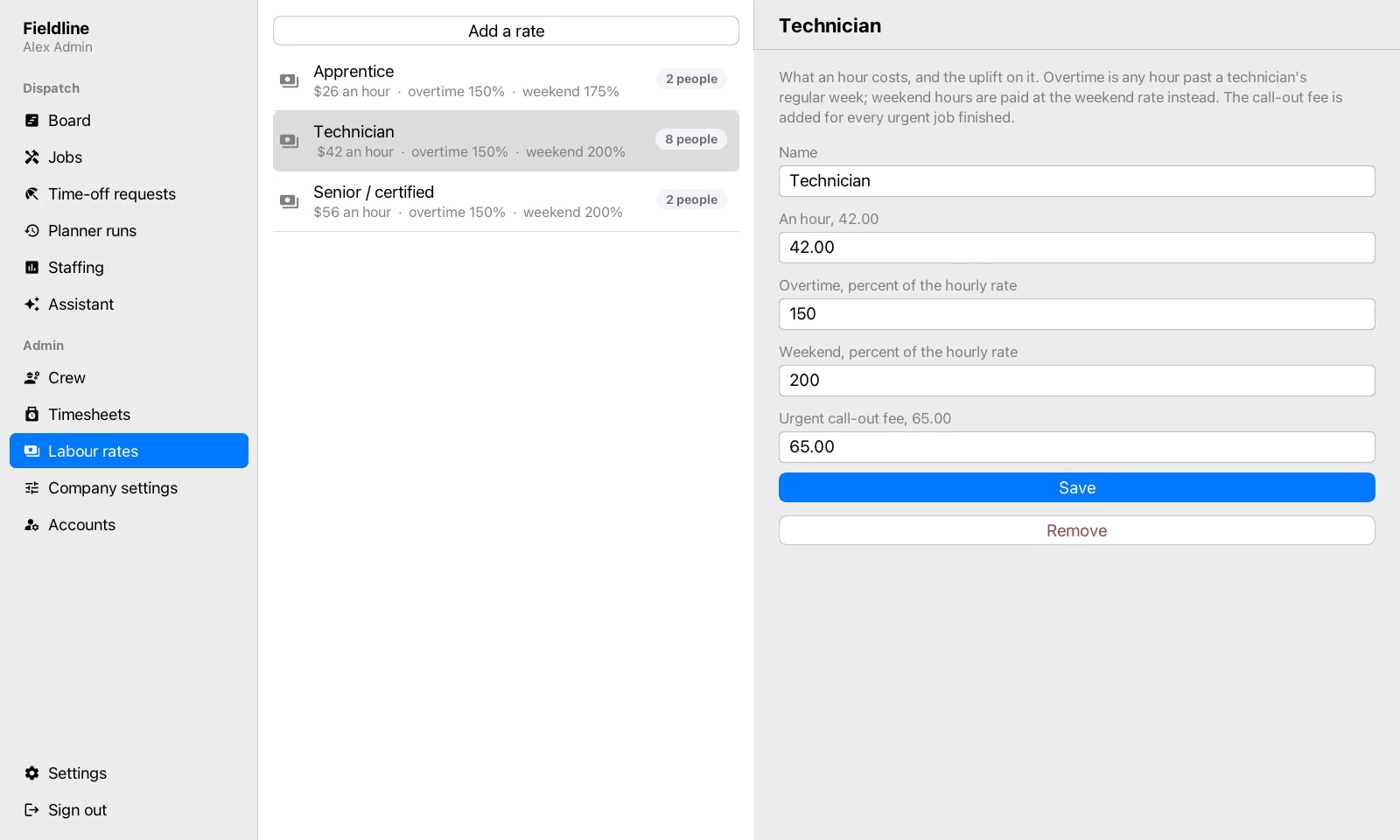
The labor rates set what an hour costs for each grade of technician, with the uplift for overtime and weekends and the fee for an urgent call-out. The company settings hold the rest of the pay rules and the rush hours that slow travel.
Accounts lists everyone who can sign in, with the roles each one holds. An account can be suspended, which signs it out everywhere at once.
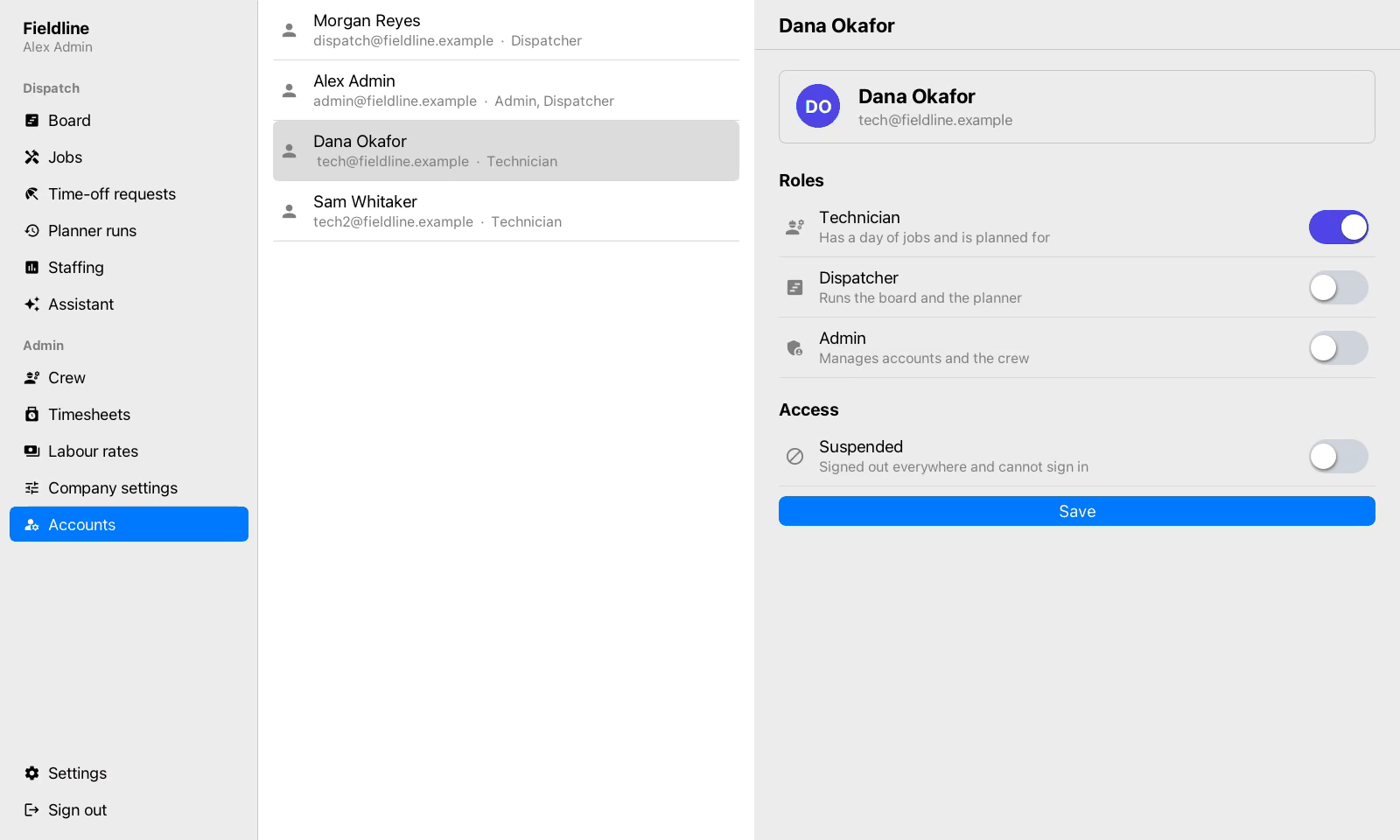
Outside the development profile the server creates only one account, the administrator named in its settings, who grants everyone else their roles.