Codename One is mobile-first, but the same app can run on the desktop: as a Java SE
“Run as desktop app” / executable jar, and as a native macOS app via the local
mac-source (native macOS) build target. By default a desktop build looks like a phone
app in a window - a mobile-style Toolbar at the top of every Form, fading touch
scrollbars, and commands tucked into a hamburger side menu.
The desktop integration features make a desktop build feel like a desktop app:
A native window title bar that shows the
Formtitle (instead of the in-appToolbar).A native menu bar populated from your
Commandobjects, with per-command placement hints (About, File, Edit, Quit, …).Interactive scrollbars - a draggable thumb that highlights on hover and while dragged, click-to-page on the track, a minimum thumb size so it stays easy to grab on long content, a reserved gutter so content isn’t drawn under the bar, and an always-visible (rather than fading) scrollbar.
Keyboard accelerators on the native menu items (a Save shortcut, a Quit shortcut).
Native desktop notifications driven by the standard
LocalNotificationAPI.
These behaviors are opt-in. They’re switched on by default for newly generated projects
(both the Maven archetype and the start.codenameone.com initializr) and stay completely
inert on phones/tablets - all the new behavior is gated on CN.isDesktop(), so a mobile
build of the same project is unaffected.
Alongside them a desktop build also gets, without asking for anything:
Keyboard conventions. Tab and Shift-Tab move focus through the form, Enter fires the default command, and Escape fires the back command - or closes a dialog or window that has no back command, the same thing the platform’s own close control does. On a phone none of these keys exist, so every one of them is gated on
CN.isDesktop().A right-click menu. Give a component its commands with
Component.setContextMenuCommands(Command…)and one opens on a secondary mouse button, a stylus barrel button or a long press. Where the commands depend on what was clicked, register aComponent.addContextMenuListener(ActionListener)and callContextMenu.show(…)from it.Dialogs in a window of their own, when the installed theme asks for it. The three desktop native themes do; see Dialogs in a window of their own.
Three controls that only make sense here:
Separator,GroupBoxandStepper.
Title-bar modes
The window chrome is selected by the desktop.titleBar setting, which takes one of three values:
| Hide the CN1 |
| Application-drawn title content where the CN1 |
| Legacy behavior - the in-app CN1 |
The screenshots below show the same notes app, with File / Edit / View / Help commands, in each mode on macOS.
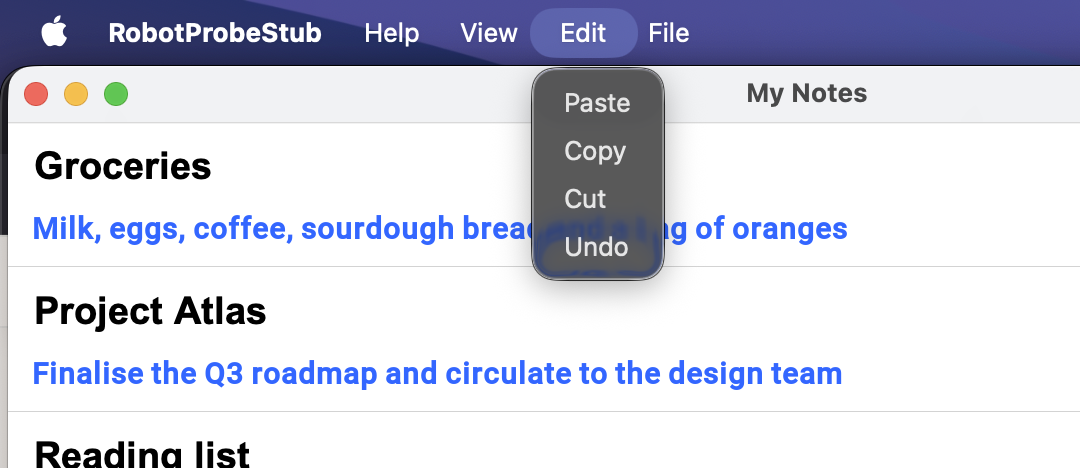
native mode: the Form title is in the OS window title bar, the commands populate the native menu bar, and there is no in-app Toolbar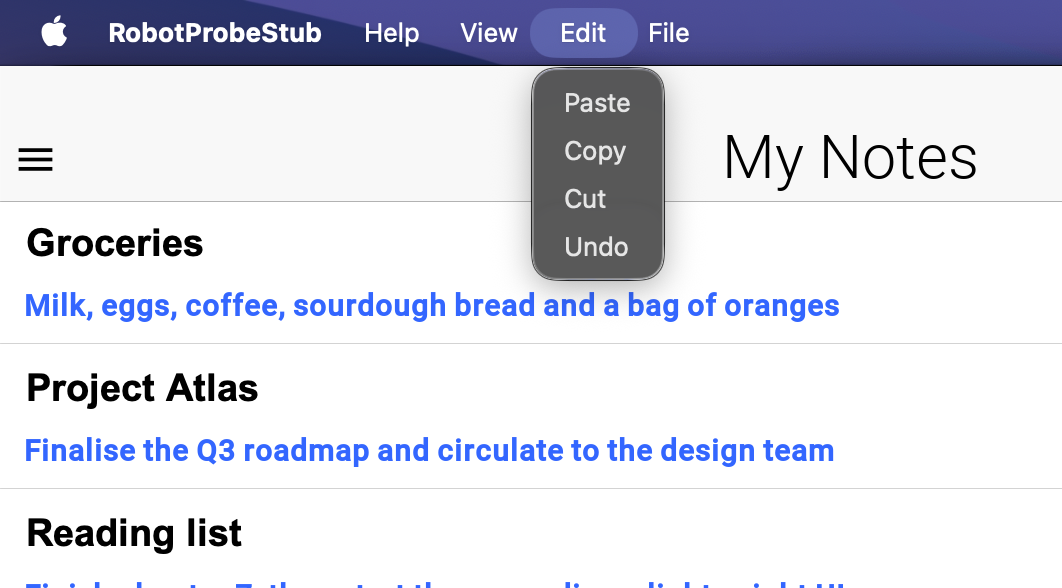
custom mode: the window is undecorated and the CN1 Toolbar (title + hamburger side menu) is the window’s title bar; the commands are also in the native menu bar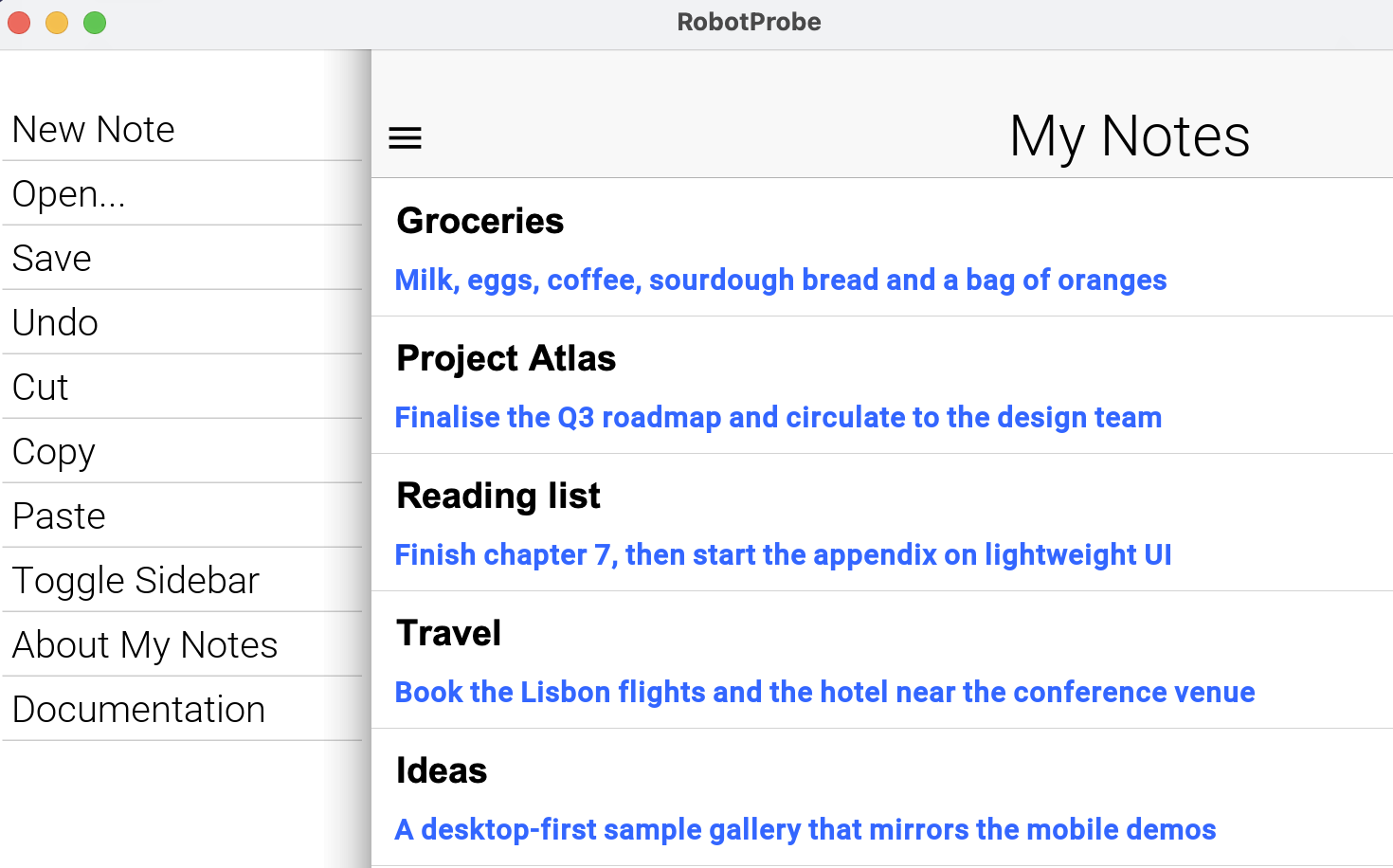
toolbar mode: the legacy look - the in-app Toolbar sits below a generic OS title bar and the commands live in the hamburger side menuEnabling it on the Java SE desktop build
For the desktop (Java SE) target the mode is a build hint that the generated desktop launcher
applies for you. In codenameone_settings.properties:
codename1.arg.desktop.titleBar=native
codename1.arg.desktop.interactiveScrollbars=true
Newly generated projects already contain these lines. The generated <MainName>Stub reads them
at startup, so no code is required. Because the stub is the desktop entry point, the settings only
ever take effect on the desktop.
Enabling it on the native macOS build
The local mac-source build runs through ParparVM, where the chrome is the application’s own
NSWindow and NSMenu. Set codename1.arg.desktop.titleBar=custom in
codenameone_settings.properties to draw title content in the toolbar, or use native for the
standard OS title bar. The generated launcher applies the build hint before calling the
application’s init() method, so the first toolbar uses the requested mode. Without a hint the
installed theme chooses the mode: the bundled Aqua theme requests native. If the theme doesn’t
specify a mode, the port supplies its fallback.
In custom mode, macOS retains its native close, minimize and zoom controls and window resizing.
Dragging an empty part of the toolbar uses the OS window drag operation. Double-clicking it follows
the user’s macOS title-bar preference. Buttons (including disabled buttons), editable titles,
scrollable regions and other interactive descendants are excluded from the drag area. The toolbar
publishes these regions to the native port after layout; applications don’t need their own window
drag listeners. The native Windows and Linux ports use the same toolbar contract, as described below.
The setting can also be supplied as a runtime property before constructing the first Form:
Display.getInstance().setProperty("desktop.titleBar", "native");
Display.getInstance().setProperty("desktop.interactiveScrollbars", "true");
UIWindowScene and UIMenuBuilder rather than AppKit; see
Working with Mac Catalyst.Integrated title content on native desktops
Use desktop.titleBar=custom when document actions, a search field, or other application controls
belong in the title area. Configure the toolbar with setTitleComponent() and the usual left/right
bar commands. The framework reserves space for the operating system’s window controls; don’t add
fixed padding for traffic lights or caption buttons. Theme padding is additional application spacing.
public static Form createEditor(Command save, Command search) {
    Display.getInstance().setProperty("desktop.titleBar", "custom");
    Toolbar.setGlobalToolbar(true);
    Form editor = new Form("Quarterly report", new BorderLayout());
    Container title = new Container(new BorderLayout());
    title.add(BorderLayout.WEST, new Button(save));
    title.add(BorderLayout.CENTER, new Label("Quarterly report"));
    title.add(BorderLayout.EAST, new Button(search));
    editor.getToolbar().setTitleComponent(title);
    return editor;
}
The example belongs in the normal application lifecycle, after Codename One has initialized the
display. Applications don’t call Display.init(). The build hint can select the mode before
init() runs; a runtime property must be set before constructing the first form.
Native port | Window behavior in |
macOS | AppKit retains the real traffic-light buttons, resizable frame and native menu bar. The toolbar occupies the full-size content area. Empty title space uses AppKit dragging and the user’s configured double-click action. |
Windows | The Desktop Window Manager retains the caption buttons. Native hit testing routes empty title space to caption dragging and routes the edges to resizing. Windows handles maximize, restore, minimize, close and the system menu. Application controls remain client input targets. Caption metrics follow the window DPI; caption appearance follows the system light/dark setting. |
Linux | A |
On Windows, the integrated mode omits the separate Win32 menu row, which would overlap the custom
caption. Toolbar commands remain available through their application controls and side menu, and
native command accelerators remain registered. Use native mode for the traditional Win32 menu
bar. On Linux, the native GTK menu row remains below the integrated header. The macOS menu stays
in the system menu bar. If an application hides the toolbar’s side menu, it must provide another
visible way to invoke those commands, such as its ribbon.
Reserved space uses physical left/right edges, independent of a document’s text direction. The framework accounts for native controls while measuring and laying out the toolbar, and restores the application’s padding values and units afterward. Resize, DPI and native theme changes can change this space. Avoid forcing the toolbar below its preferred height.
Interactive children, including disabled buttons, are excluded from native dragging. Plain
Label and Container instances allow window gestures on their passive backgrounds. Pointer,
long-press, context-menu and stylus listeners keep their input. Subclasses and other component
types retain input by default, including those that override pointer methods. For a custom
component that only draws a title background, call Toolbar.setTitleBarDragRegion(component, true)
to allow dragging there; interactive children and listeners remain excluded. Passing false
also excludes a plain label or container. Hiding or removing the toolbar clears its drag regions; the Windows and Linux ports
restore their ordinary title area. When DWM composition is unavailable, Windows retains its
standard decorated frame instead of removing the user’s window controls.
This integration applies to the main application form in native desktop builds. Separate
Window and dialog peers retain their own native decorations. Phone/tablet UI and browser pages
use their existing toolbar behavior: this feature doesn’t open browser popup windows or attempt
to control browser chrome. The Java SE desktop port retains its existing custom-title behavior.
For port implementers, getNativeWindowTitleBarInsets(Component) supplies physical left, right,
top and bottom insets followed by the minimum title-band height, all in component pixels.
setNativeWindowTitleBarRegions(Component, int[]) receives the full band followed by interactive
exclusion rectangles. An empty array clears the regions. These calls originate on the EDT;
ports must copy arrays before asynchronous native work and must not call Java UI code from a
synchronous native geometry query. The AppKit port reads a cached geometry snapshot so layout
can’t deadlock against the native rendering thread.
Native menu bar and command placement hints
In native and custom title-bar modes, the commands you add through the
Toolbar / Form command API are bridged to the platform’s native menu bar - a Swing JMenuBar
(which becomes the macOS screen menu) on the Java SE build, and an NSMenu on the native macOS build.
Selecting a menu item runs the command’s actionPerformed on the Codename One EDT, exactly as a
button press would.
By default every command lands under a single Commands menu. To place commands into the
conventional desktop menus, tag them with a desktop-menu hint using Command.setDesktopMenu(String)
and the Command.DESKTOP_MENU_* constants:
Form hi = new Form("My App", BoxLayout.y());

Command about = new Command("About My App");
about.setDesktopMenu(Command.DESKTOP_MENU_ABOUT);   // application menu

Command open = new Command("Open File...");
open.setDesktopMenu(Command.DESKTOP_MENU_FILE);     // File menu

Command quit = new Command("Quit");
quit.setDesktopMenu(Command.DESKTOP_MENU_QUIT);     // application menu

hi.addCommand(about);
hi.addCommand(open);
hi.addCommand(quit);
hi.show();
The recognized values are (case-insensitive):
| The macOS application menu. Other platforms have none, so these commands go to File. |
| The About, Settings and Quit standard commands, placed where each platform keeps them. See Standard commands. |
| Placed in the matching standard top-level menu. |
Any other string | Becomes a top-level menu with that literal title. |
Unset | Grouped under a default Commands menu. |
Each port maps the hint to its native structure: on the native macOS build the command is inserted
into the application’s real NSMenu under the application, File, Edit, View, Window and Help
submenus; on the Java SE build a top-level JMenu is created per hint group.
All four desktop ports have one: a Swing JMenuBar on the Java SE build, an NSMenu on the
native macOS build, a Win32 HMENU on the Windows port and a GtkMenuBar on the Linux port.
The three ParparVM ports encode a command the same way, so one format serves every one.
Form keeps its
Toolbar there instead of hiding it - hiding it would take away the only place the commands are
drawn - and Display.COMMAND_BEHAVIOR_NATIVE normalizes back to the default rather than
dropping every command without a word. Nothing in application code branches on this.Command.DESKTOP_MENU), so it’s inert on platforms that
don’t have a native menu bar - it’s safe to set it unconditionally in shared code.Keyboard accelerators
Give a command a keyboard accelerator with Command.setDesktopShortcut(…). The shortcut is shown
next to the menu item and triggers the command from the keyboard:
Command save = new Command("Save");
save.setDesktopMenu(Command.DESKTOP_MENU_FILE);
save.setDesktopShortcut('S');   // Cmd+S on macOS, Ctrl+S on Windows/Linux

Command saveAs = new Command("Save As...");
saveAs.setDesktopMenu(Command.DESKTOP_MENU_FILE);
saveAs.setDesktopShortcut('S',
        Command.DESKTOP_SHORTCUT_MODIFIER_PRIMARY | Command.DESKTOP_SHORTCUT_MODIFIER_SHIFT);
The single-argument form uses the platform’s primary modifier - Command on macOS, Control on
Windows/Linux - which is the right default for most menu shortcuts. The
two-argument form takes a bit-mask of Command.DESKTOP_SHORTCUT_MODIFIER_PRIMARY,
Command.DESKTOP_SHORTCUT_MODIFIER_SHIFT and Command.DESKTOP_SHORTCUT_MODIFIER_ALT. On the
Java SE build the accelerator becomes a Swing KeyStroke; on the native macOS build it becomes the
menu item’s keyEquivalent and keyEquivalentModifierMask.
Like the placement hint, the accelerator is inert on platforms without a native menu bar, so it’s
safe to set unconditionally.
Submenus, separators, check items and icons
The same Command carries the rest of a menu item’s structure:
| A path: each |
| Orders the items of a menu by group, keeping the order you added them in within a group, and
draws a separator wherever the group changes. |
| Makes the item a check item. Choosing it flips the state before the action runs, so the
action reads the new value from |
| Makes the item one of a radio group: checking one unchecks the others. |
| A disabled command is greyed out in the menu and can’t be chosen. |
| Shown beside the item where the platform draws menu icons. |
public static void addViewMenu(Form form) {
    // A check item: the state flips before the action runs.
    Command sidebar = Command.create("Show Sidebar", null, e -> {
        boolean visible = ((Command) e.getSource()).isDesktopChecked();
        System.out.println("Sidebar visible: " + visible);
    });
    sidebar.setDesktopMenu(Command.DESKTOP_MENU_VIEW).setDesktopChecked(true);

    // A radio group in a submenu, a separator group below the check item.
    String[] zooms = {"50%", "100%", "200%"};
    for (String zoom : zooms) {
        Command c = Command.create(zoom, null, e -> System.out.println("Zoom " + zoom));
        c.setDesktopMenu("View/Zoom").setDesktopMenuGroup(1).setDesktopRadioGroup("zoom");
        c.setDesktopChecked("100%".equals(zoom));
        form.getToolbar().addCommandToOverflowMenu(c);
    }

    // An icon and a separator group of its own.
    Command refresh = Command.createMaterial("Refresh", FontImage.MATERIAL_REFRESH,
            e -> System.out.println("Refresh"));
    refresh.setDesktopMenu(Command.DESKTOP_MENU_VIEW).setDesktopMenuGroup(2);
    refresh.setDesktopShortcut('R');

    form.getToolbar().addCommandToOverflowMenu(sidebar);
    form.getToolbar().addCommandToOverflowMenu(refresh);
}
Changing a command’s enabled or checked state updates the visible menu. After changing
anything else about a published command, such as its name or icon, call
Display.getInstance().refreshNativeMenu().
Each platform draws these items in its own style. macOS and Mac Catalyst show a radio item with the same checkmark as a check item, as every Mac application does. Windows draws a bullet. The Windows and Linux menus show no icons: Win32 menu bitmaps need a decoder that port doesn’t have, and GTK 3 deprecated menu item images, so no GNOME application shows them.
Standard commands
About, Settings and Quit live in different places on each desktop, under different names. Give
such a command a role with Command.setDesktopRole(String) and the Command.DESKTOP_ROLE_*
constants, and each platform puts it where its own applications do, with the platform’s standard
shortcut:
| Role | macOS | Windows | Linux |
|---|---|---|---|
| Application menu, first | Help, last | Help, last |
| "Settings…" in the application menu, Cmd+, | "Options" under Tools | "Preferences" at the foot of Edit |
| "Quit" in the application menu, Cmd+Q | "Exit" at the foot of File | "Quit" at the foot of File, Ctrl+Q |
| Application menu, Cmd+H | Not shown | Not shown |
The File roles (NEW, OPEN, SAVE, SAVE_AS, CLOSE, PRINT), the Edit roles (UNDO, REDO,
CUT, COPY, PASTE, SELECT_ALL, FIND) and FULL_SCREEN, MINIMIZE, ZOOM and HELP work the
same way. Redo is Cmd+Shift+Z on macOS and Ctrl+Y on Windows, for example. On macOS a role command
takes the place of the matching built-in item, so the menu never shows two Quit or Copy items.
The browser’s in-page menu follows the Windows layout. It leaves out Quit, Minimize and Zoom, and it
drops the shortcuts the browser keeps for itself.
Command.createDesktopRole(role, listener) creates the command with the platform’s name for it
("Exit" on Windows, "Quit" elsewhere). The resource key cn1.menu.<role>, such as cn1.menu.quit,
translates it. Anything the command sets itself wins over its role: its own menu, group and
shortcut. The older DESKTOP_MENU_ABOUT, DESKTOP_MENU_PREFERENCES and DESKTOP_MENU_QUIT hints
are read as these roles.
setDesktopPlatforms("mac", "win", "linux", "web") limits a command to the native menu bars of the
platforms it lists. The application’s own menus still show it everywhere.
Form.setDocumentModified(boolean), and the same method on Window, shows that the document has
unsaved changes. macOS draws a dot in the close button; Windows and Linux put * before the title.
A Save command follows that state: it’s enabled while there are changes to save.
Command.setDesktopEnabledWhenModified(boolean) makes any other command follow it too.
public static void addStandardCommands(Form form) {
    // Named, placed and given a shortcut the way the running platform does it:
    // "Settings..." in the macOS application menu with Cmd+comma, "Options" under
    // Tools on Windows, "Preferences" at the foot of Edit on Linux.
    Command settings = Command.createDesktopRole(Command.DESKTOP_ROLE_SETTINGS,
            e -> System.out.println("Show settings"));
    // "Quit" on macOS and Linux, "Exit" at the foot of File on Windows.
    Command quit = Command.createDesktopRole(Command.DESKTOP_ROLE_QUIT,
            e -> System.out.println("Quit"));
    // Disabled until the document has unsaved changes.
    Command save = Command.createDesktopRole(Command.DESKTOP_ROLE_SAVE,
            e -> {
                System.out.println("Save");
                form.setDocumentModified(false);
            });
    // Only on the platforms named.
    Command services = new Command("Show Services");
    services.setDesktopMenu(Command.DESKTOP_MENU_HELP).setDesktopPlatforms("mac");

    form.getToolbar().addCommandToOverflowMenu(settings);
    form.getToolbar().addCommandToOverflowMenu(save);
    form.getToolbar().addCommandToOverflowMenu(quit);
    form.getToolbar().addCommandToOverflowMenu(services);

    // A dot in the close button on macOS, "*" before the title elsewhere.
    form.setDocumentModified(true);
}
Interactive scrollbars
Enabling desktop.interactiveScrollbars turns the scrollbar from a fading touch indicator into a
desktop-style control:
The thumb can be grabbed and dragged, and it highlights while the pointer hovers it and while it’s being dragged (the
DesktopScrollThumbselected / pressed styles).Clicking the track pages toward the pointer by about one viewport.
The thumb has a minimum size so it stays easy to grab even when the content is far taller than the viewport. The minimum (in pixels) is the
scrollThumbMinSizeInttheme constant; when unset it defaults to the equivalent of 4mm.A gutter is reserved for the scrollbar so content isn’t laid out underneath it. The gutter width comes from the
DesktopScroll/DesktopHorizontalScrollUIID padding (see below).The scrollbar stays visible rather than fading out.
This is a cross-platform core feature driven by the interactiveScrollBool theme constant, which
the desktop ports inject only when CN.isDesktop() is true. Mouse-wheel scrolling continues to work
as before.
Theme UIIDs
When interactive scrollbars are active, the desktop scrollbar is styled through dedicated UIIDs so the
mobile Scroll / ScrollThumb styling is never affected:
| The interactive desktop scrollbar track and thumb. The horizontal-/vertical-scroll UIID’s padding
sets the scrollbar gutter width. The thumb UIID’s |
All the native themes ship platform-conventional defaults for these UIIDs, including the
.selected / .pressed thumb highlight states; see Native modern themes. The three desktop
themes also turn interactiveScrollBool on themselves, so a desktop build using one gets the
real scrollbar without setting the build hint. Override the UIIDs in your app’s theme.css like
any other UIID.
.selected and .pressed, not .hover. The interactive
thumb reads its selected style while the pointer is over it and its pressed style while it’s
being dragged, so a .hover rule on DesktopScrollThumb compiles and is never painted. For the
same reason, don’t write these UIIDs as cn1-derive: ScrollThumb: a derive produces the whole
state family by copying the base, so the highlight ends up identical to the resting colour -
present in the compiled theme and invisible on screen.
The minimum thumb length is the scrollThumbMinSizeInt theme constant (pixels). In custom mode the
title bar is just the regular CN1 Toolbar, so it’s themed through the usual Toolbar / Title
UIIDs.Desktop notifications
The standard com.codename1.notifications.LocalNotification API works on the desktop. On the
Java SE desktop build a scheduled notification surfaces as a native OS notification through the
system tray (Notification Center on macOS, the notification area on Windows/Linux); on the
native macOS build it goes through the same UNUserNotificationCenter path as iOS. Clicking
the notification delivers it to your app’s LocalNotificationCallback, exactly as on mobile, so the
same scheduling and handling code is shared across phone and desktop:
LocalNotification n = new LocalNotification();
n.setId("reminder-1");
n.setAlertTitle("Reminder");
n.setAlertBody("Your export has finished.");

// fire in 5 seconds, no repeat
Display.getInstance().scheduleLocalNotification(
        n, System.currentTimeMillis() + 5000, LocalNotification.REPEAT_NONE);
java.awt.SystemTray); where it’s unavailable the notification is logged and skipped.