A list of orders, an inventory, a log, a file browser: each is rows of records
under a row of column titles, and users expect to sort them, filter them, resize
the columns and edit a value where it stands. DataGrid in
com.codename1.ui.table is that component, and it shows a tree as well as a
flat list.
The grid paints its cells itself, the way the scheduler and the Gantt chart do. There is no component per cell or per row, so a model with a million rows scrolls the way one with a hundred does. Sorting and filtering reorder an array of row numbers and never copy your data, and a node of a tree costs what it shows when it opens.
Table, in the same package, lays out one component per cell. It suits a small
form arranged in rows and columns, where each cell may be any component; use
DataGrid for data.
A first grid
Any TableModel works. Each of its columns gets a GridColumn with the
model’s title, and the grid reads the values it shows straight from the model.
DefaultTableModel model = new DefaultTableModel(
        new String[]{"Name", "Team", "Score", "Active"},
        new Object[][]{
                {"Dana", "Red", Integer.valueOf(7), Boolean.TRUE},
                {"Ann", "Blue", Integer.valueOf(3), Boolean.FALSE},
                {"Carl", "Red", Integer.valueOf(3), Boolean.TRUE},
                {"Bea", "Green", Integer.valueOf(9), Boolean.TRUE},
                {"Eli", "Blue", Integer.valueOf(5), Boolean.FALSE},
        }, true);
DataGrid grid = new DataGrid(model);
Form form = new Form("Players", new BorderLayout());
form.add(BorderLayout.CENTER, grid);
form.show();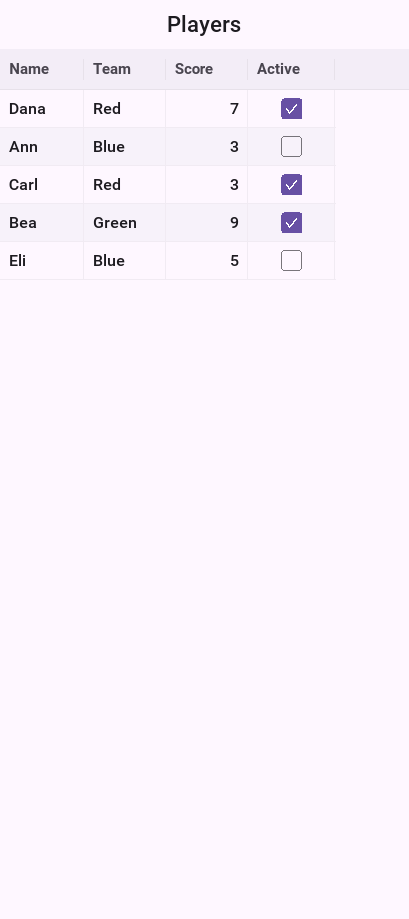
Nothing else was configured. Each column took its width from its title and
first rows, numbers align to the right and a Boolean shows a checkbox. Every
other row is shaded.
What a user can already do:
A tap on a title sorts by that column, a second tap reverses the order and a third restores the model’s order. Shift with a tap adds the column as a further sort key.
A drag on a title moves the column; a drag on the line between two titles resizes it.
A tap selects a row, and a double tap edits a cell.
A checkbox toggles with a tap.
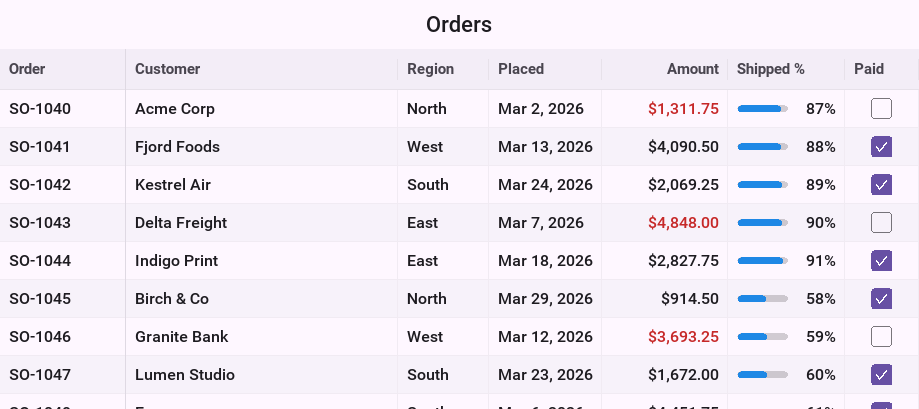
The examples that follow use a model of sales orders with seven columns: order number, customer, region, the date it was placed, the amount, how much has shipped and whether it’s paid.
Columns
A GridColumn decides how its values look and how they’re edited. Its kind,
TEXT, NUMBER, BOOLEAN, DATE or CHOICE, is read from each value when
you leave it at AUTO, which is the default.
DataGrid grid = new DataGrid(orders());
grid.getColumn(ORDER).setWidthMM(20);
grid.getColumn(CUSTOMER).setFlex(1).setMinWidthMM(24);
grid.getColumn(REGION).setChoices("North", "East", "South", "West");
grid.getColumn(AMOUNT)
        .setKind(GridColumn.Kind.NUMBER)
        .setWidthMM(20);
grid.getColumn(SHIPPED).setTitle("Shipped %");
// The order number stays in place while the rest scroll sideways.
grid.setFrozenColumns(1);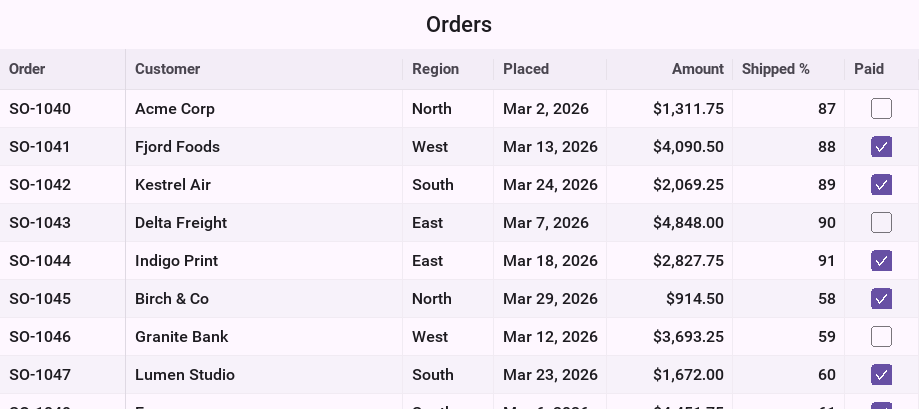
The width of a column comes from one of three places:
setWidthMMasks for a width in millimetres, which stays the same physical size on every screen.With no width, the column is measured from its title and its first rows, up to
setMaxWidthMM.setFlexshares out the width that’s left over when the columns are narrower than the grid. Two columns with flex 1 and 2 take a third and two thirds of it.
setFrozenColumns(1) keeps the first column in place while the others scroll
sideways, so the order number stays beside its row on a narrow screen. A column
hidden with setVisible(false) keeps its place for when it comes back, and
moveColumn reorders them from code.
setChoices makes a column a CHOICE: it’s edited with a picker of those
values. A DATE column is edited with a date picker.
Formatting values
A GridFormatter turns a value into the text a cell shows and, for an edit,
the text a user typed back into a value. The model keeps the value; only its
picture changes.
/// Amounts with a currency sign and two decimals, read back without them.
static final class Money implements GridFormatter {
    @Override
    public String format(Object value) {
        if (!(value instanceof Number)) {
            return "";
        }
        double d = ((Number) value).doubleValue();
        long cents = Math.round(Math.abs(d) * 100);
        String fraction = Long.toString(100 + cents % 100).substring(1);
        String whole = L10NManager.getInstance().format((int) (cents / 100));
        return (d < 0 ? "-$" : "$") + whole + "." + fraction;
    }

    @Override
    public Object parse(String text, Object previous) {
        StringBuilder digits = new StringBuilder();
        for (int i = 0; i < text.length(); i++) {
            char c = text.charAt(i);
            if (c >= '0' && c <= '9' || c == '.' || c == '-') {
                digits.append(c);
            }
        }
        try {
            return Double.valueOf(digits.toString());
        } catch (NumberFormatException notANumber) {
            return previous;
        }
    }
}

/// Dates as day, month and year, in a zone of the app's choosing.
static final class Day implements GridFormatter {
    private final SimpleDateFormat format = new SimpleDateFormat("MMM d, yyyy");

    Day() {
        format.setTimeZone(TimeZone.getTimeZone("UTC"));
    }

    @Override
    public String format(Object value) {
        return value instanceof Date ? format.format((Date) value) : "";
    }

    @Override
    public Object parse(String text, Object previous) {
        return previous;
    }
}grid.getColumn(AMOUNT).setFormatter(new Money());
grid.getColumn(PLACED).setFormatter(new Day()).setEditable(false);parse gets the cell’s previous value so it can keep it when the text makes no
sense, as Money does. Sorting still compares the values, not the text: the
amounts sort as numbers whatever sign they’re shown with.
Painting cells
A column’s GridCellRenderer paints its cells. It’s handed the Graphics, the
cell’s bounds and a GridCell with the value, the row and the style of the row,
and it draws; it creates no component. That’s what lets the grid show a million
rows: only what’s on the screen is painted.
This renderer draws a shipped percentage as a bar:
/// Paints a shipped percentage as a bar with the number beside it.
static final class ProgressRenderer implements GridCellRenderer {
    @Override
    public void paint(Graphics g, GridCell cell, int x, int y, int width, int height) {
        Object v = cell.getValue();
        if (cell.isGroupRow() || !(v instanceof Number)) {
            return;
        }
        int percent = Math.max(0, Math.min(100, ((Number) v).intValue()));
        Style s = cell.getStyle();
        int left = x + s.getPaddingLeftNoRTL();
        int inner = width - s.getPaddingLeftNoRTL() - s.getPaddingRightNoRTL();
        String text = percent + "%";
        int textW = s.getFont().stringWidth("100%");
        int barW = Math.max(0, inner - textW - height / 4);
        int barH = Math.max(2, height / 5);
        int barY = y + (height - barH) / 2;
        int alpha = g.getAlpha();
        g.setColor(s.getFgColor());
        g.setAlpha(alpha / 5);
        g.fillRoundRect(left, barY, barW, barH, barH, barH);
        g.setAlpha(alpha);
        g.setColor(percent == 100 ? 0x2e7d32 : 0x1e88e5);
        g.fillRoundRect(left, barY, barW * percent / 100, barH, barH, barH);
        g.setColor(s.getFgColor());
        g.setFont(s.getFont());
        g.drawString(text, x + width - s.getPaddingRightNoRTL() - s.getFont().stringWidth(text),
                y + (height - s.getFont().getHeight()) / 2);
    }

    @Override
    public int getPreferredWidth(GridCell cell) {
        return cell.getStyle().getFont().stringWidth("100%") * 3;
    }
}
To change one thing about the default painting, such as a color, a font or
the text, extend DefaultGridCellRenderer and override textColor, font or
text:
grid.getColumn(SHIPPED).setRenderer(new ProgressRenderer());
// A renderer that changes one thing: unpaid amounts in red.
grid.getColumn(AMOUNT).setRenderer(new DefaultGridCellRenderer() {
    @Override
    protected int textColor(GridCell cell, int defaultColor) {
        if (cell.isGroupRow() || cell.isRowSelected()) {
            return defaultColor;
        }
        int modelRow = cell.getGrid().getModelRow(cell.getRow());
        Object paid = cell.getGrid().getTableModel().getValueAt(modelRow, PAID);
        return Boolean.FALSE.equals(paid) ? 0xc62828 : defaultColor;
    }
});The row’s background is already painted when paint is called, in the row’s
normal, alternate or selected style. Take colors from cell.getStyle(), as both
renderers do for everything but their accents, and the cells follow the theme,
the dark appearance and the selection. getPreferredWidth is what a column with
no width is measured with.
An Image value is drawn as an image by the default renderer, scaled
to the row.
Sorting
sortBy sorts by one column and addSort adds the next key, which breaks the
ties of the ones before it. The headers show the order with an arrow.
// Newest first, then by customer for orders placed the same day.
grid.sortBy(grid.getColumn(PLACED), false);
grid.addSort(grid.getColumn(CUSTOMER), true);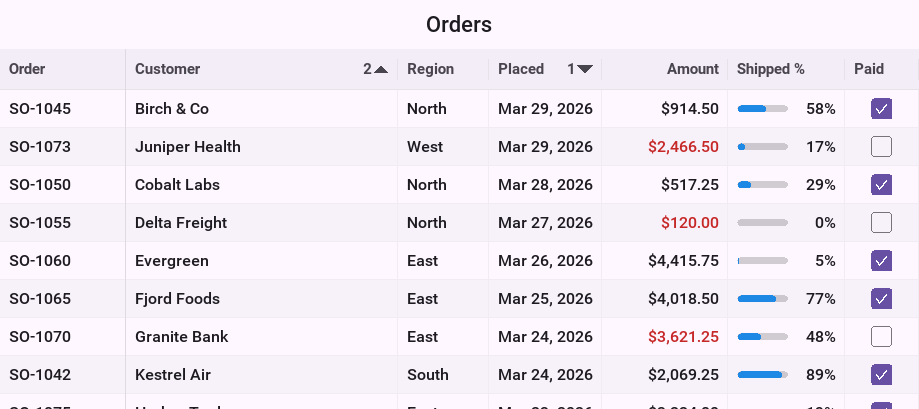
The sort is stable: rows that compare equal keep the order they had, so sorting by one column and then by another groups the second without scrambling the first. A null value sorts before any other. Each sort key is read from the model once per row, never once per comparison, which matters when a model computes its values.
By default numbers compare by value, dates by time, booleans false first and
everything else by its text, ignoring case. A Comparator sorts a column in an
order of its own:
// Regions in the order of the sales territories, not alphabetically.
final List<String> territory = new ArrayList<String>();
territory.add("North");
territory.add("East");
territory.add("South");
territory.add("West");
grid.getColumn(REGION).setComparator(new Comparator<Object>() {
    @Override
    public int compare(Object a, Object b) {
        return territory.indexOf(a) - territory.indexOf(b);
    }
});
grid.sortBy(grid.getColumn(REGION), true);
The comparator is never given a null. setSortable(false) stops a column from
sorting when its title is tapped.
Filtering
A GridFilter decides row by row which rows show. It’s handed a GridRow,
which reads any column of the model by its model index, whether the column is
shown or not. A search field is a filter that changes as the user types:
final DataGrid grid = renderers();
final TextField search = new TextField("", "Search customers", 20, TextField.ANY);
search.addDataChangedListener((type, index) -> {
    final String text = search.getText();
    if (text.length() == 0) {
        grid.setFilter(null);
        return;
    }
    grid.setFilter(new GridFilter() {
        @Override
        public boolean accept(GridRow row) {
            Object customer = row.getValue(CUSTOMER);
            return customer != null && customer.toString().toLowerCase()
                    .indexOf(text.toLowerCase()) >= 0;
        }
    });
});
Form form = new Form("Orders", new BorderLayout());
form.add(BorderLayout.NORTH, search);
form.add(BorderLayout.CENTER, grid);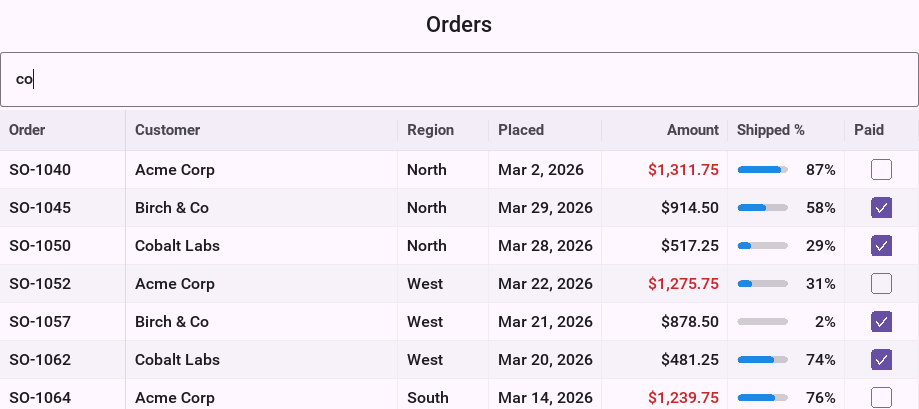
setFilter(null) shows every row again. Filtering keeps the sort, the grouping
and the selection of the rows that are still shown.
Grouping and totals
setGroupColumn puts the rows that share a value under a row of their own. A
group row opens and closes with a tap, and shows each column’s
GridAggregate: SUM, AVERAGE, MIN, MAX or COUNT.
grid.getColumn(AMOUNT).setAggregate(GridAggregate.SUM);
grid.getColumn(SHIPPED).setAggregate(GridAggregate.AVERAGE);
grid.getColumn(ORDER).setAggregate(GridAggregate.COUNT);
grid.getColumn(PAID).setAggregate(new CountFalse());
grid.setGroupColumn(grid.getColumn(REGION));
// The arrows and the indent go in the customer column, which has
// room for them.
grid.setTreeColumn(grid.getColumn(CUSTOMER));
grid.sortBy(grid.getColumn(AMOUNT), false);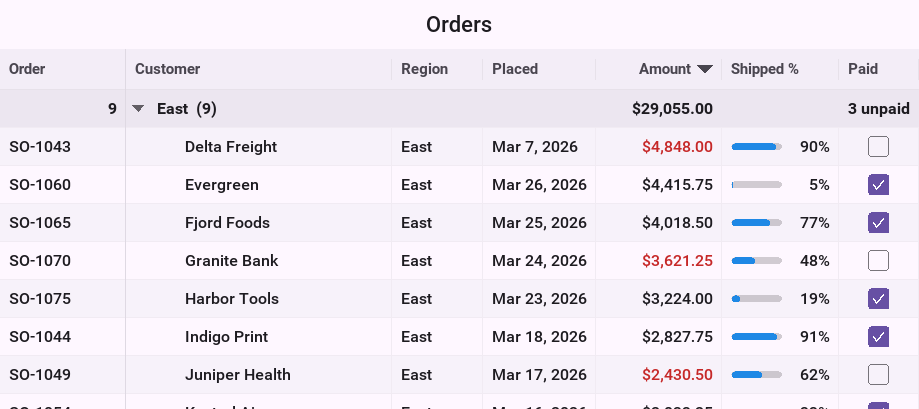
The groups are ordered by their value, in the column’s sort direction when it’s sorted by, and the rows of each group keep the grid’s sort. An aggregate of your own folds the values one at a time and turns the result into what’s shown:
/// Counts the values that are false: in a Paid column, the unpaid orders.
static final class CountFalse extends GridAggregate {
    @Override
    public Object fold(GridColumn column, Object soFar, Object value) {
        int n = soFar instanceof Integer ? ((Integer) soFar).intValue() : 0;
        return Integer.valueOf(Boolean.FALSE.equals(value) ? n + 1 : n);
    }

    @Override
    public Object finish(Object soFar) {
        int n = soFar instanceof Integer ? ((Integer) soFar).intValue() : 0;
        return n == 0 ? "all paid" : n + " unpaid";
    }
}
setGroupColumn(null) stops grouping. A tree grid is never grouped.
Selection and actions
grid.setSelectionMode(DataGrid.SelectionMode.MULTIPLE_ROWS);
grid.addSelectionListener((oldRow, newRow) -> {
    int[] rows = grid.getSelectedRows();
    System.out.println(rows.length + " selected");
});
// A double tap, or Enter, on a row that isn't edited.
grid.addActionListener(e -> {
    int modelRow = grid.getModelRow(grid.getSelectedRow());
    System.out.println("open " + grid.getTableModel().getValueAt(modelRow, ORDER));
});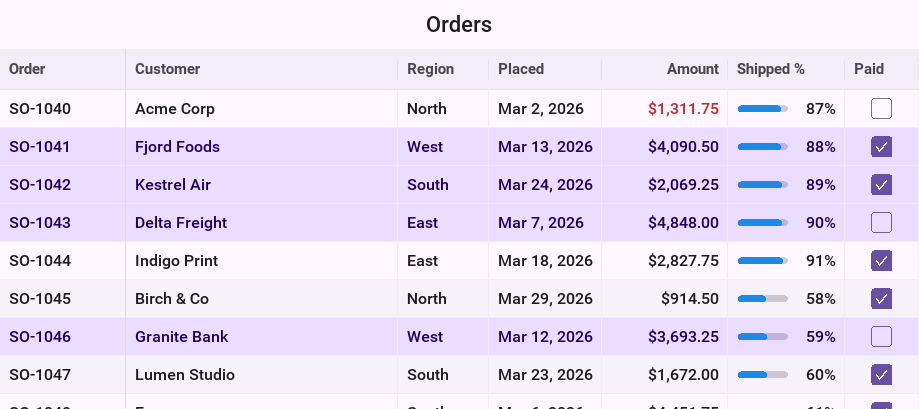
SelectionMode is NONE, SINGLE_ROW or MULTIPLE_ROWS. A selection is kept
as ranges, so selecting every row of a million costs one range.
Rows the grid reports are view rows, counted in what’s on the screen after
sorting, filtering, grouping and opening nodes. getModelRow turns one into a
row of your model, getViewRow goes the other way, and in a tree getNode
answers the node. A group row has no model row: isGroupRow tells them apart.
The selection follows its records. After a sort, a filter or a change to the model, the same orders are selected wherever they now are.
With a keyboard, the arrows move between cells, Page Up and Page Down move a screen at a time, Home and End go to the first and last row, Left and Right close and open a node, and Enter edits the cell or, on a cell that isn’t editable, fires the action. With a mouse or a finger, a press selects, Shift extends, Control or Command adds and removes, and a drag selects a range.
Editing
A cell is edited when its column and its model both allow it:
GridColumn.setEditable and TableModel.isCellEditable. A boolean cell toggles with
a tap. Any other value is edited in place: a double tap or Enter lays an editor
over the cell, and the cell is painted again when the edit ends.
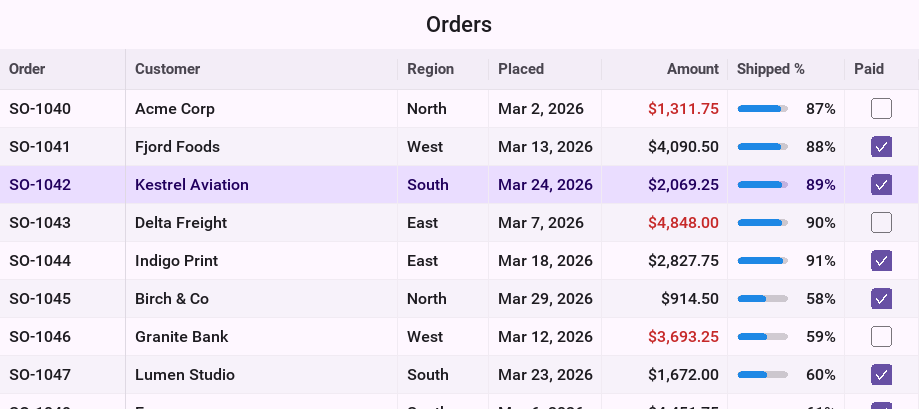
The editor is a component of the form’s layered pane, not a child of the grid,
and it lives only while the cell is edited. Tapping elsewhere, moving to another
cell, scrolling or pressing Enter stores the value; cancelEdit() drops it.
editCellAt(row, column) starts an edit from code.
The default editor is a text field for text and numbers, a date picker for a
DATE column and a picker of the choices for a CHOICE column. A number is
read back as the type the cell held, an Integer as an Integer, and text that
isn’t a number leaves the cell as it was. A column with a formatter reads the
text back through its parse.
A GridCellEditor edits a column with a component of your own:
/// Edits a percentage with a slider rather than a text field.
static final class PercentEditor implements GridCellEditor {
    @Override
    public Component createEditor(DataGrid grid, GridCell cell) {
        Slider s = new Slider();
        s.setEditable(true);
        s.setMinValue(0);
        s.setMaxValue(100);
        Object v = cell.getValue();
        s.setProgress(v instanceof Number ? ((Number) v).intValue() : 0);
        // The edit ends when the finger lifts.
        s.addActionListener(e -> grid.commitEdit());
        return s;
    }

    @Override
    public Object getEditorValue(Component editor, GridCell cell) {
        return Integer.valueOf(((Slider) editor).getProgress());
    }
}grid.getColumn(ORDER).setEditable(false);
grid.getColumn(SHIPPED).setEditor(new PercentEditor());An editor calls commitEdit() when the user is done with it. The grid then
reads getEditorValue, writes it to the model when it changed and throws the
component away.
Changes to the model
The grid listens to its TableModel. A changed value repaints its cell, unless
the column is sorted, grouped or filtered by, in which case the rows are sorted,
filtered and grouped again. An added row is placed where the sort puts it, and
the selection stays on its records.
A TableModel has no event that says which row was removed, so a removal clears
the selection rather than leave it on whichever record moved into its place. An
edit in progress ends without writing whenever the rows are rebuilt.
refresh() reads the whole model again. Call it after a change your model
didn’t report.
A million rows
The grid reads a value when it paints it, and paints only the rows on the screen. A model can therefore compute its rows instead of storing them, or page them in from a database, and the grid never asks for more than it shows.
/// A million rows computed when they're painted: nothing is stored.
static final class Ledger extends AbstractTableModel {
    @Override
    public int getRowCount() {
        return 1000000;
    }

    @Override
    public int getColumnCount() {
        return 3;
    }

    @Override
    public String getColumnName(int i) {
        return i == 0 ? "Entry" : i == 1 ? "Account" : "Balance";
    }

    @Override
    public boolean isCellEditable(int row, int column) {
        return false;
    }

    @Override
    public Object getValueAt(int row, int column) {
        if (column == 0) {
            return Integer.valueOf(row + 1);
        }
        if (column == 1) {
            return "ACC-" + (1000 + row % 997);
        }
        return Double.valueOf((row * 7919L % 200000) / 100.0 - 1000);
    }

    @Override
    public void setValueAt(int row, int column, Object o) {
    }

    // The rows never change, so there is no one to tell.
    @Override
    public void addDataChangeListener(DataChangedListener d) {
    }

    @Override
    public void removeDataChangeListener(DataChangedListener d) {
    }
}
DataGrid grid = new DataGrid(new Ledger());
grid.getColumn(1).setFlex(1);
grid.getColumn(2).setFormatter(new Money());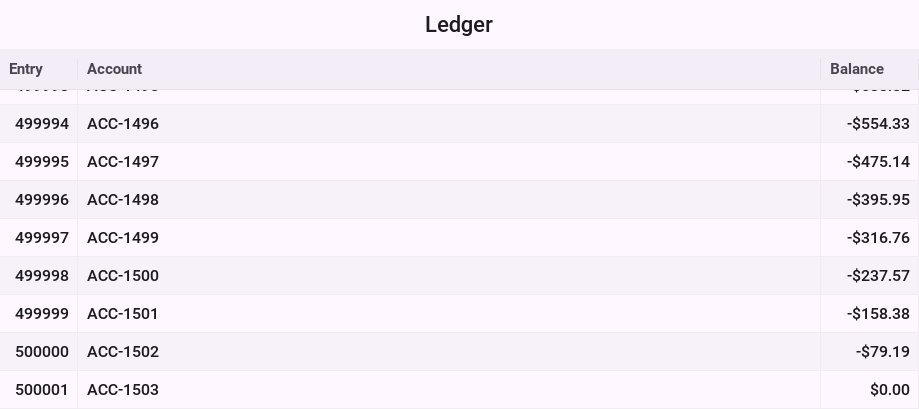
Sorting such a model reads each sort column once per row, a million reads for a million rows, and sorts an array of row numbers. Filtering reads what the filter asks for. A column with no width is measured from its first rows only.
Trees
Built on a TreeTableModel, the grid is a tree table. The model answers a
node’s children and its value in each column; getChildren(null) answers the
roots.
/// A folder or a file: what the tree model below shows.
public static final class Item {
    final String name;
    final long size;
    final String kind;
    final List<Item> children;

    Item(String name, long size, String kind) {
        this.name = name;
        this.size = size;
        this.kind = kind;
        this.children = null;
    }

    Item(String name, Item... children) {
        this.name = name;
        this.kind = "Folder";
        this.children = new ArrayList<Item>();
        long total = 0;
        for (Item c : children) {
            this.children.add(c);
            total += c.size;
        }
        this.size = total;
    }
}

/// The tree model: the grid asks it for a node's children only when the
/// node first opens.
public static final class Files implements TreeTableModel {
    private final List<Item> roots;

    public Files(List<Item> roots) {
        this.roots = roots;
    }

    @Override
    public Vector getChildren(Object parent) {
        List<Item> list = parent == null ? roots : ((Item) parent).children;
        Vector v = new Vector();
        if (list != null) {
            for (Item i : list) {
                v.addElement(i);
            }
        }
        return v;
    }

    @Override
    public boolean isLeaf(Object node) {
        return ((Item) node).children == null;
    }

    @Override
    public int getColumnCount() {
        return 3;
    }

    @Override
    public String getColumnName(int column) {
        return column == 0 ? "Name" : column == 1 ? "Kind" : "Size (KB)";
    }

    @Override
    public Object getValueAt(Object node, int column) {
        Item i = (Item) node;
        return column == 0 ? i.name : column == 1 ? i.kind : Long.valueOf(i.size);
    }

    @Override
    public boolean isCellEditable(Object node, int column) {
        return false;
    }

    @Override
    public void setValueAt(Object node, int column, Object value) {
    }
}
DataGrid grid = new DataGrid(new Files(project()));
grid.getColumn(0).setFlex(1);
grid.getColumn(2).setWidthMM(18);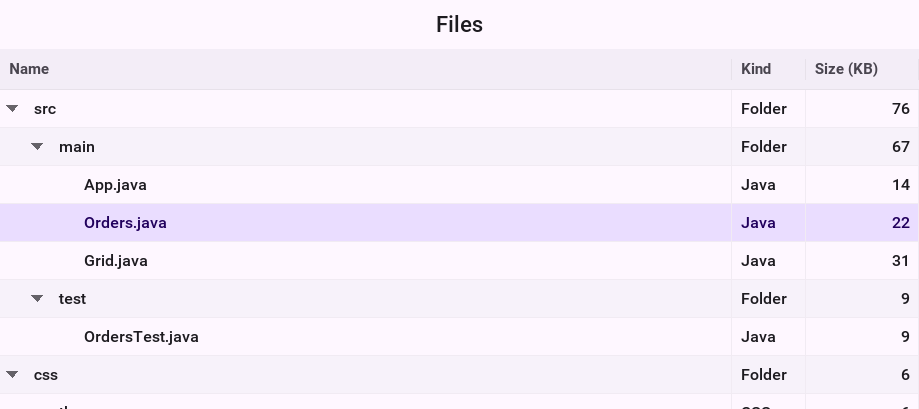
The first visible column, or the one passed to setTreeColumn, indents each
node under its parent and draws the arrow that opens it. A tap on the arrow,
or Left and Right on the keyboard, closes and opens a node. setExpanded,
setNodeExpanded and expandAll do it from code.
The grid asks for a node’s children the first time it opens and keeps them, so
a large or remote tree loads as it’s browsed. isLeaf is asked of every node
shown, to decide whether it has an arrow, and has to answer without loading
the children. Opening a node costs what it shows and not what the tree holds.
Sorting orders the children of each node, and a filter shows every path that
leads to a match. A tree model has no listeners: call refresh() after the tree
changes, or refreshNode(node) after one node’s children change; both keep
which nodes are open.
Nodes are told apart by equals, so two equal nodes are one node to the grid.
A tree that repeats a value, such as two files named README.md in different
folders, should hand out node objects of its own, as Item is here, rather
than the bare names.
Appearance
grid.setStriped(false);
grid.setGridLines(true, true);
grid.setRowHeightMM(9);
grid.setEmptyText("No orders match");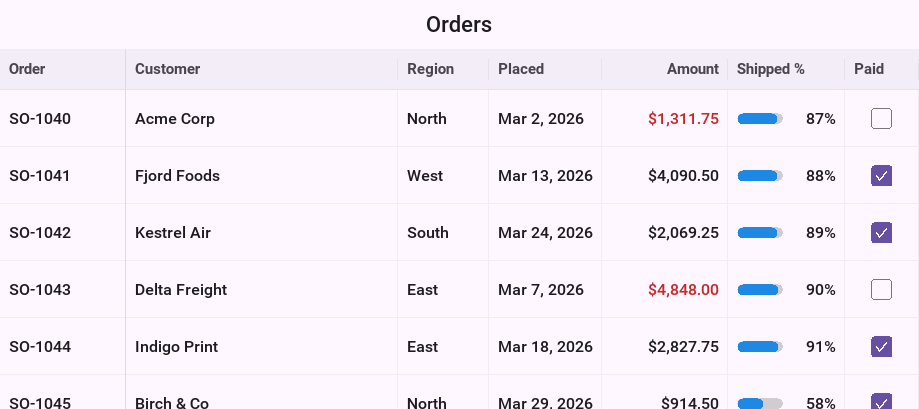
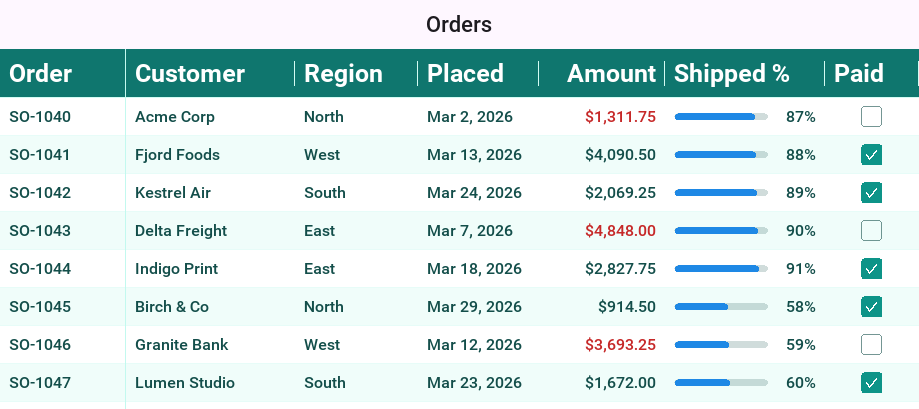
setStriped shades every other row, setGridLines draws the lines between
rows and between columns, and setRowHeightMM sets the height of a row, which
is measured from the font when you leave it alone. setHeaderVisible(false)
hides the titles, and setEmptyText is what an empty grid says.
Styles
Only colors, fonts and paddings are read; nothing has a border.
| UIID | What it styles |
|---|---|
| The background behind the rows |
| The row of column titles |
| A row, and its |
| Every other row, when the grid is striped |
| The row heading a group |
| The grid lines, in its foreground color |
| A checkbox: its background when checked, its foreground for the tick |
| The text field an edit lays over a cell |
These rules give the grid a teal header and selection:
DataGridHeader {
    background-color: #0f766e;
    color: #ffffff;
    font-family: "native:MainBold";
}

DataGridRow {
    background-color: #ffffff;
    color: #134e4a;
}

DataGridRowAlt {
    background-color: #f0fdfa;
    color: #134e4a;
}

DataGridRow.selected {
    background-color: #99f6e4;
    color: #042f2e;
}

DataGridLine {
    color: #99f6e4;
}

DataGridCheck {
    background-color: #0d9488;
    color: #ffffff;
}
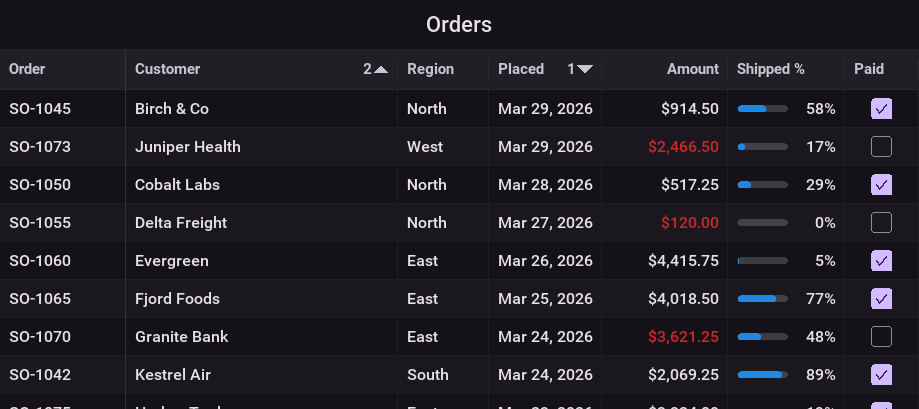
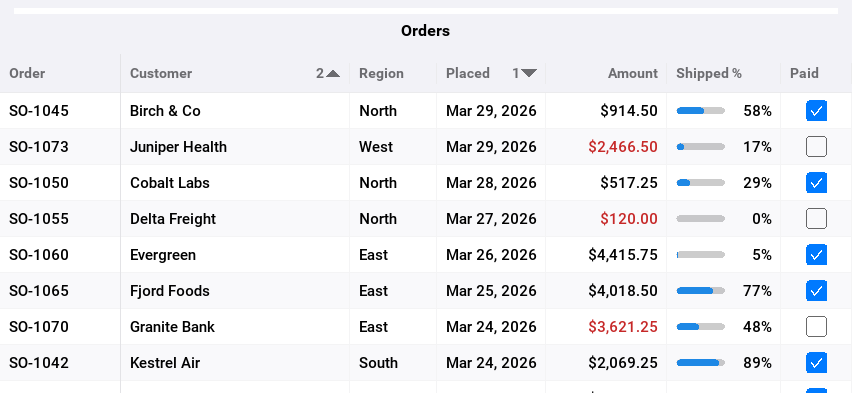
The native themes style all these for light and dark mode, and for each platform:
The row engine
The sort and the tree flattening are public, for a view of your own that needs
rows. GridSorter orders positions by keys read once each, with the grid’s
stable order and its handling of nulls. TreeRows flattens a TreeTableModel
into rows of a node and a depth, and opening or closing a row returns how many
rows it inserted or removed after it.
An imported Swing application uses the same engine. Its JTable, JXTable and
JXTreeTable keep Swing’s painting, renderers and editors, but a JTable or
JXTable sorted through a TableRowSorter orders its rows with GridSorter,
and a JXTreeTable takes its rows from TreeRows, so expanding a node inserts
only the rows under it.